BetterLinks Scheduled Scan & Reports helps you automate full site link scanning and receive detailed reports directly in your email inbox. Instead of manually checking links across your website, you can schedule automatic scans to detect broken URLs, redirect issues and overall link health problems before they impact user experience or SEO performance.
With flexible scheduling options, BetterLinks continuously monitors your website links in the background and generates detailed scan reports automatically.
Note: Before you start, ensure you install & activate BetterLinks and BetterLinks PRO on your WordPress website.
Guide to Use Scheduled Scan & Reports with BetterLinks #
This guide provides step-by-step instructions for using Scheduled Scan & Reports in BetterLinks. It helps you automate full site link scanning and receive detailed email reports to monitor broken links, redirects and overall link health with minimal manual effort.
Step 1: Configure Scheduled Scan #
To get started, log in to your WordPress dashboard’ and navigate to BetterLinks → Link Scanner from the left-hand menu. Locate and click on the ‘Scheduled Scan & Reports’ option.
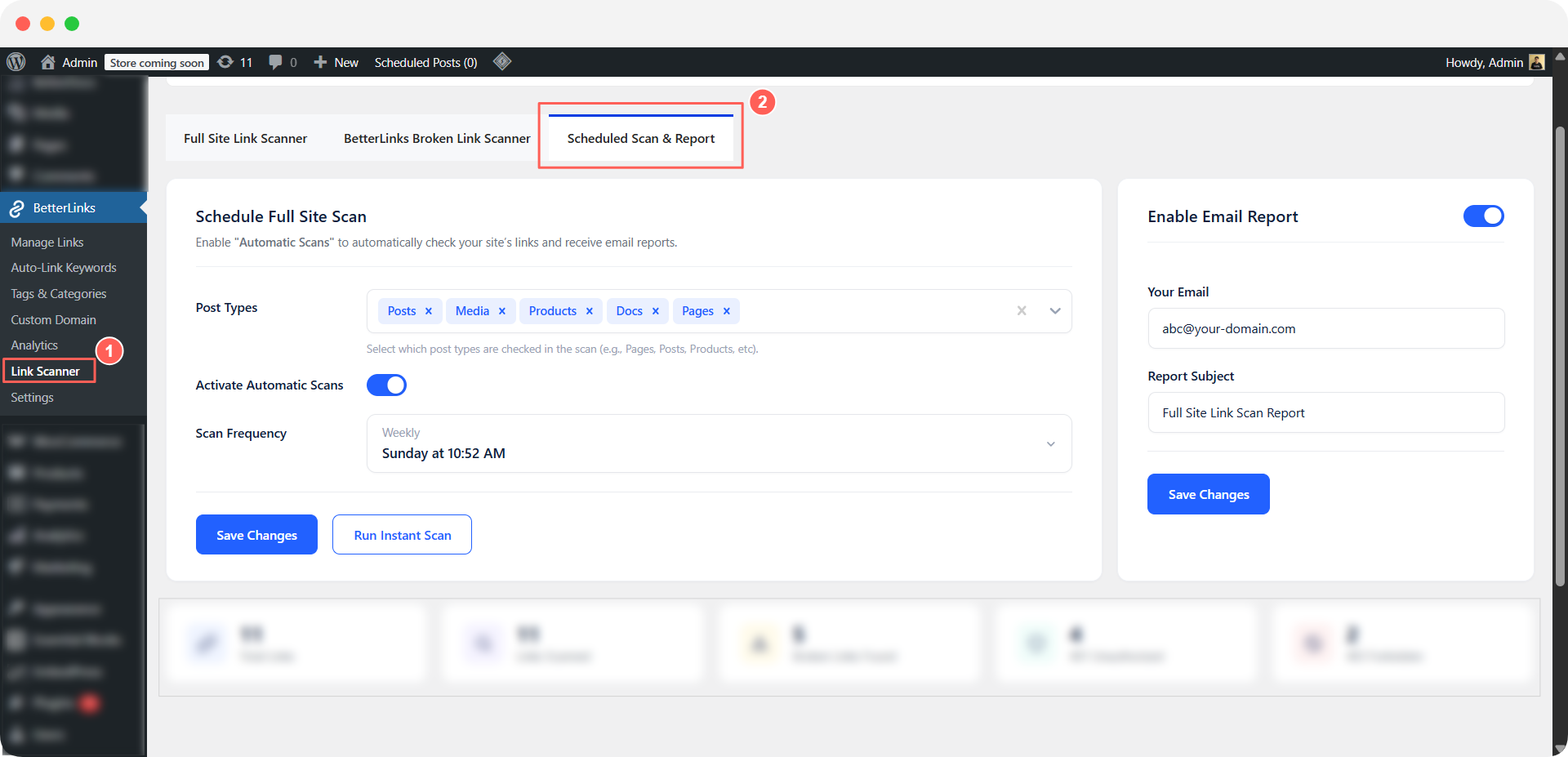
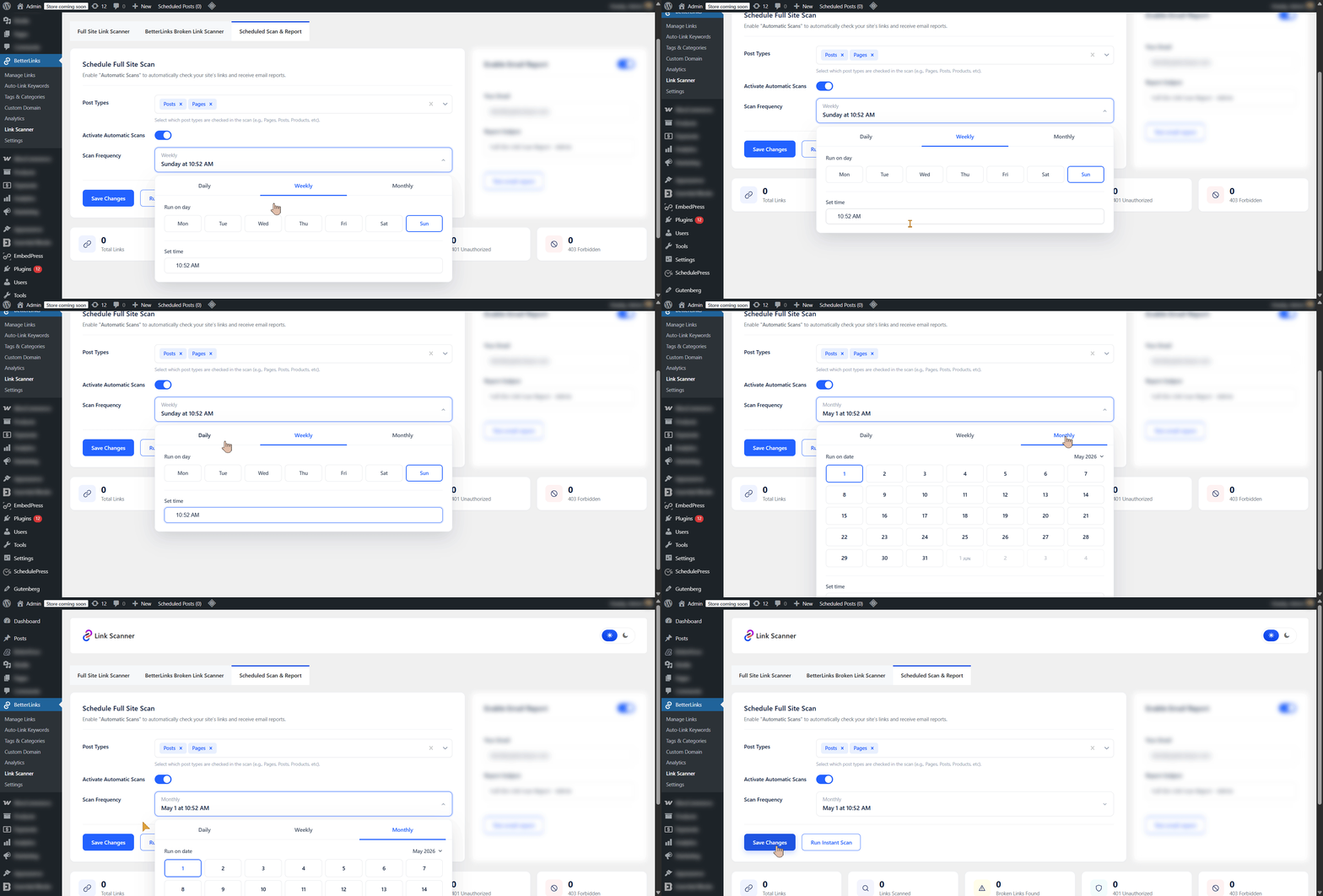
Enable ‘Activate Automatic Scans’, then select the desired ‘Post Types’ and ‘Scan Frequency’ from the dropdown menus. Click ‘Save Changes’ to apply the settings.
Post Types: Choose the content types you want to scan, such as Posts, Pages, WooCommerce Products and custom post types.
Scan Frequency: Set how often scans run by selecting Daily, Weekly or Monthly scheduling options.
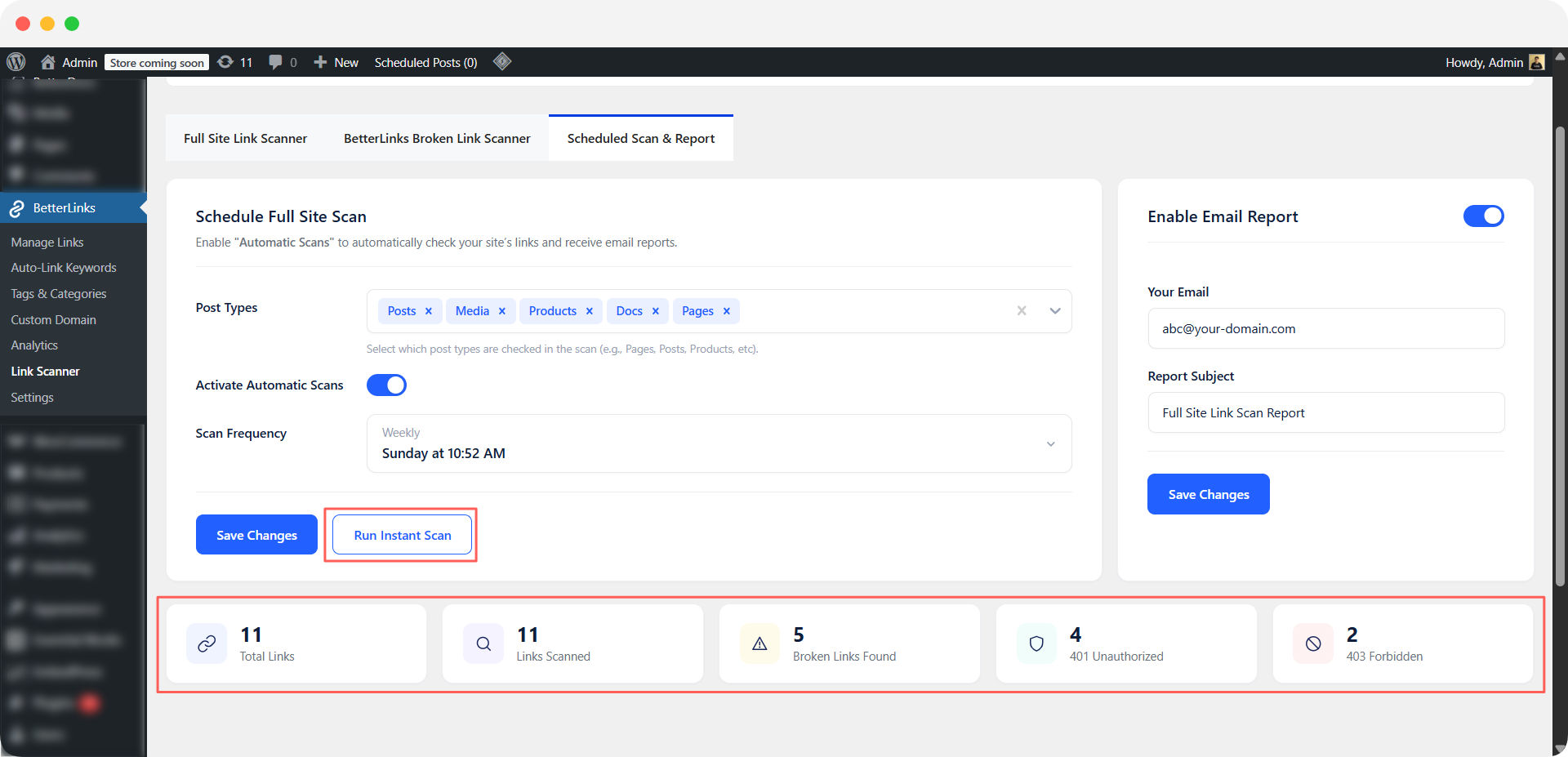
To run an immediate check, select ‘Run Instant Scan’ to review your site’s link health in real time. This provides an instant overview of Total Links, Links Scanned, Broken Links Found and status codes such as 401 Unauthorized and 403 Forbidden.
You can also click ‘Test Email Report’ to instantly receive a scheduled scan report in your inbox.
Step 2: Configure Email Reports #
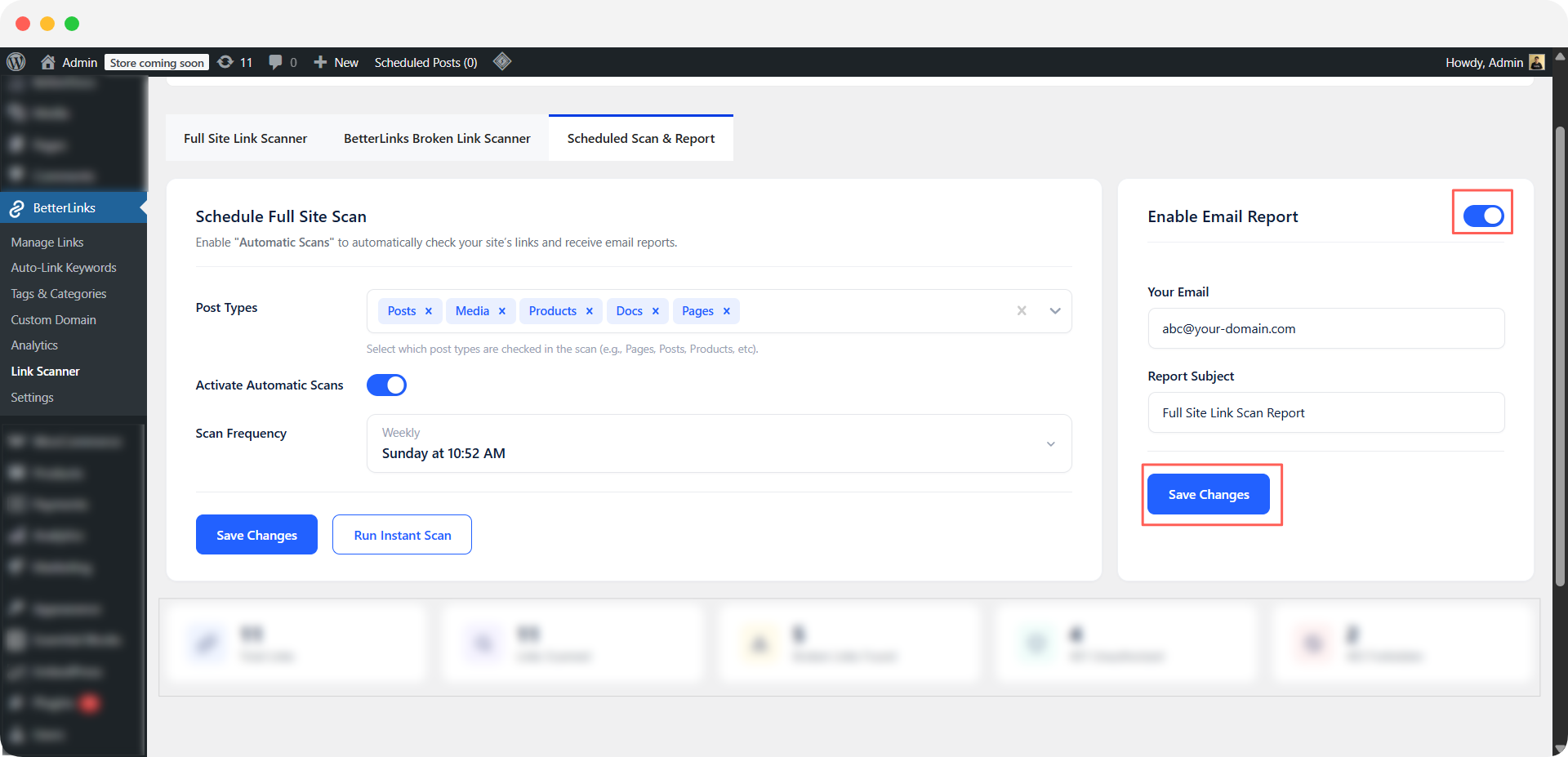
Now move to the final step and enable the ‘Email Report’. A default email address from your site will be added automatically, along with a default subject line using the site owner’s name. You can update both fields based on your preferences.
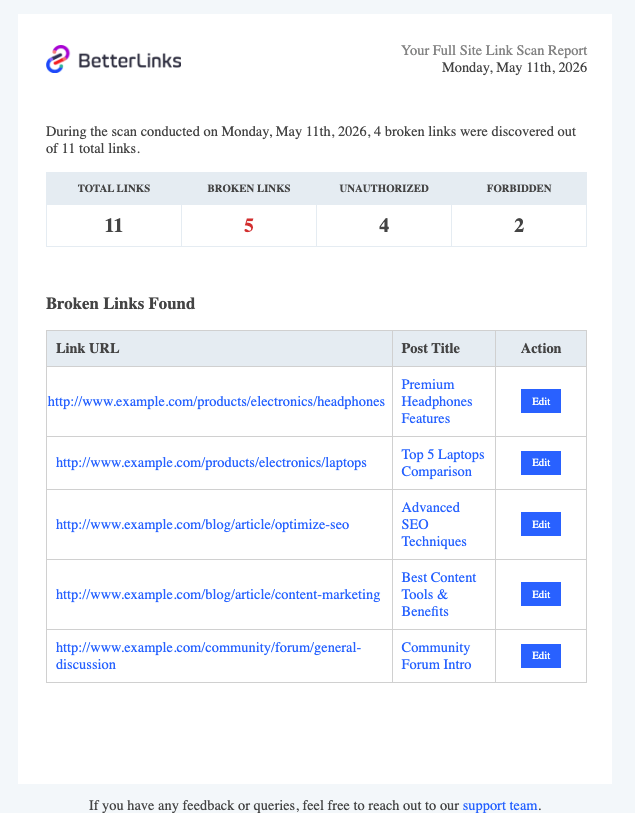
The report will be sent automatically to your preferred email address after each scheduled scan. You can also click ‘Test Email Report’ to instantly receive a scheduled scan report in your inbox based on the last ‘Run Instant Scan’ results.
Final Outcome #
This way, you can configure Scheduled Scan & Reports to automatically scan your site links at your preferred frequency and receive detailed reports directly in your email inbox.
Need help with something? You are welcome to contact our support team at any time. And don’t forget to join our Facebook community group for regular updates.