BetterLinks helps you identify and add the right internal links while you write, using the AI Link Assistant. Instead of searching through your existing short links manually, this feature analyzes your content directly inside the WordPress editor and suggests the most relevant links for you to insert with a single click.
It can also detect plain, untracked URLs in your content and offer to convert them into short, trackable links automatically, as you write on your website.
Note: Before you start, ensure to install & activate BetterLinks and BetterLinks PRO on your WordPress website. You will also need to configure an AI provider (such as Google Gemini or OpenAI) to use this feature.
Guide to Use AI Link Assistant with BetterLinks #
This guide provides step-by-step instructions for enabling the AI Link Assistant, configuring your AI provider, and using smart link suggestions directly inside the WordPress content editor.
The feature helps you build internal links faster, keep them consistent, and turn raw URLs into trackable short links without leaving the editor.
Step 1: Enable the AI Link Assistant #
From your WordPress dashboard, navigate to BetterLinks → Settings, then open the ‘Advanced Options’ tab. Click on ‘AI Configuration’ from the left-side menu to begin setting up your AI provider.
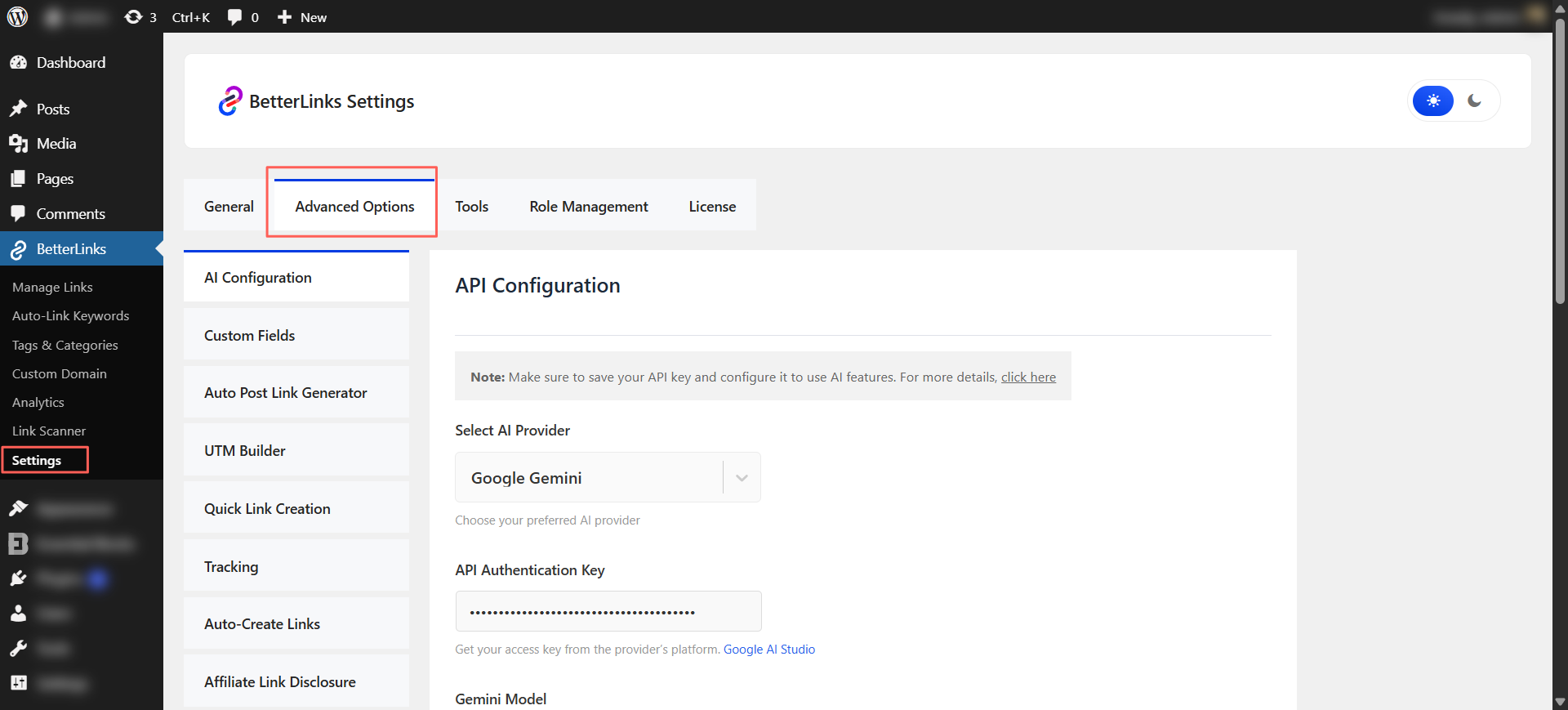
Under ‘API Configuration’, choose your preferred AI provider from the ‘Select AI Provider’ dropdown (for example, Google Gemini). Then paste your access key into the ‘API Authentication Key’ field. You can get this key from your provider’s platform using the link shown below the field, such as OpenAI or Google AI Studio.
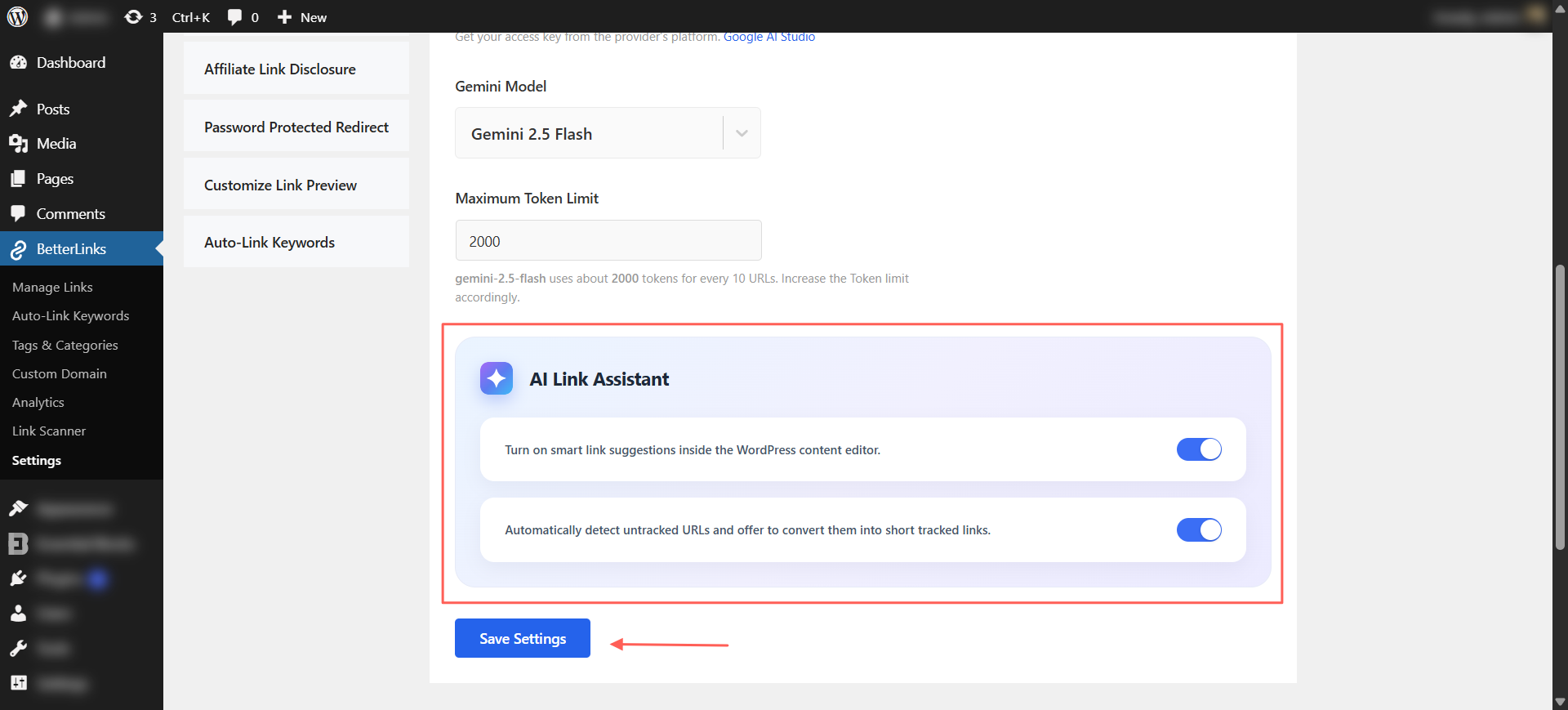
If applicable, select your model from the ‘Gemini Model’ (or equivalent) dropdown and set your ‘Maximum Token Limit’. Scroll down to the ‘AI Link Assistant’ section and turn on the following two toggles:
- Turn on smart link suggestions inside the WordPress content editor
- Automatically detect untracked URLs and offer to convert them into short tracked links.
Once both toggles are enabled, click ‘Save Settings’ to apply your configuration.
Step 2: Analyze Your Content in the Editor #
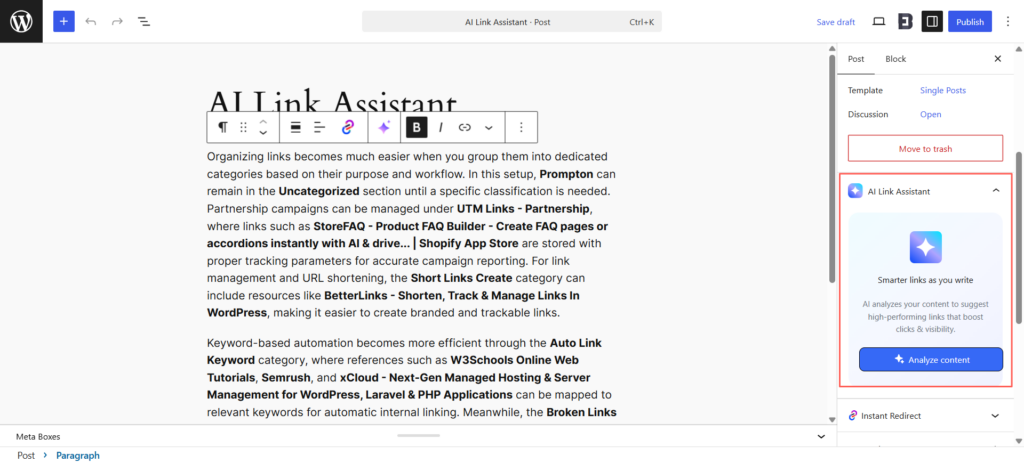
Open any post or page in the WordPress editor. In the right-hand sidebar (under the ‘Post’ tab), you will find the ‘AI Link Assistant’ panel. This panel reads your content and recommends high-performing links that can boost clicks and visibility. Click ‘Analyze content’ to begin.
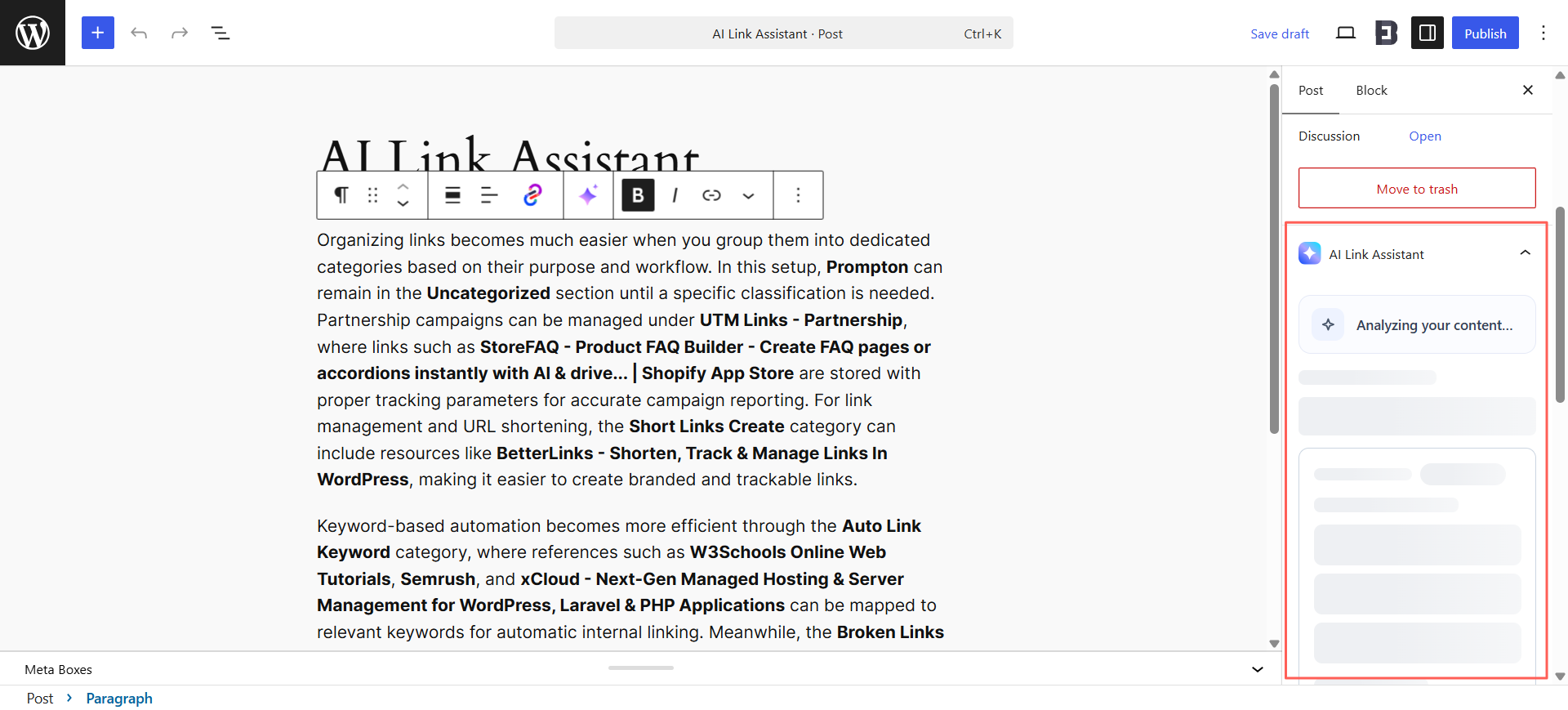
AI Link Assistant will display ‘Analyzing your content…’ while it scans your text and matches it against your existing BetterLinks short links. Allow a moment for the analysis to complete.
Step 3: Review and Insert Suggested Links #
Once the analysis is finished, the panel shows the total number of links found along with the ‘Top Link Matches’. Each suggestion includes the recommended anchor text, the matching short link, the destination URL, and the number of clicks that link has received. The most relevant suggestion is marked with a ‘Best Match’ badge.
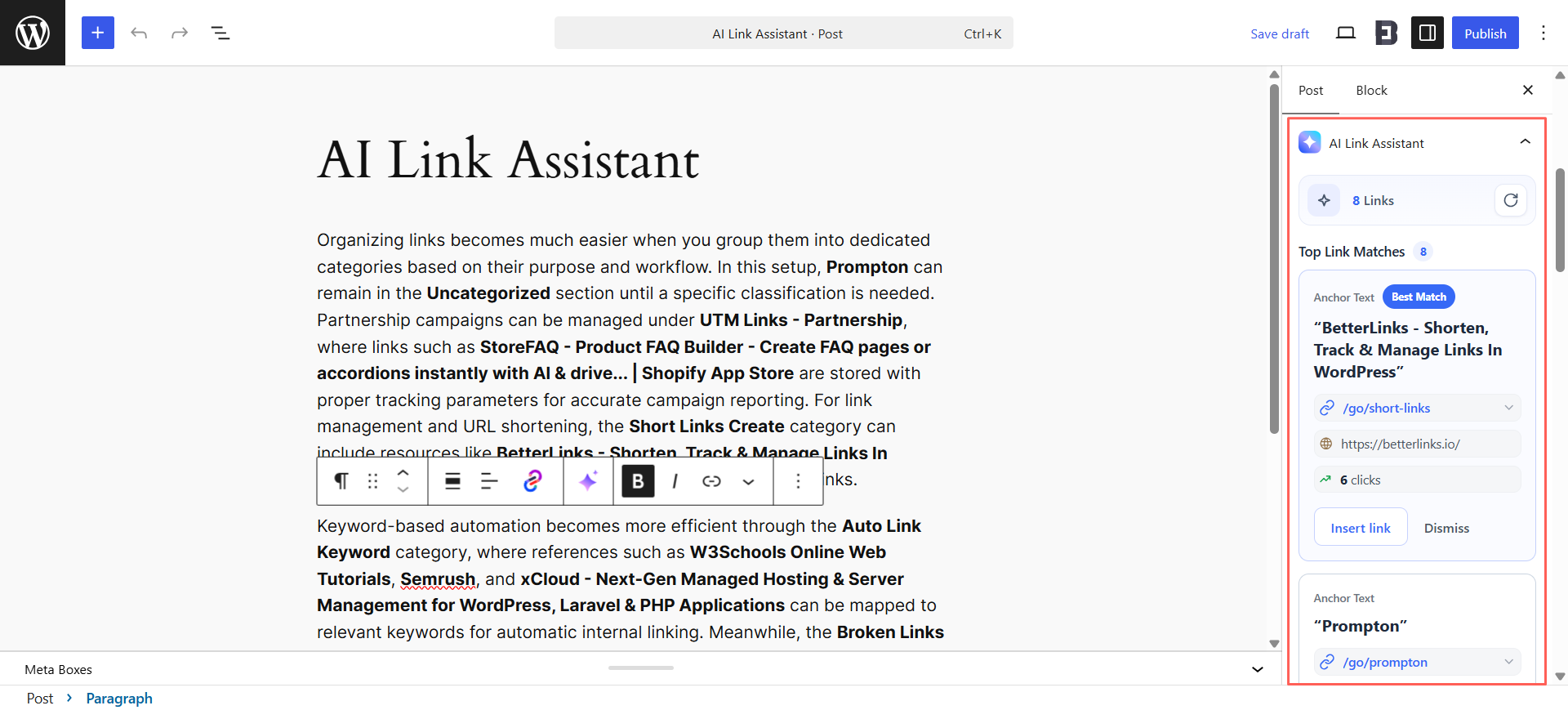
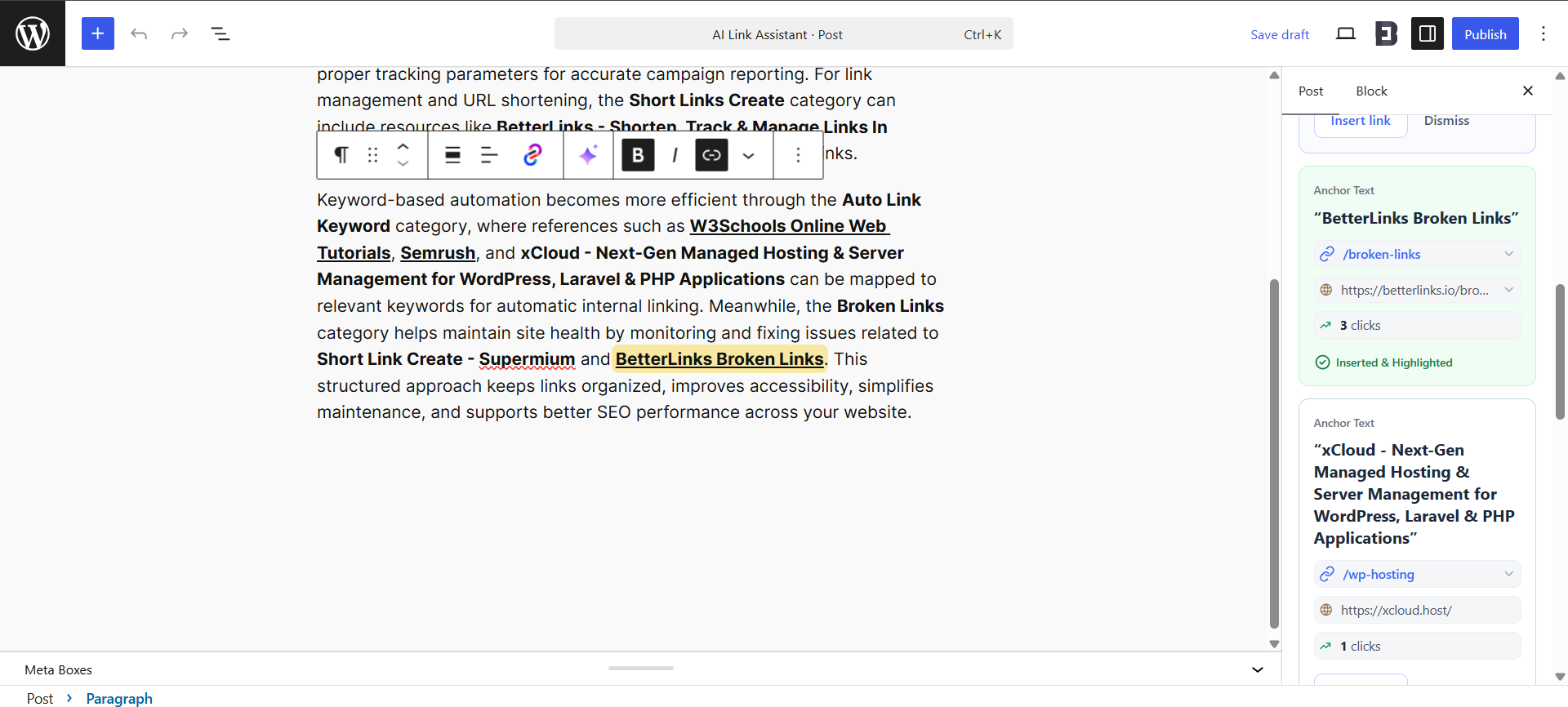
For each suggestion, you can click ‘Insert link’ to add it to your content or ‘Dismiss’ to skip it. When a link is inserted, the assistant highlights the anchor text in your content and confirms with an ‘Inserted & Highlighted’ status, so you can easily see exactly where each link was placed.
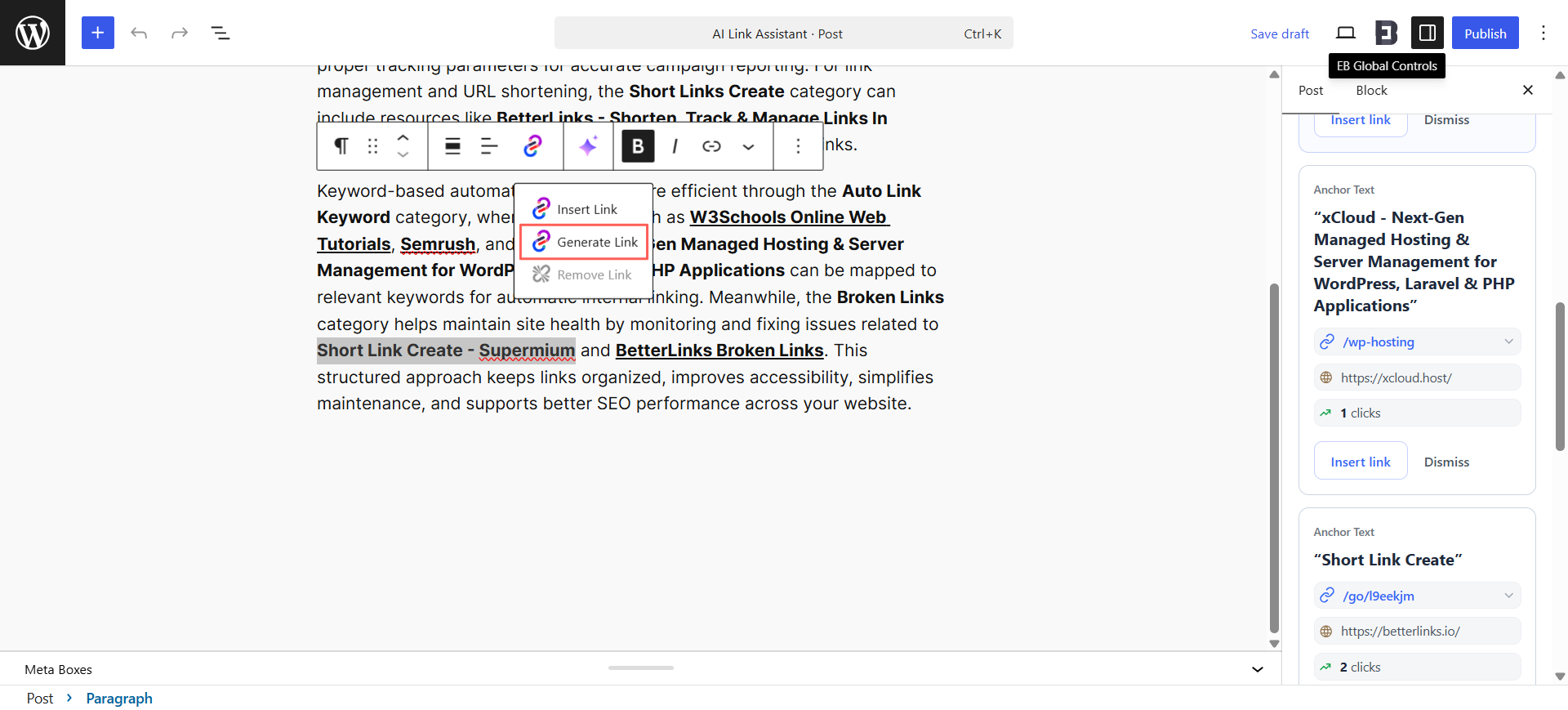
Step 4: Generate Links Directly From Selected Text #
You can also request link suggestions for a specific phrase. Highlight any text in your content, then open the link options in the block toolbar and choose ‘Generate Link.’ The AI Link Assistant will instantly look for the best-matching short links for the selected text.
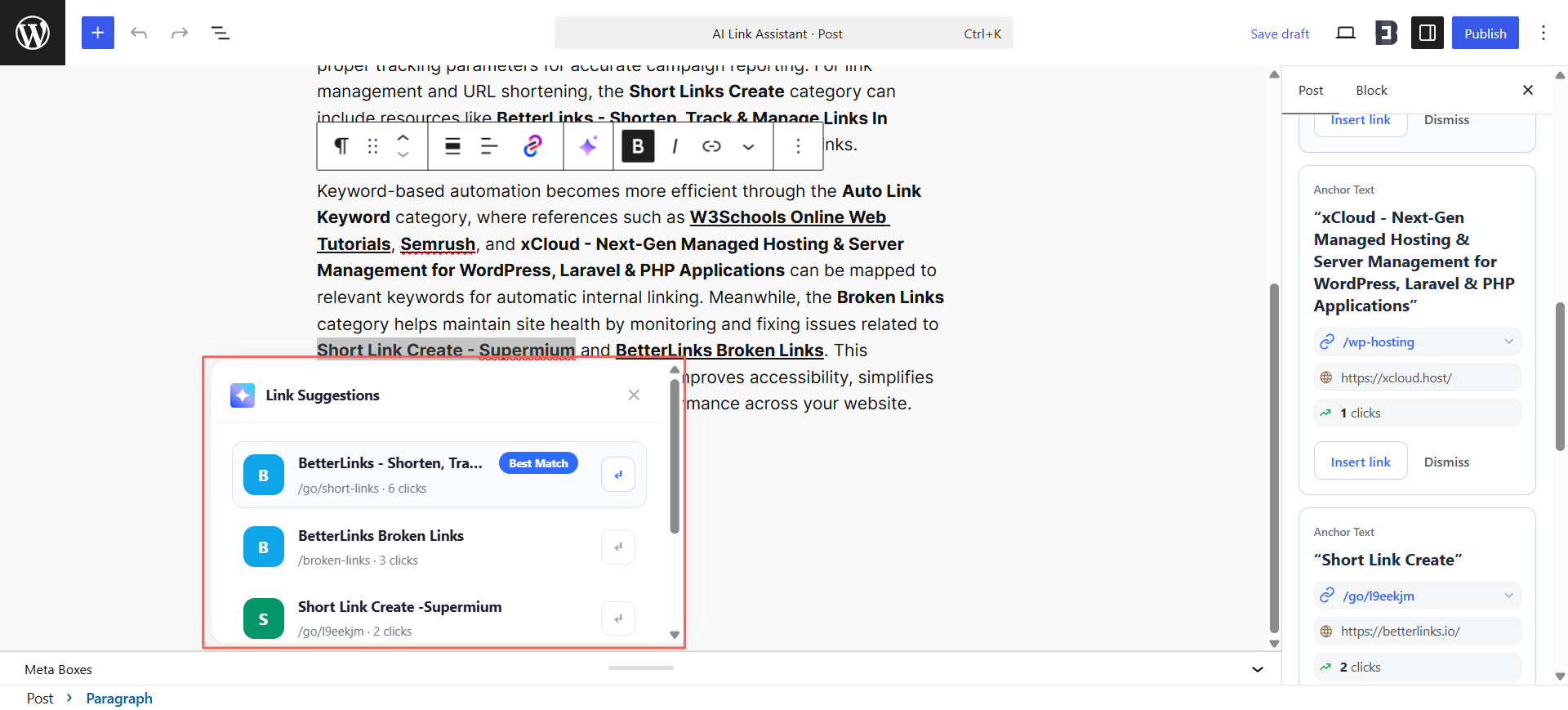
A ‘Link Suggestions’ popup will appear, listing the most relevant short links for your selection, each with its short URL and click count. The strongest recommendation is again labeled ‘Best Match’. You can insert any suggestion directly from this list.
If you want more control, the popup also offers a focused view of the best match. Review the suggested short link and its details, then click ‘Insert link’ to add it. You can use the ‘Options’ dropdown to adjust how the link is applied before inserting.
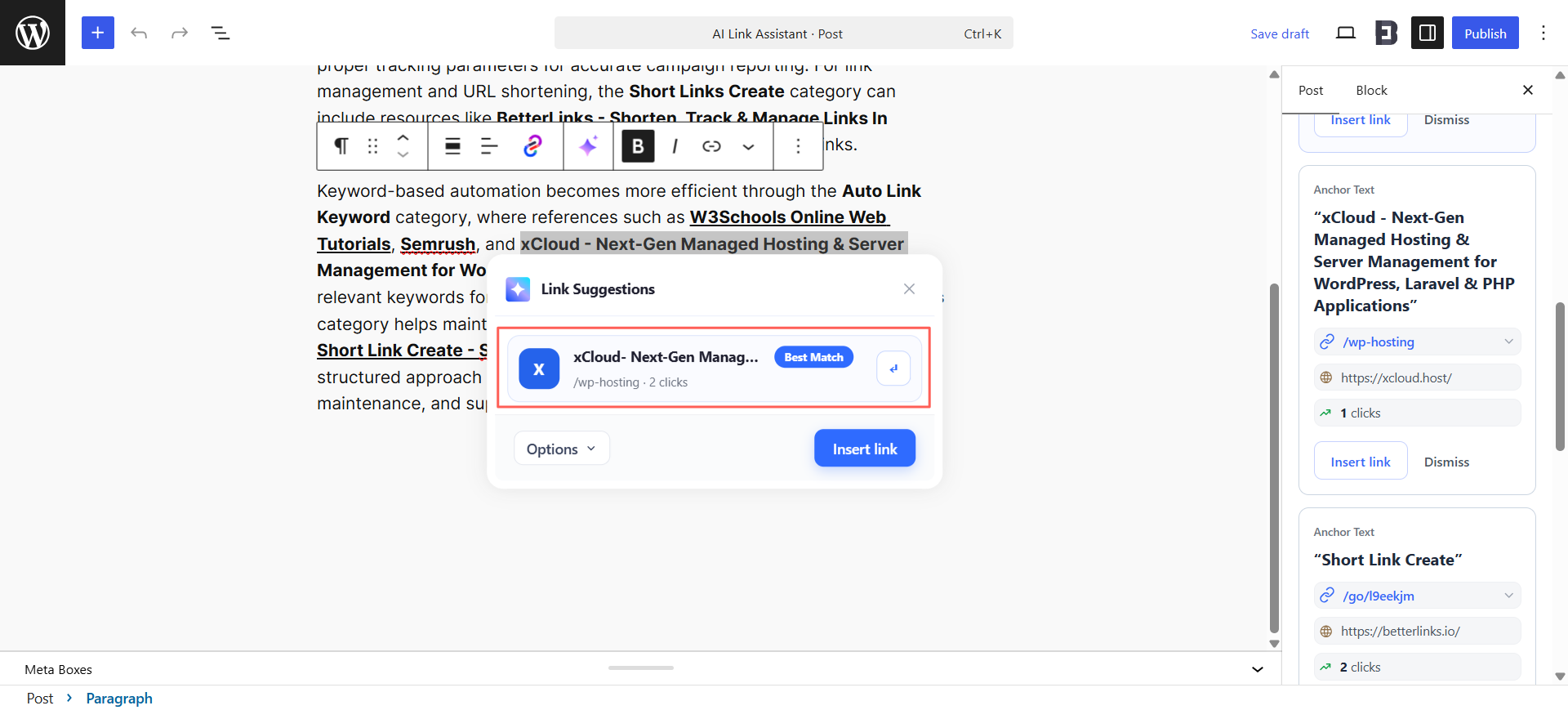
Click options dropdown ‘Options ^’ to open additional link settings or advanced controls related to link behavior and attributes, as shown below.
- Open in new tab: Makes the link open in a separate browser tab so readers do not immediately leave the current article.
- Mark as nofollow: Adds a nofollow relationship attribute. This is commonly used when the editor does not want search engines to treat the link as an endorsement.
- Sponsored: Adds a sponsored relationship attribute. This is useful for paid, affiliate, promotional or partnership links.
Step 05: Convert Untracked URLs Into Short Tracked Links #
If your content contains a plain, untracked URL (for example, a raw domain typed directly into the text), the AI Link Assistant detects it automatically. The ‘Links to Shorten’ section displays the raw URL with an ‘Untracked’ badge. To turn it into a short, trackable BetterLinks URL, click ‘Create & Insert’. If you prefer to leave the URL as is, click ‘Dismiss’.
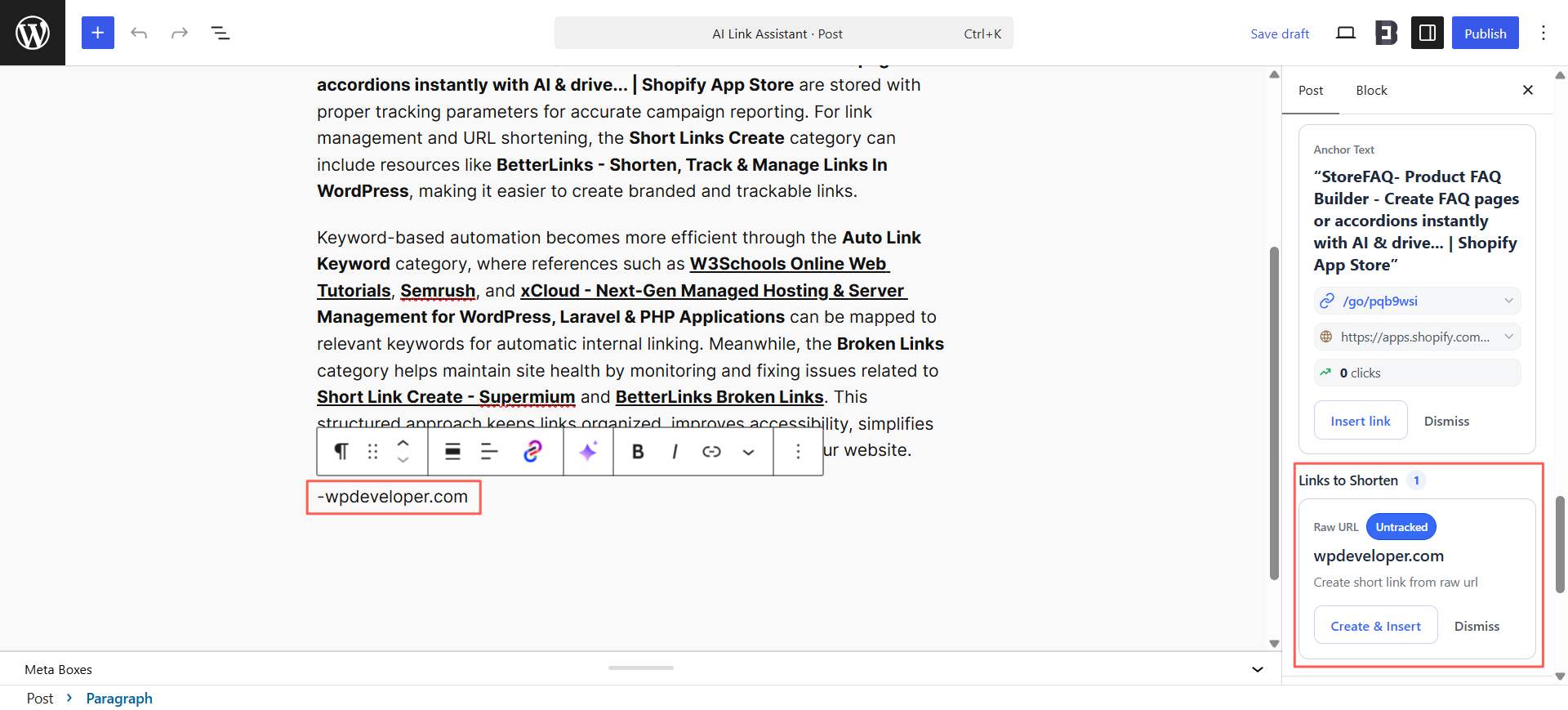
This ensures that every link in your content, including ones you paste manually, can be tracked and managed inside BetterLinks for accurate analytics.
Final Outcome #
Once you have inserted your AI-suggested links and converted any untracked URLs, your published content will include clean, relevant internal links throughout.
Each linked phrase points to the most appropriate short link, helping you keep your links organized, improve accessibility, simplify maintenance and support better SEO performance across your website.
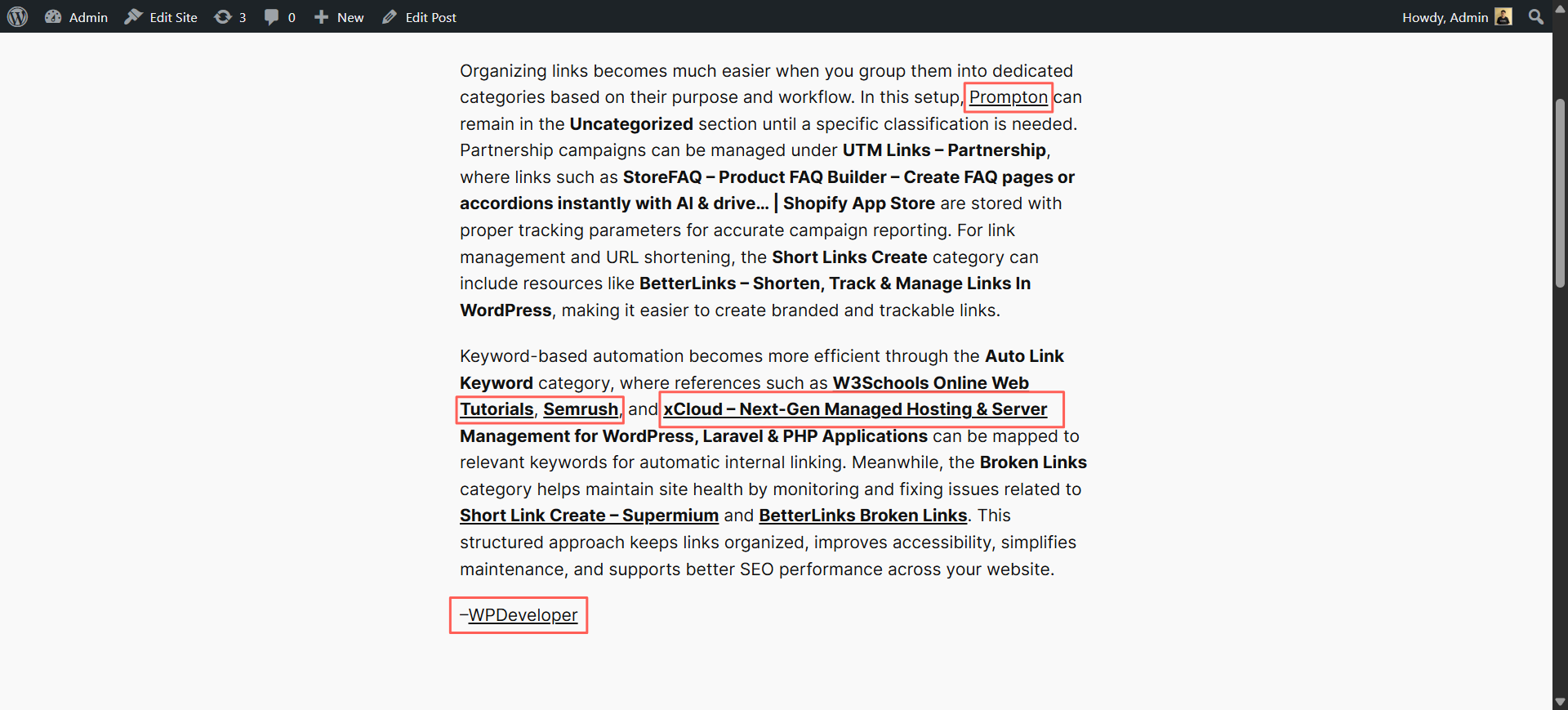
That’s how you can use the AI Link Assistant in BetterLinks to add smart, trackable links to your content directly inside the WordPress editor in just a few clicks.
Need help with something? You are welcome to contact our support team at any time.