BetterLinks introduced a PRO feature called Open in App, which lets links tapped in social apps like Instagram, Facebook, or TikTok open in the real app (e.g., Amazon or YouTube) instead of that app’s built-in browser.
Open in App is designed for affiliate marketers, creators and anyone who shares links in social posts, bios and messages, so visitors land where they’re usually already signed in. It’s set per link, and no code is needed. Here’s a step-by-step guide to configure Open in App with BetterLinks.
Note: To use the Open in App feature, you need to have the latest free and PRO versions installed and activated on your website.
Which Apps And Sources Are Supported? #
Open in App can open 10 apps and recognises links tapped inside 12 in-app browsers. Desktop visitors always get your normal redirect.
| Type | Supported |
| Opens in (10 apps) | Amazon, YouTube, TikTok, Spotify, Instagram, Apple Music, Etsy, eBay, X, Pinterest |
| Detects links tapped inside (12 apps) | Instagram, Threads, Messenger, Facebook, TikTok, Snapchat, X, LinkedIn, Pinterest, Telegram, Line, WeChat |
| Any other website | The visitor is sent out of the in-app browser to their phone’s own browser (Safari or Chrome) |
How to Configure Open in App in BetterLinks? #
The configuration process is pretty straightforward. Follow the step-by-step guide below to learn how to configure Open in App with BetterLinks.
Step 1: Add Or Edit a Link #
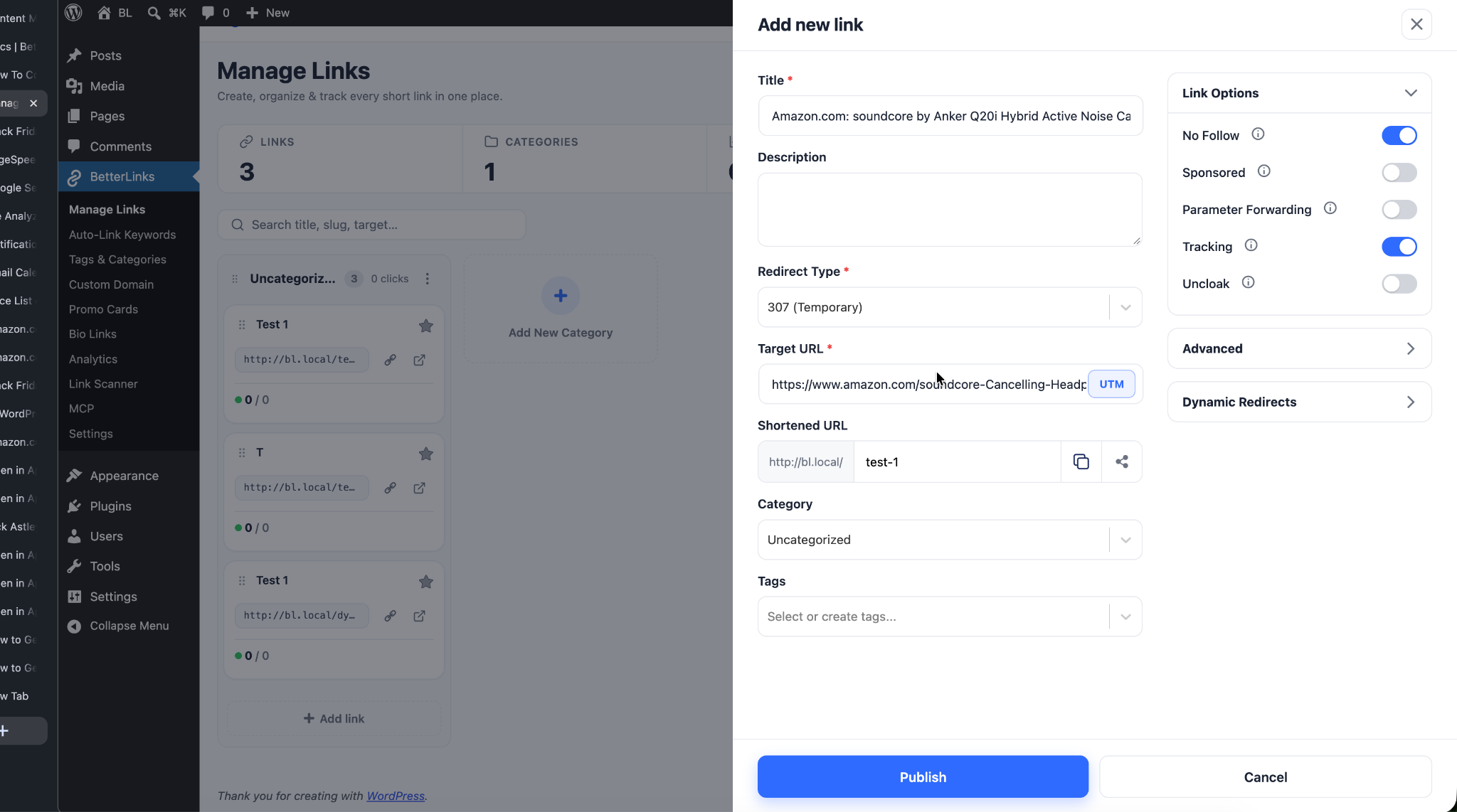
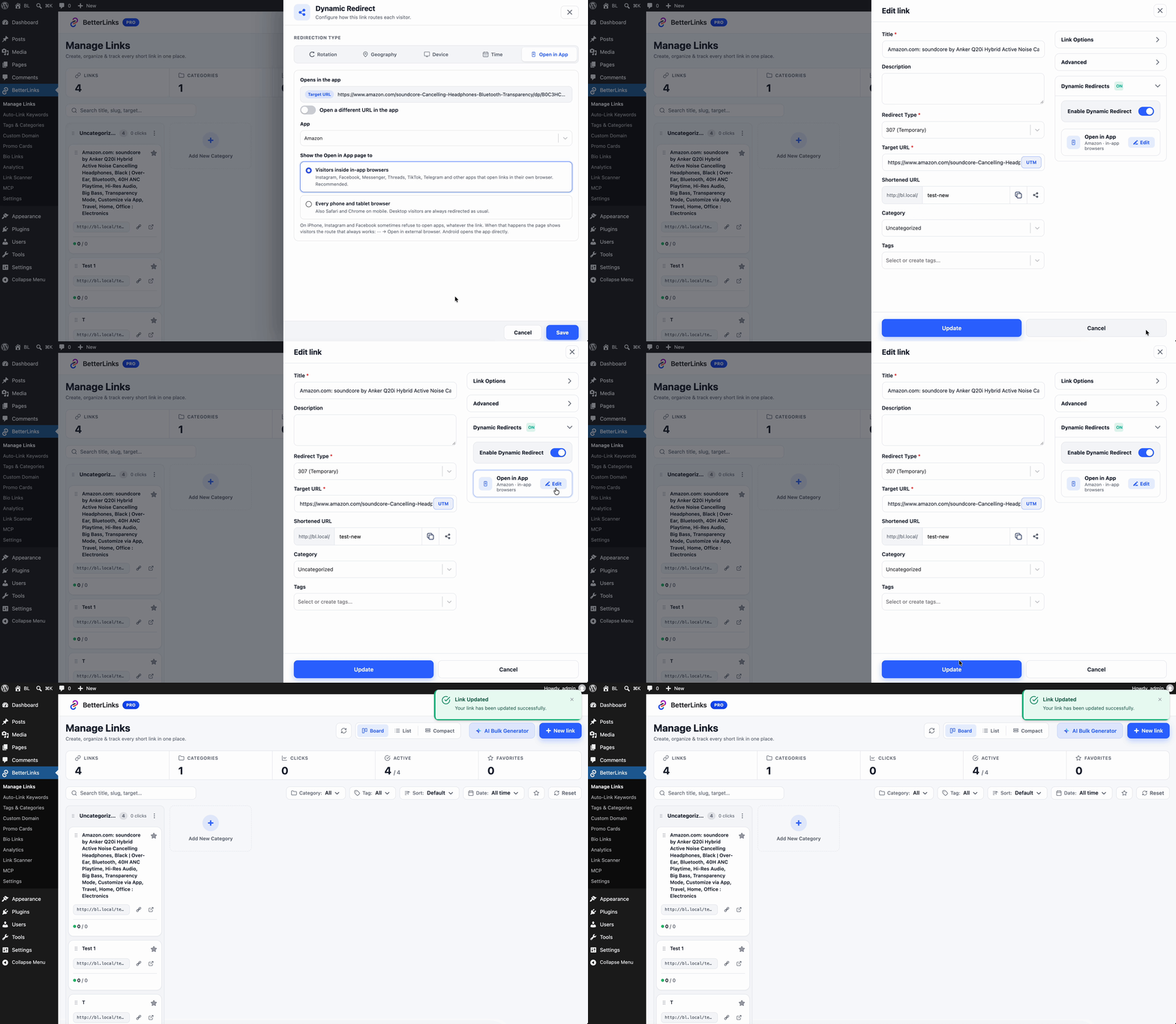
Go to your WordPress dashboard and navigate to BetterLinks. Click on ‘New Link’ or edit an existing link, and enter the destination in the ‘Target URL’ field, for example, an Amazon product link.
Step 2: Enable Dynamic Redirect #
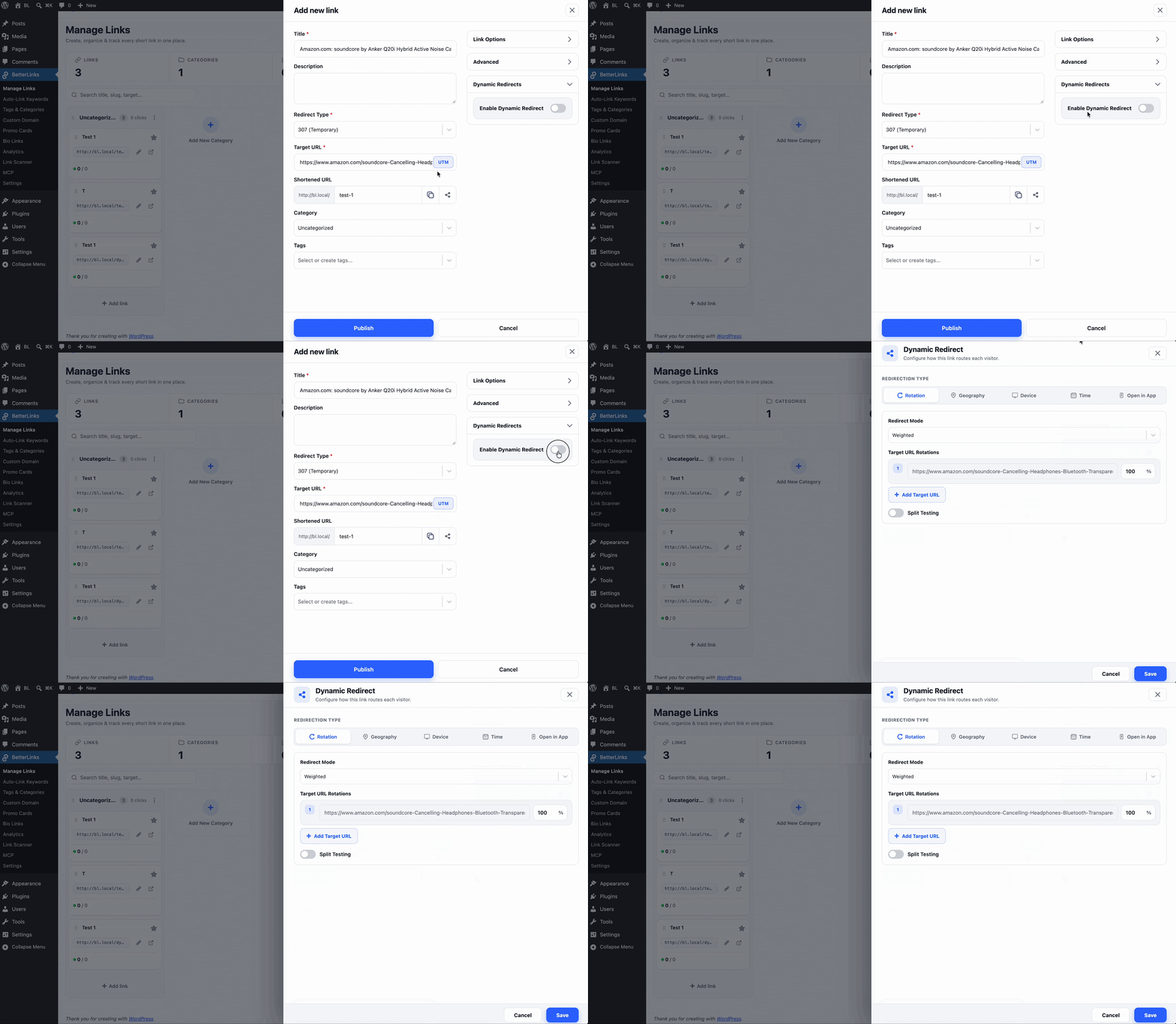
Open the ‘Dynamic Redirects’ section of the link and turn on the ‘Enable Dynamic Redirect’ toggle.
Step 3: Choose Open in App as the Redirection Type #
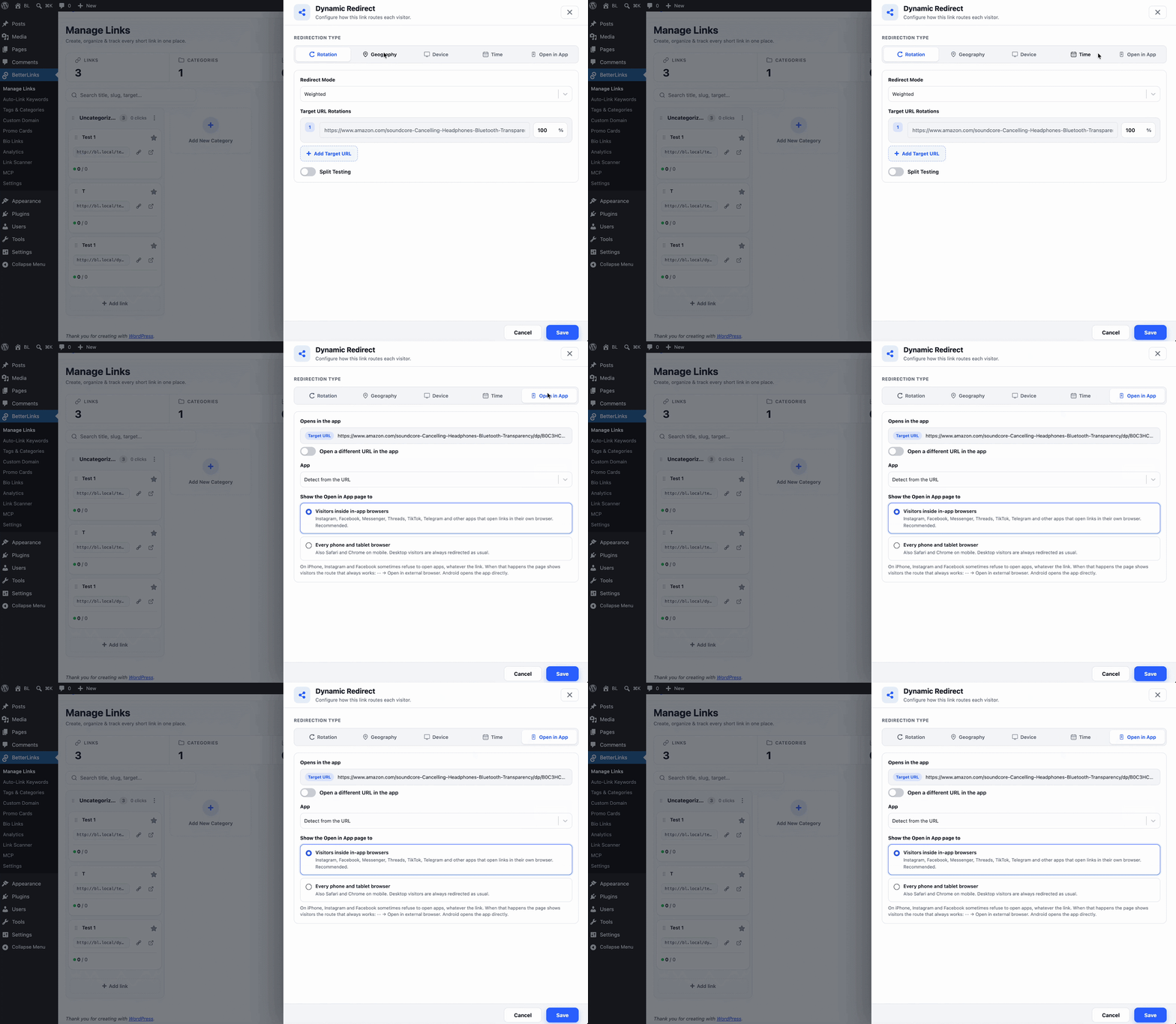
In the Dynamic Redirect window, select ‘Open in App’ as the Redirection Type.
Step 4: Configure the Open in App Settings #
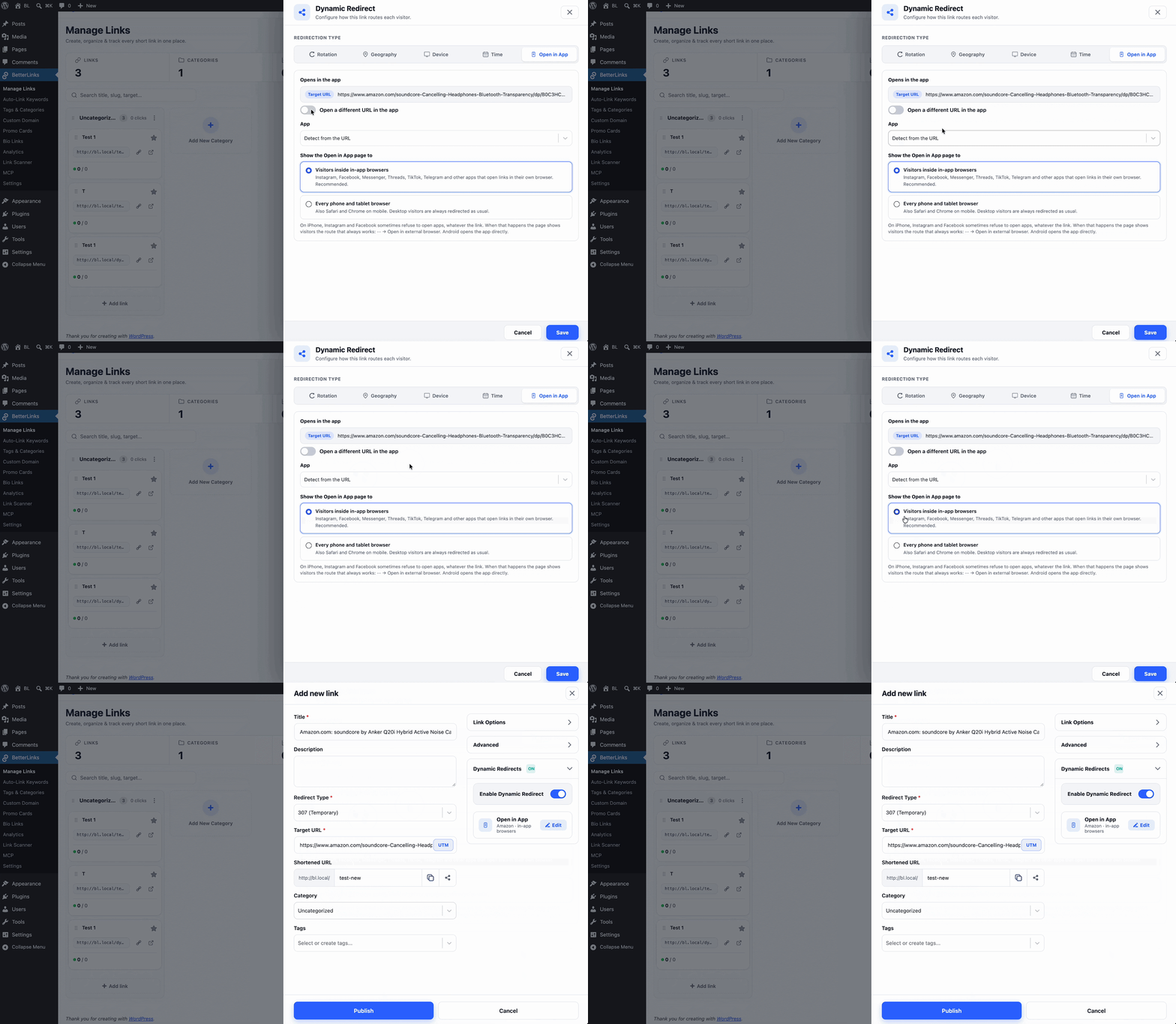
Now configure the following options:
1. Opens in the app shows the link’s Target URL as read-only. This is the page the app opens. If you edit the Target URL later, the app follows it.
2. Open a different URL in the app is off by default. Turn it on only when the app should open a different page, then enter a valid URL. Browsers and desktop visitors still go to the Target URL.
3. App is set to ‘Detect from the URL’ by default and shows a line such as “Opens in Amazon”. You can also pick Amazon, YouTube, TikTok, Spotify, Instagram, Apple Music, Etsy, eBay, X or Pinterest manually. Pick one only when your Target URL is a short link that leads to that app, such as your own branded domain.
4. Show the Open in App page to lets you choose who sees the Open in App page:
i. Visitors inside in-app browsers (default, recommended) applies inside Instagram, Facebook, Messenger, Threads, TikTok, Telegram and other apps that open links in their own browser.
ii. Every phone and tablet browser also includes Safari and Chrome on mobile.
The message under the App setting tells you what will happen:
- “Opens in [App]” appears when the app is recognised or matches the URL.
- A warning appears when the app you picked doesn’t match the URL, so the app may not open it.
- A browser notice appears when the website isn’t a supported app. Visitors inside in-app browsers will be sent to their phone’s own browser (Safari or Chrome).
Step 5: Save And Publish the Link #
Click on the ‘Save’ button, then ‘Publish/Update’ the link. The Dynamic Redirects section now shows a short summary of the rule, such as “Amazon · in-app browsers”.
Step 6: Check What Your Visitors See #
Once the link is published, test it by sharing it in a social app and tapping it from your phone. Here’s what visitors will see:
- Android: The app opens directly, usually with no tap. In TikTok’s browser, a button stays on the page as a backup.
- iPhone: The page tries to open the app once. If that’s blocked, the visitor sees a bottom sheet with an ‘Open in [App] app’ button and a ‘Continue in [App]’ (for example, ‘Continue in Instagram’) option.
- iPhone, if the tap is also blocked: The button changes to ‘Try again’, and an arrow points to ··· → ‘Open in external browser’.
- App not installed: After about 2.5 seconds, the visitor goes to the normal web page.
- Desktop: The visitor gets your normal redirect.
The Open in App page shows your site’s icon and name, the app or site the link goes to, and its address with tracking and affiliate parameters hidden. It comes in light and dark versions. For a website that isn’t a supported app, the button reads ‘Open in Safari’ or ‘Open in your browser’.
Note: Things To Keep In Mind #
- iPhone limits: On iPhone, Meta’s apps (Instagram, Facebook, Messenger and Threads) can block app launches, and this varies by app version. In that case, the one-tap page guides visitors to open the app or their browser.
- Instagram posts and Reels: On iPhone, these use the normal web URL and rely on the Instagram app to claim it.
- Tracking: Link clicks are still tracked in BetterLinks Analytics. BetterLinks records the click, not whether the app opened.
- Affiliate tags: Your Amazon affiliate tag stays on the link when the app opens.
- Per-link setting: Open in App is set for each link. There’s no site-wide switch.
- In-app browser changes: Social apps update their browsers over time, so results can shift between app versions.
That is how easily you can configure Open in App with BetterLinks and help visitors continue in the real app.
Getting stuck? Feel free to contact our support team for further assistance.