
BetterLinks helps you automatically turn chosen keywords into affiliate or internal links without editing posts manually. The system scans your content and replaces plain text with trackable links.
With the Auto-Link Keywords Import and Export feature, you can bulk‑create linking rules by uploading a CSV file instead of adding keywords one by one. This is especially useful for larger sites managing many affiliate offers or campaign keywords, ensuring consistent linking across your WordPress site in minutes.
Note: Auto‑Link Keywords Import & Export is a PRO feature, so you must have BetterLinks PRO installed and activated on your site.
How to Configure BetterLinks Auto-Link Keywords Import And Export? #
Follow the step-by-step guide below to learn how you can embed links to specific keywords throughout your website posts or pages in just a few steps using the ‘Auto-Link Keywords Import & Export’ feature from BetterLinks.
Note: You must have a post or page published on your WordPress website containing the keywords that you want to link using BetterLinks Auto-Link Keywords feature.
Step 1: Create Redirect Links Using BetterLinks #
Make sure you have the redirected or shortened links on your WordPress website created with the BetterLinks plugin. This can be your affiliate link, the URL to another website or any link you want to embed into your keywords using the BetterLinks Auto-Link Keywords feature.
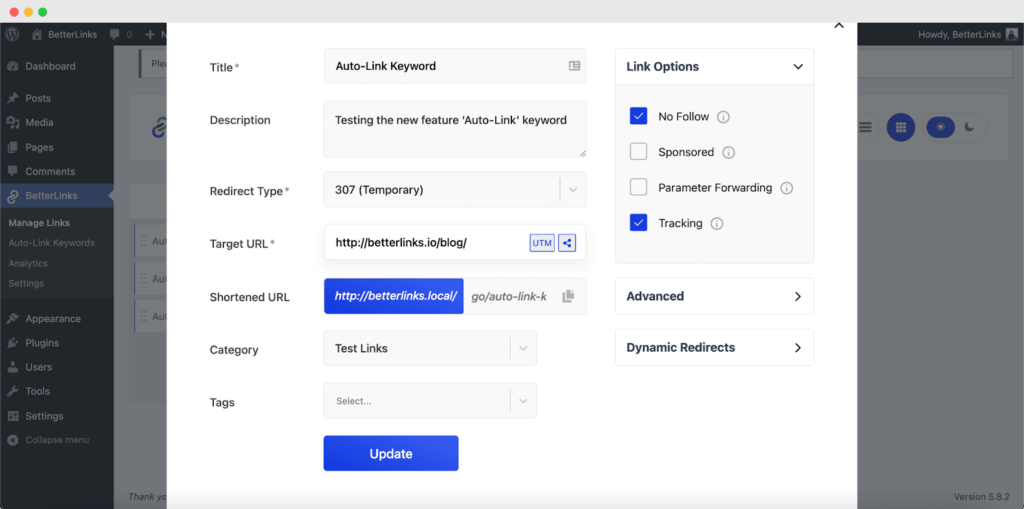
Check out this detailed documentation to easily create a shortened or redirected URL with BetterLinks.
Step 2: Use Export to Understand The CSV Format #
If you are not sure how to structure your CSV for Auto‑Link Keywords, a simple approach is to create one or two keywords directly from Auto-Link Keywords. Click ‘Add New Keyword.’
Then, after creating one or two keywords, export the data. Click ‘Export.’
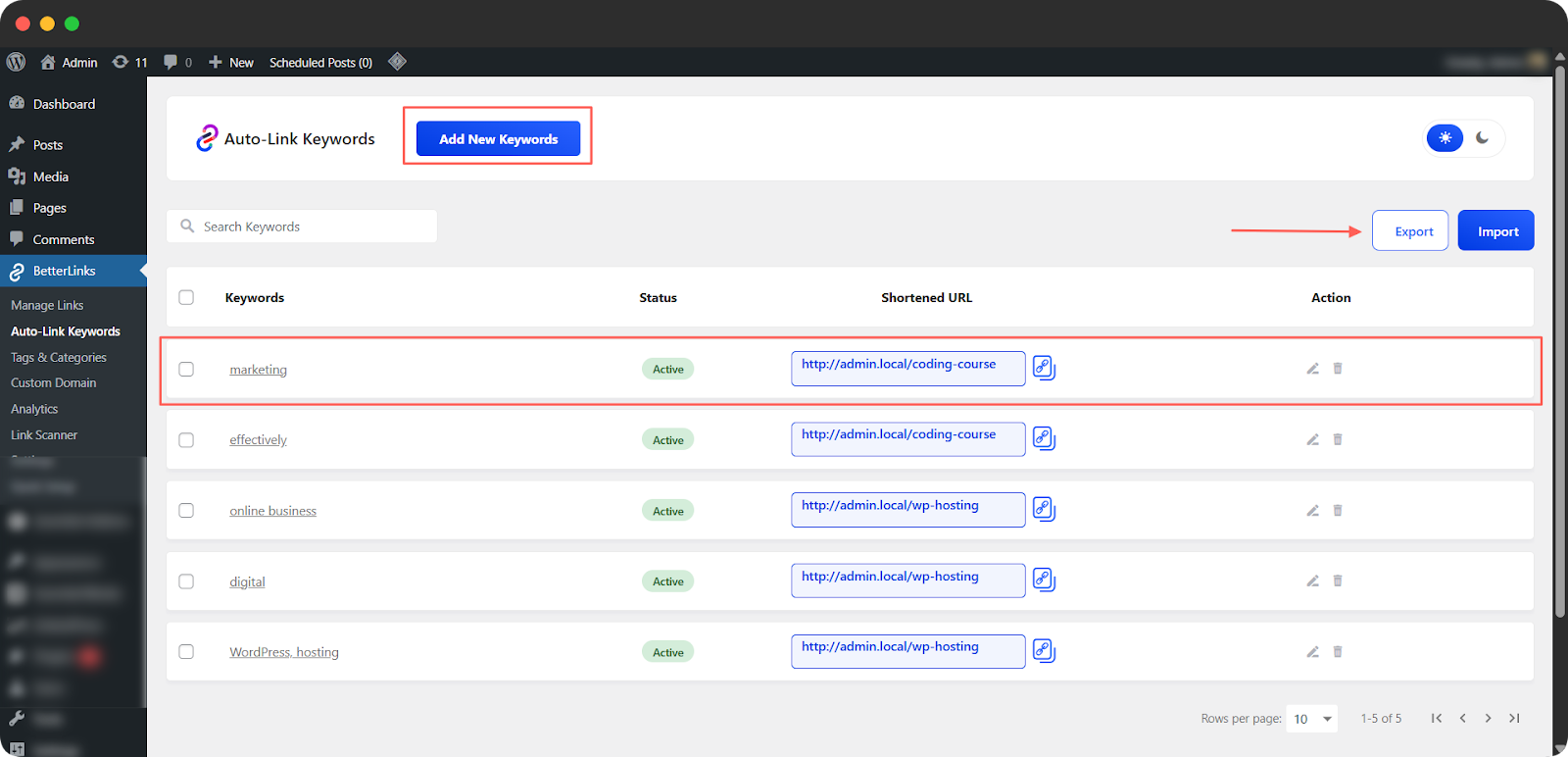
When you download and open the exported CSV file, you will see exactly how each keyword, link and setting is stored. Open the file with MS Excel, Google Sheets or any CSV viewer.
- Keywords: The keyword or phrase you want BetterLinks to automatically link across your site.
- Shortened URL: The BetterLinks short link that will be inserted when the keyword is found.
- Post Types: The content types where the keyword should be auto‑linked (for example, posts, pages, products).
- Categories: Limit auto‑linking to specific categories so links only appear in relevant content.
- Tags: Similar to categories, this lets you restrict auto‑links to posts with certain tags.
- Open New Tab: Controls whether the link opens in a new browser tab when clicked.
- Use No Follow: Adds a nofollow attribute, recommended for affiliate or sponsored links.
- Case Sensitive: When enabled, only matches keywords that use the exact same capitalization.
- Left Boundary: Defines what can appear immediately before the keyword (space, comma, full stop, or none).
- Right Boundary: Defines what can appear immediately after the keyword (space, comma, full stop, or none).
- Keyword Before: A specific word that must appear before the keyword for the link to be applied.
- Keyword After: A specific word that must appear after the keyword for the link to be applied.
- Limit: The maximum number of times the keyword will be linked in a single post.
- Status: Indicates whether the auto‑link rule is active or inactive.
Note: Do not alter the column headers in your CSV file; they must remain unchanged for proper keyword linking.
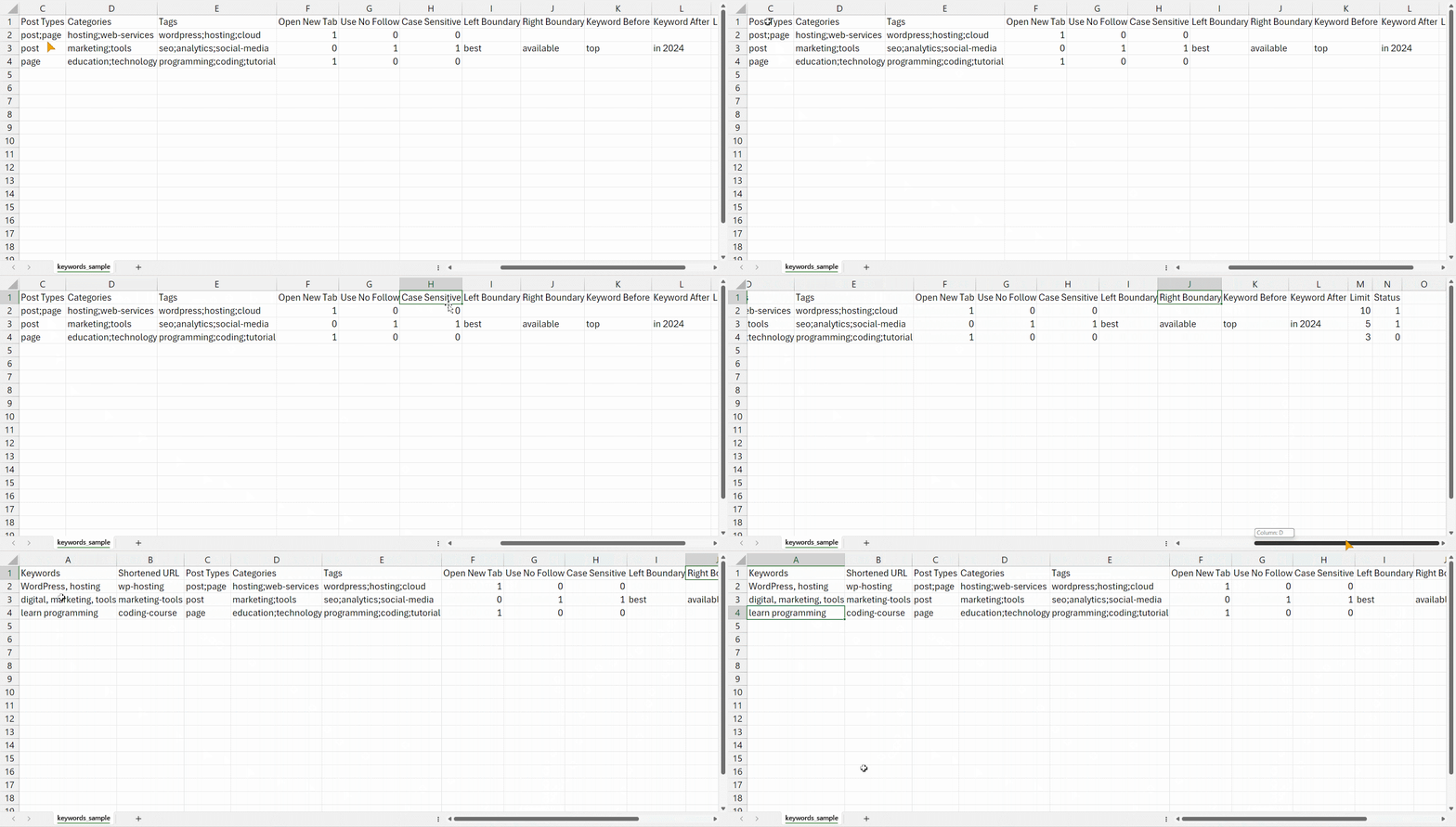
You can check our sample CSV to see how to organize keywords for bulk import. Follow the steps below to learn how the sample CSV works.
Step 3: Link Keywords Using Auto-Link Keywords Import #
Now navigate to the ‘BetterLinks’ → ‘Auto-Link Keywords.’ Here, click on the ‘Import’ button as shown below.
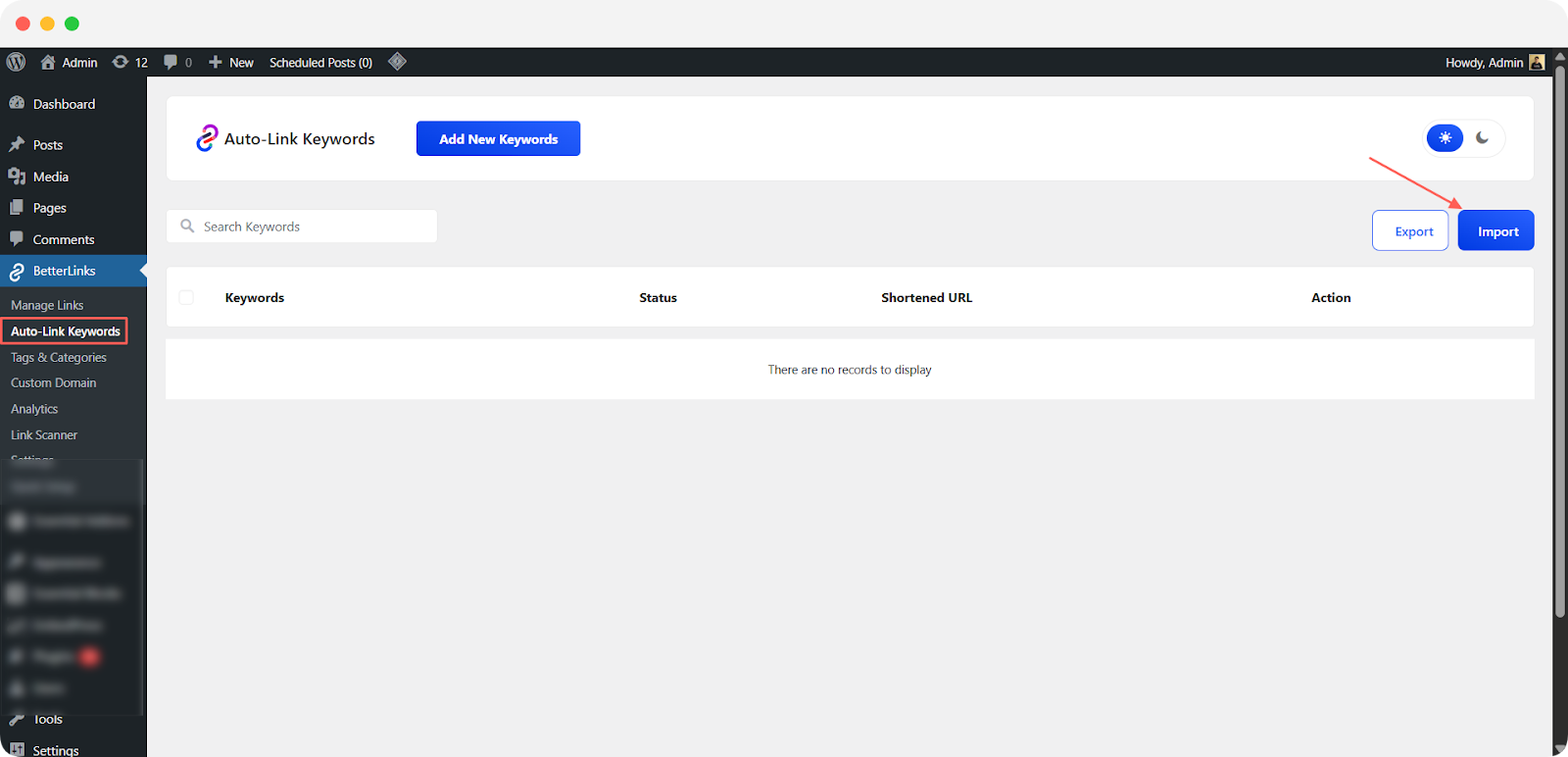
A popup window will appear on your screen where you can import your CSV file.
Note: You can also download a sample CSV file to help organize your keywords for Auto‑Links in your posts or pages.
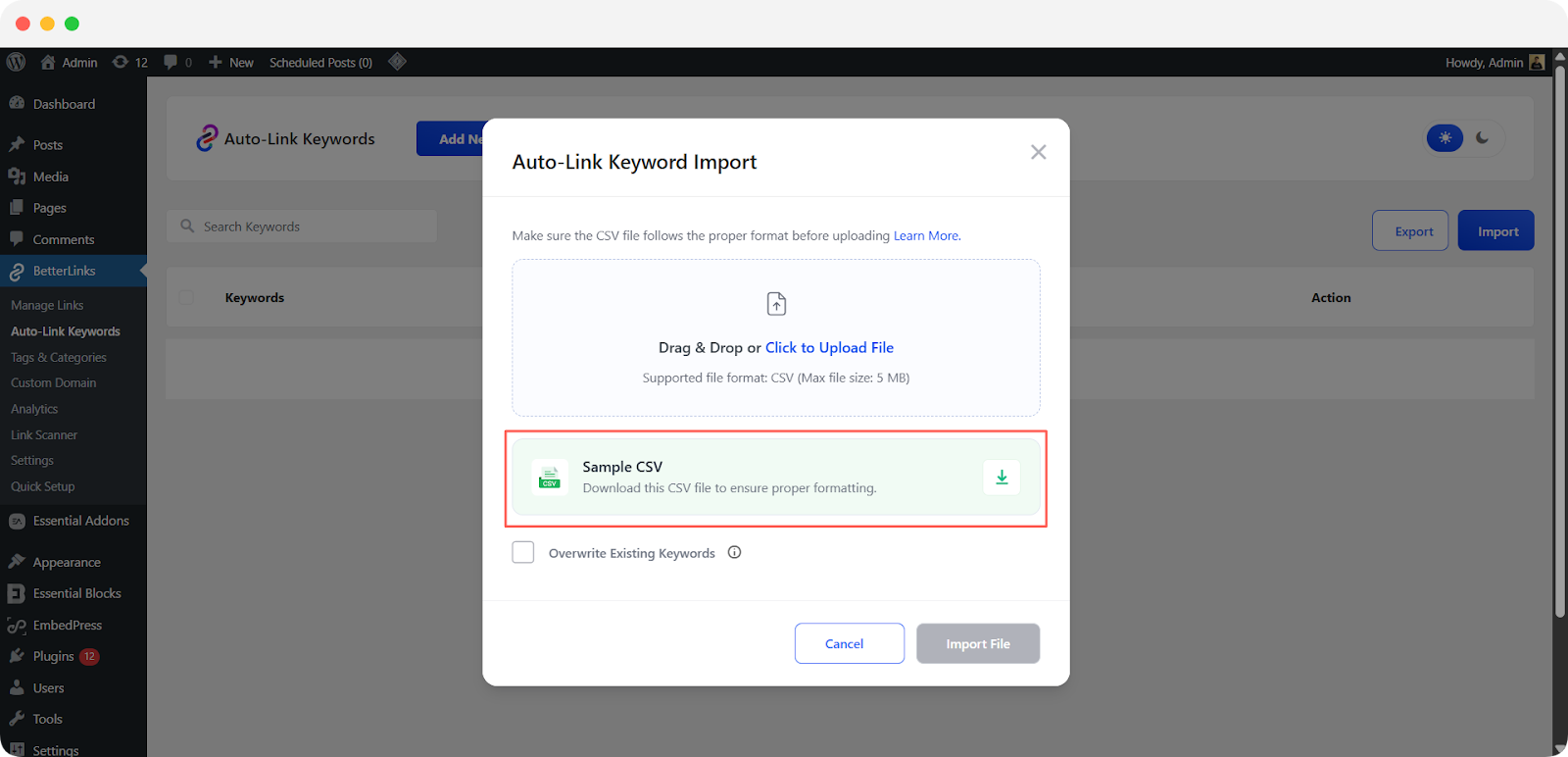
After downloading the CSV file, you will see the following column headers, each controlling how your auto‑link keywords will work. Open the file with MS Excel, Google Sheets or any CSV viewer.
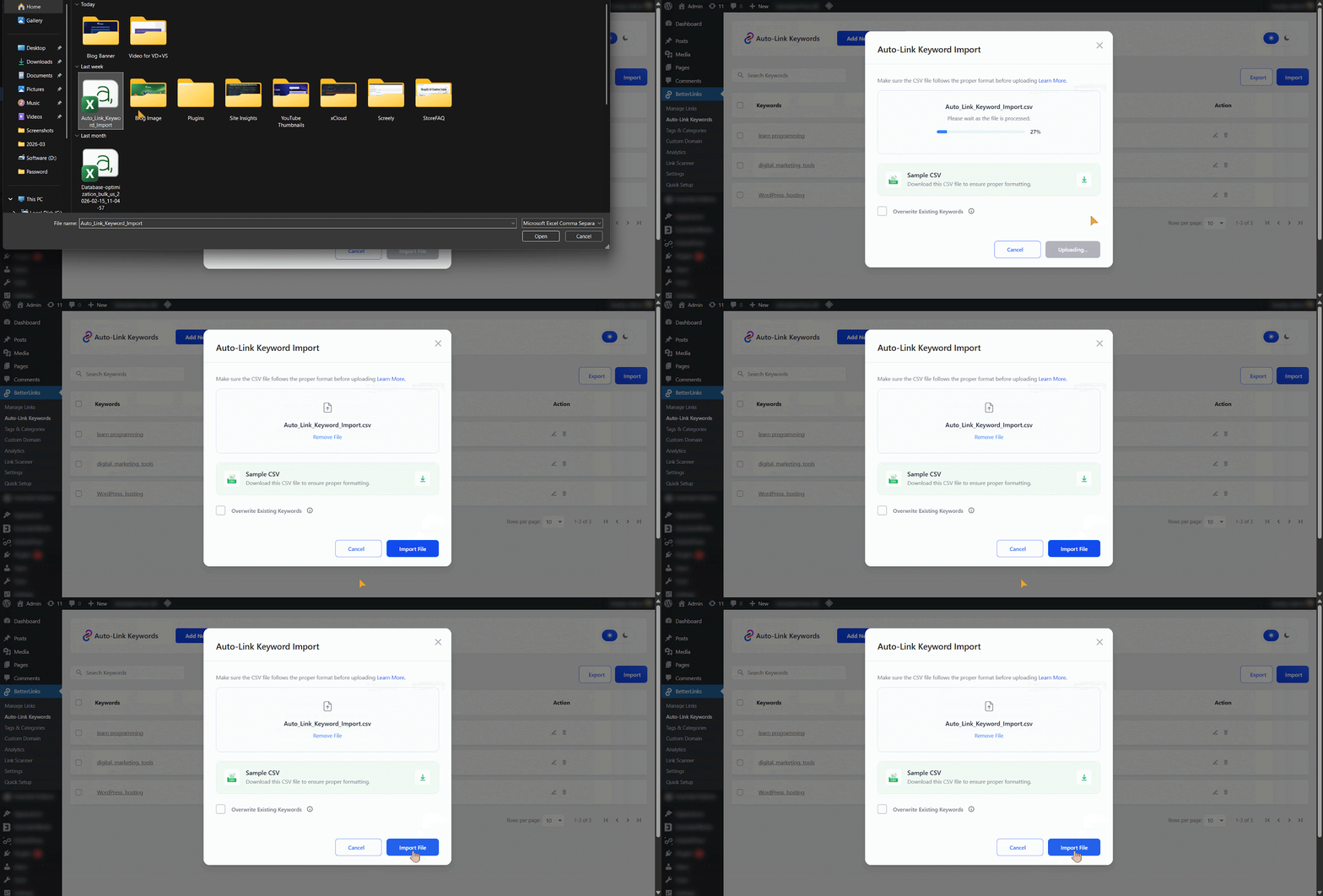
After inserting your keywords and customizing the CSV to your preferences, click to upload or drag and drop your file. The file upload progress will be displayed and once it is finished, the import button will become clickable.
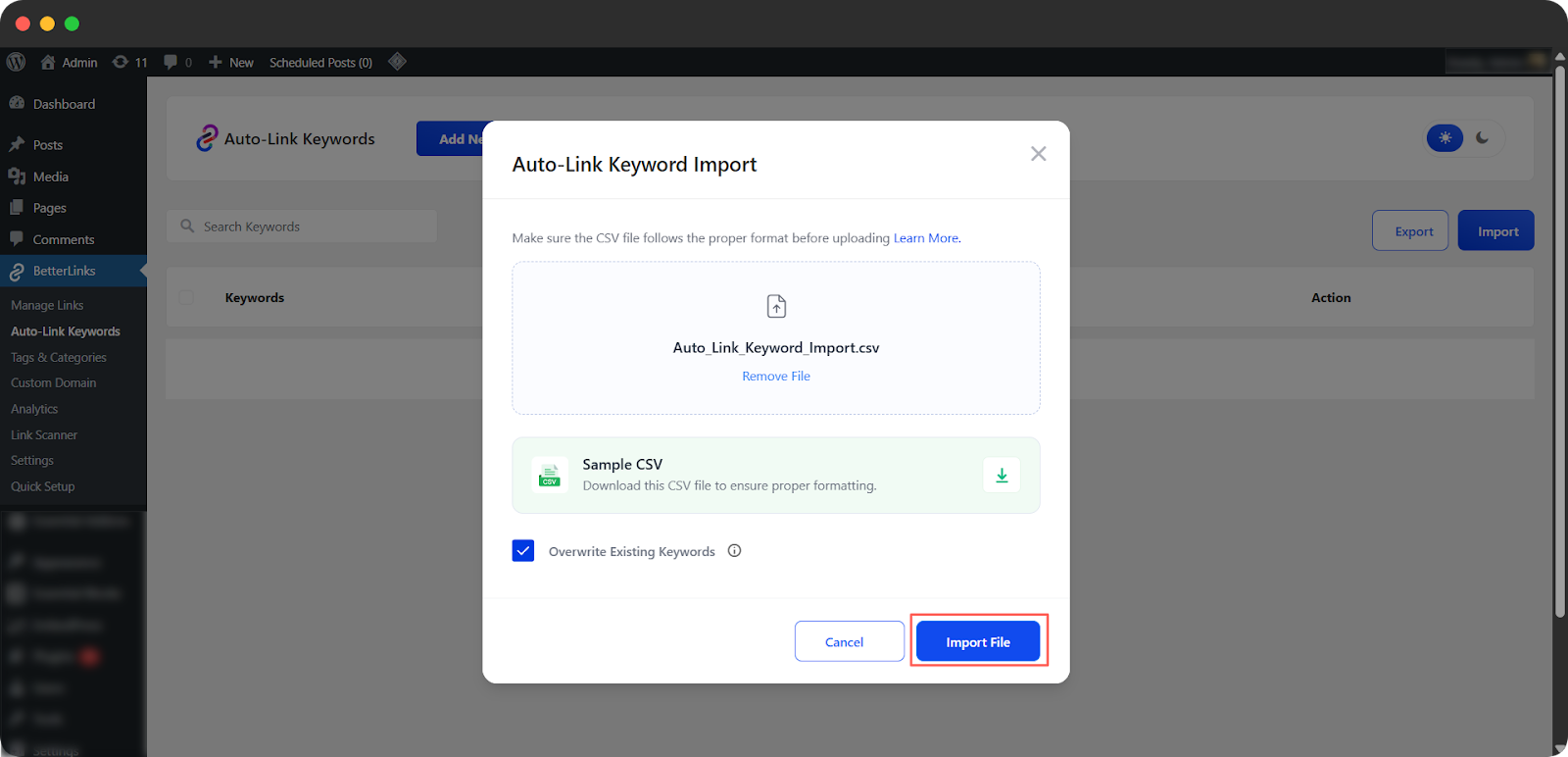
Tick the ‘Overwrite Existing Keywords’ to replace duplicates. If you don’t, duplicate keywords will be skipped. Once the file upload process is finished, the import button will be clickable. Click the ‘Import File’ button.
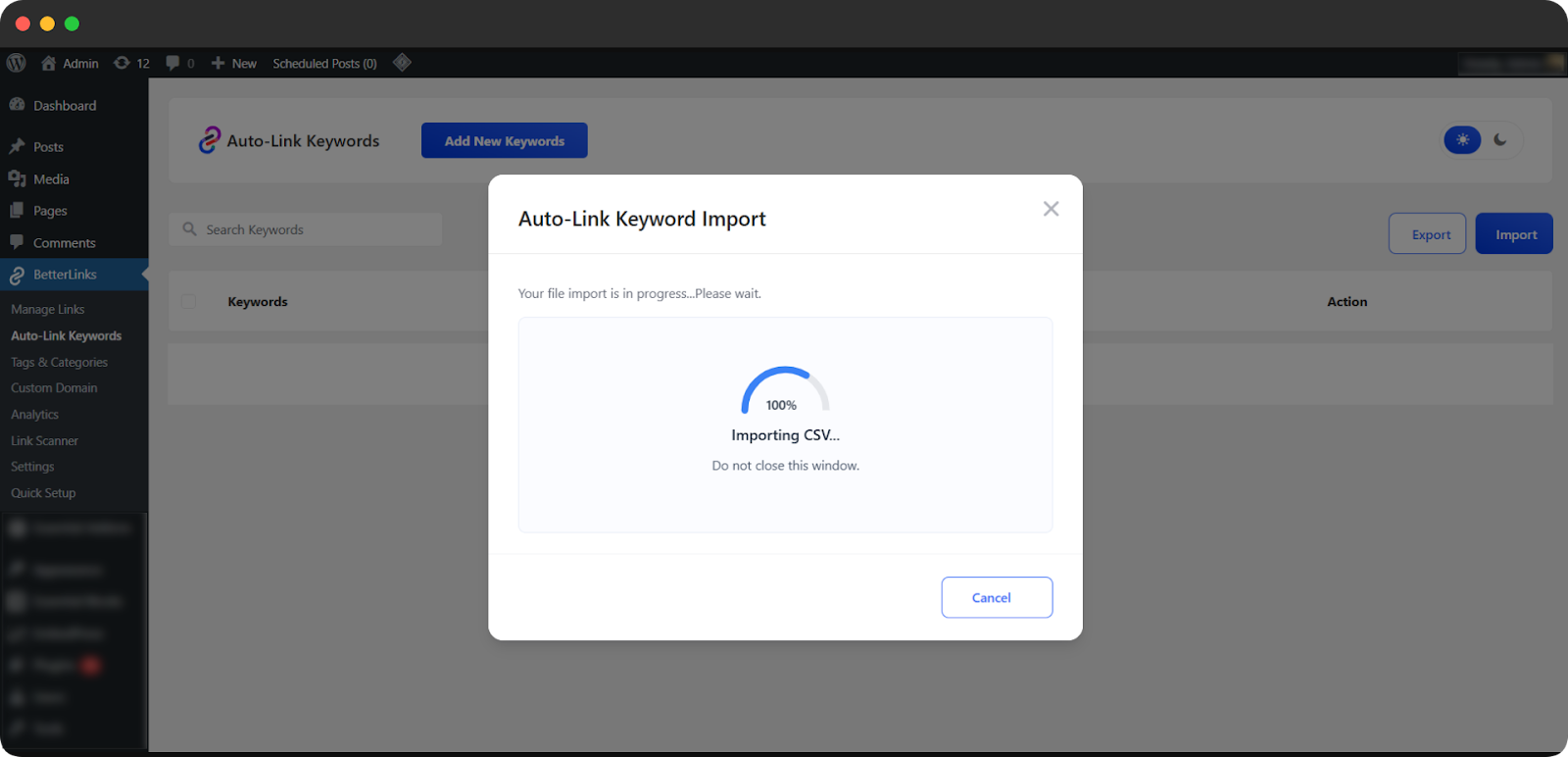
You will see the CSV file begin importing. Please keep this window open until the process is complete.
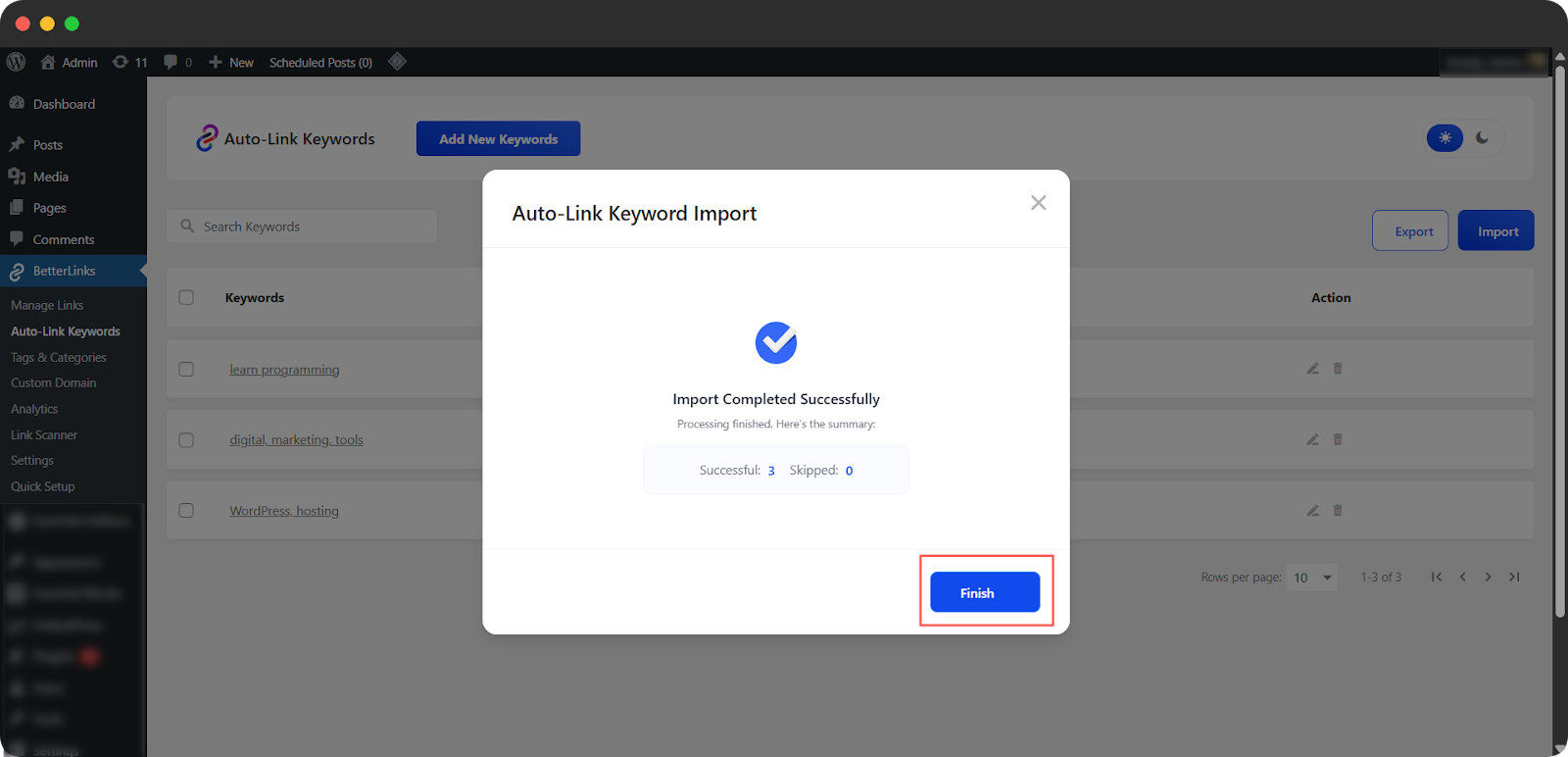
When the import is complete, a success message will appear, confirming that your keywords have been published. Tap ‘Finish’.
Final Outcome #
You can now see that your imported keywords have been automatically linked.
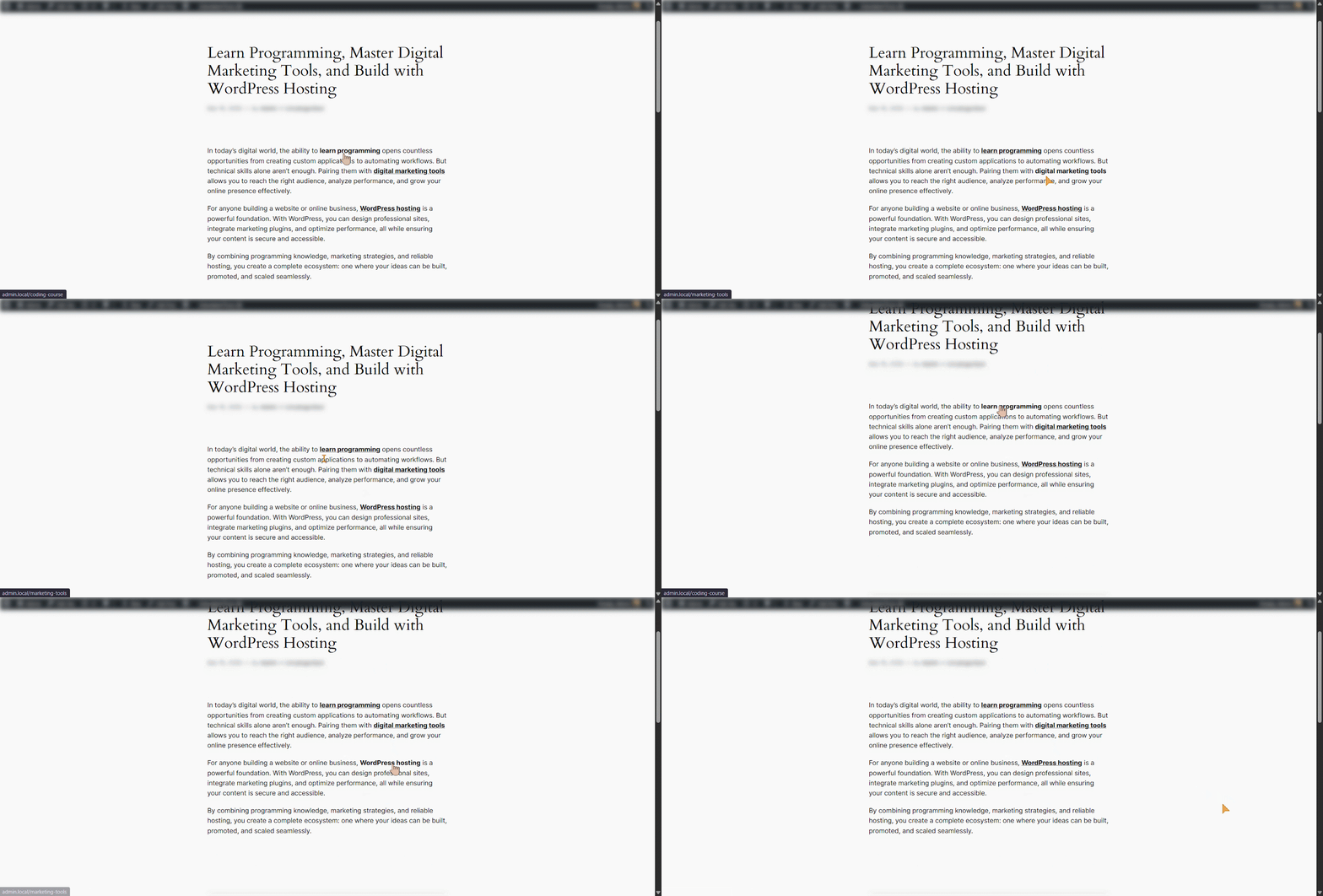
This is how you can effortlessly turn existing content into fully linked, conversion‑focused posts with just one CSV import.
Need more assistance? You are always welcome to contact our support team or join our Facebook community to share your experience using BetterLinks.


