
BetterLinks helps you create multiple short links at once with the AI Bulk Link Generator, making link management faster and more efficient. This feature combines AI suggestions with bulk automation to maintain consistency and save time.
Note: Before you start, ensure to install & activate BetterLinks and BetterLinks PRO on your WordPress website. Please note that you’ll need BetterLinks PRO v2.6 or later versions to use this feature.
Guide To Use AI Bulk Link Generator with BetterLinks #
This guide provides step-by-step instructions for generating links automatically for custom posts using the AI Bulk Link Generator in BetterLinks. It helps you automate link creation, saving time and ensuring your URLs remain consistent.
Step 01: Set Up AI Bulk Link Generator #
In this step, you’ll set up the AI Bulk Link Generator according to your preferences and generate links. Follow the steps to configure settings before generating links.
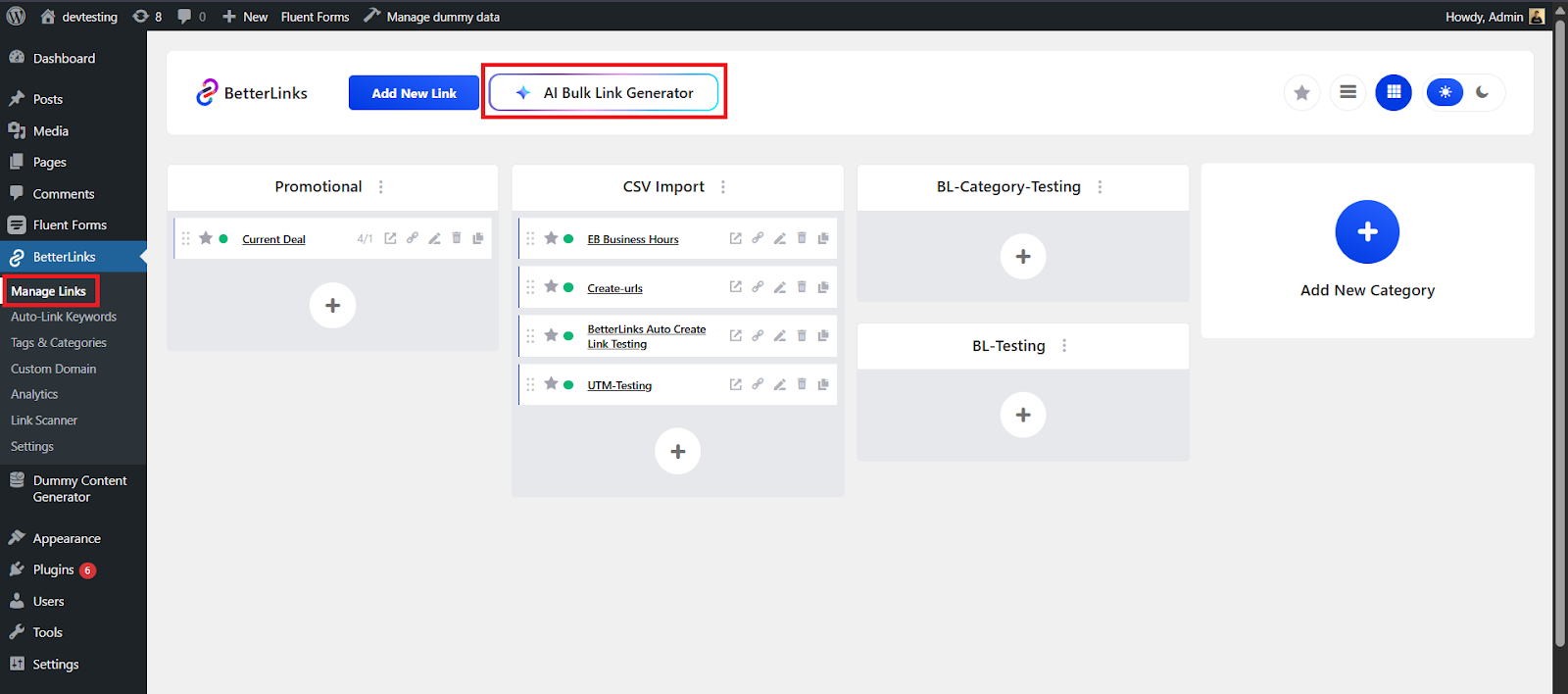
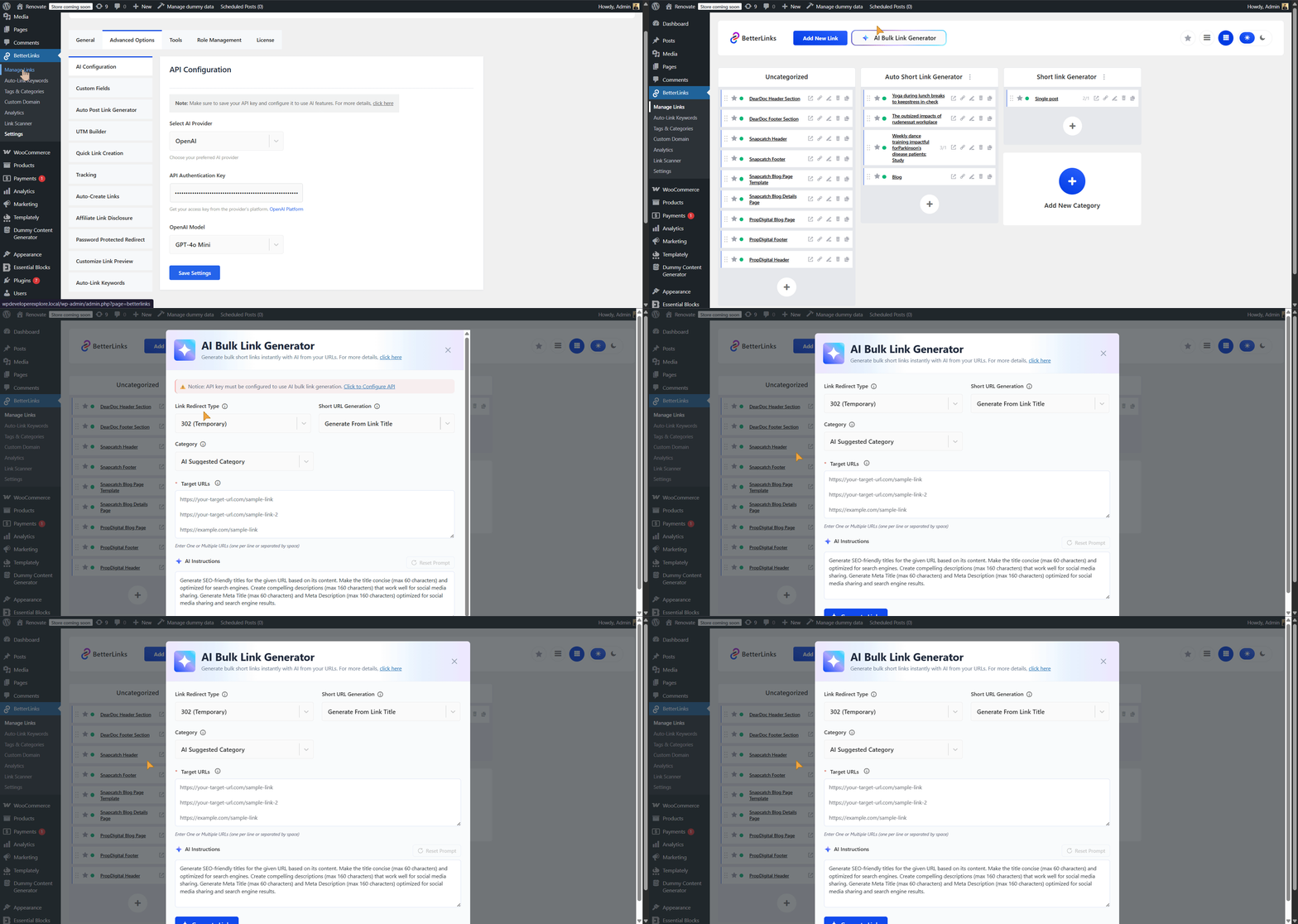
Next, navigate to the ‘Manage Links’ tab on your dashboard. Click on the ‘AI Bulk Link Generator’ button as shown below.
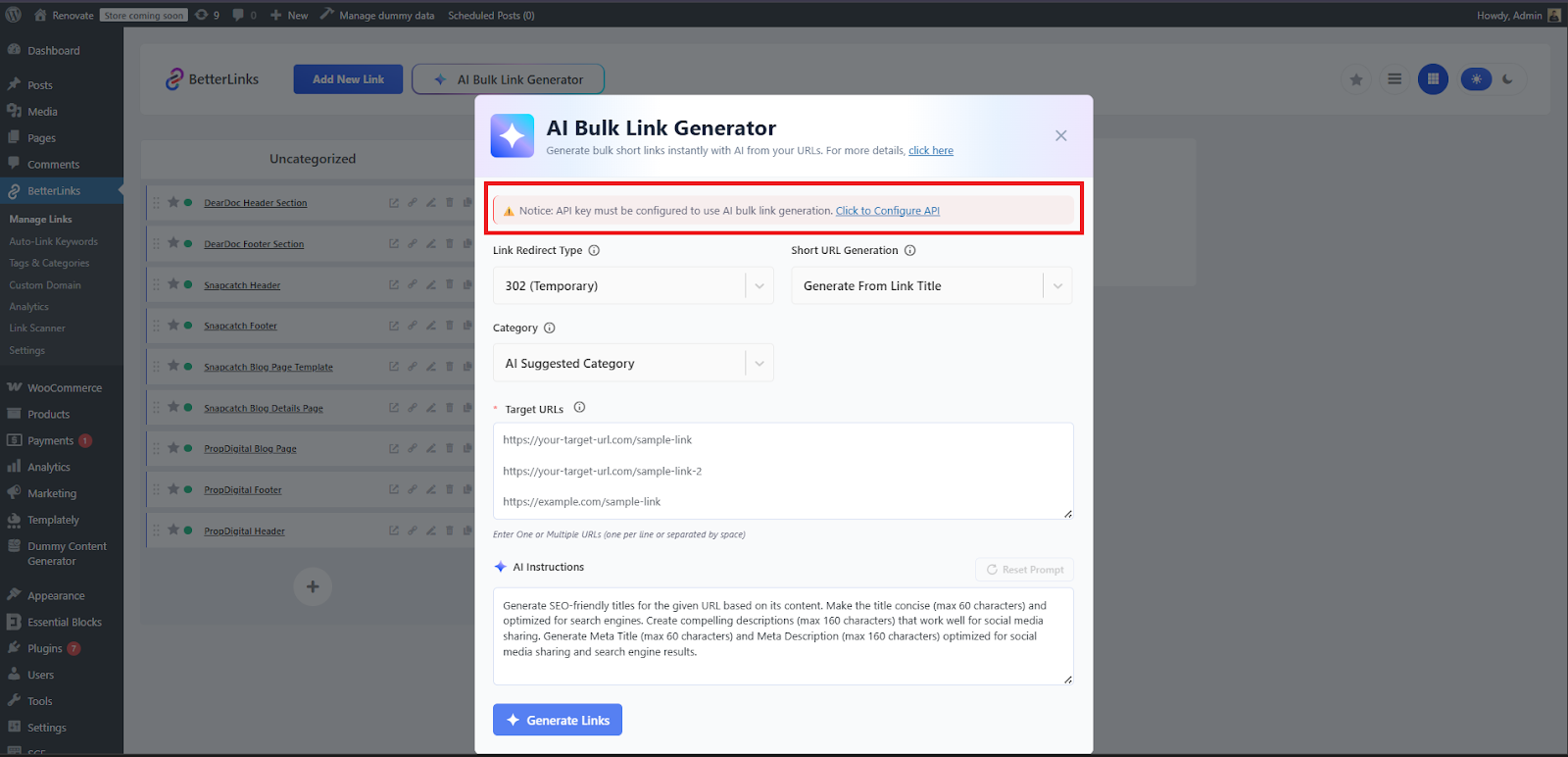
After clicking on ‘AI Bulk Link Generator’, a configuration pop‑up window will appear. If the API has not been previously configured, you will see a warning message prompting you to do so. Tap ‘Click to Configure API’ to complete the setup.
Step 02: How To Configure API? #
You can use either of the two supported platforms: Gemini or OpenAI. To obtain your Gemini or OpenAI API key, click ‘Get your access key from the provider’s platform (OpenAI / Gemini)’. Then enter your API key in the ‘API Authentication Key’.
Note: To use the OpenAI API, your account must have available credit. You can review billing here.
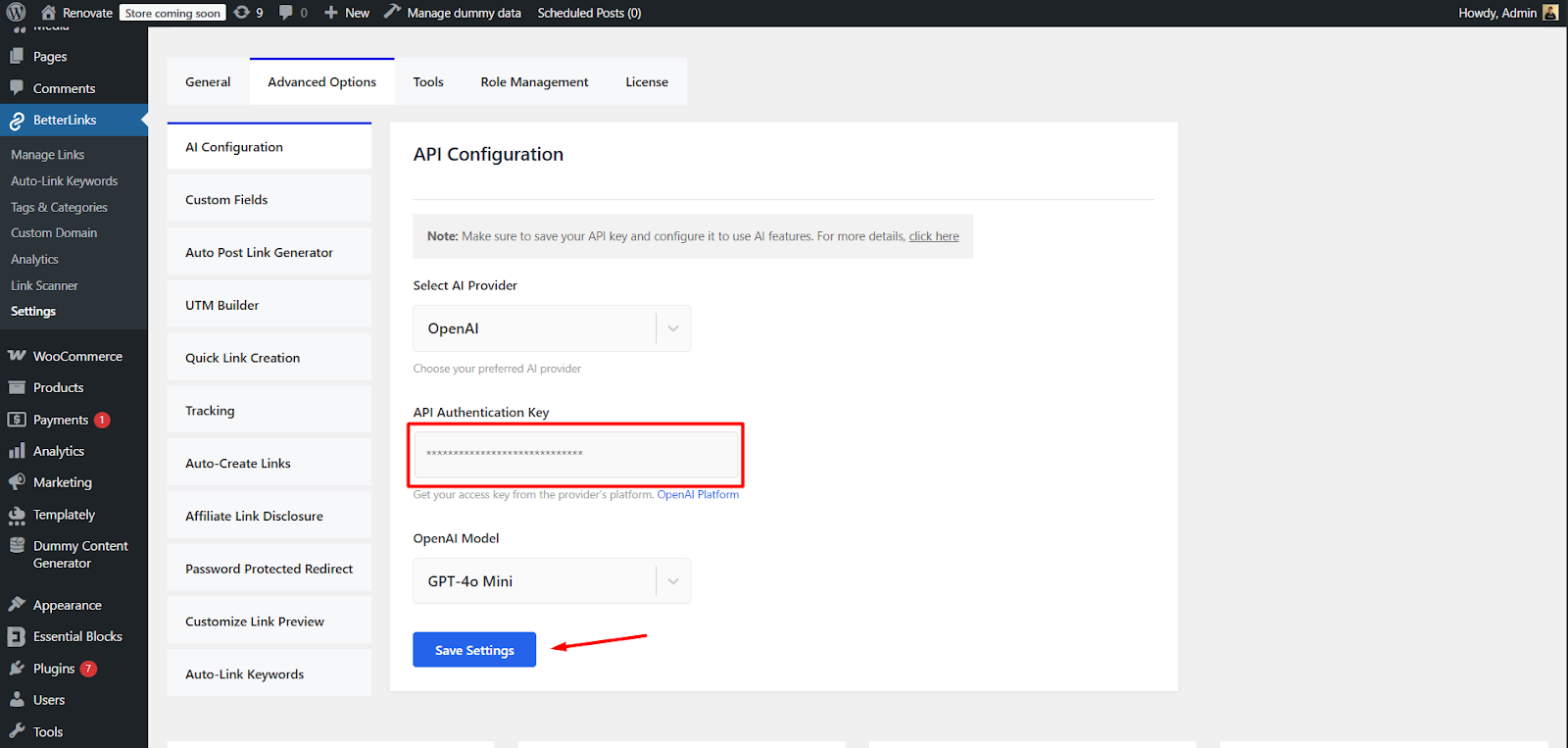
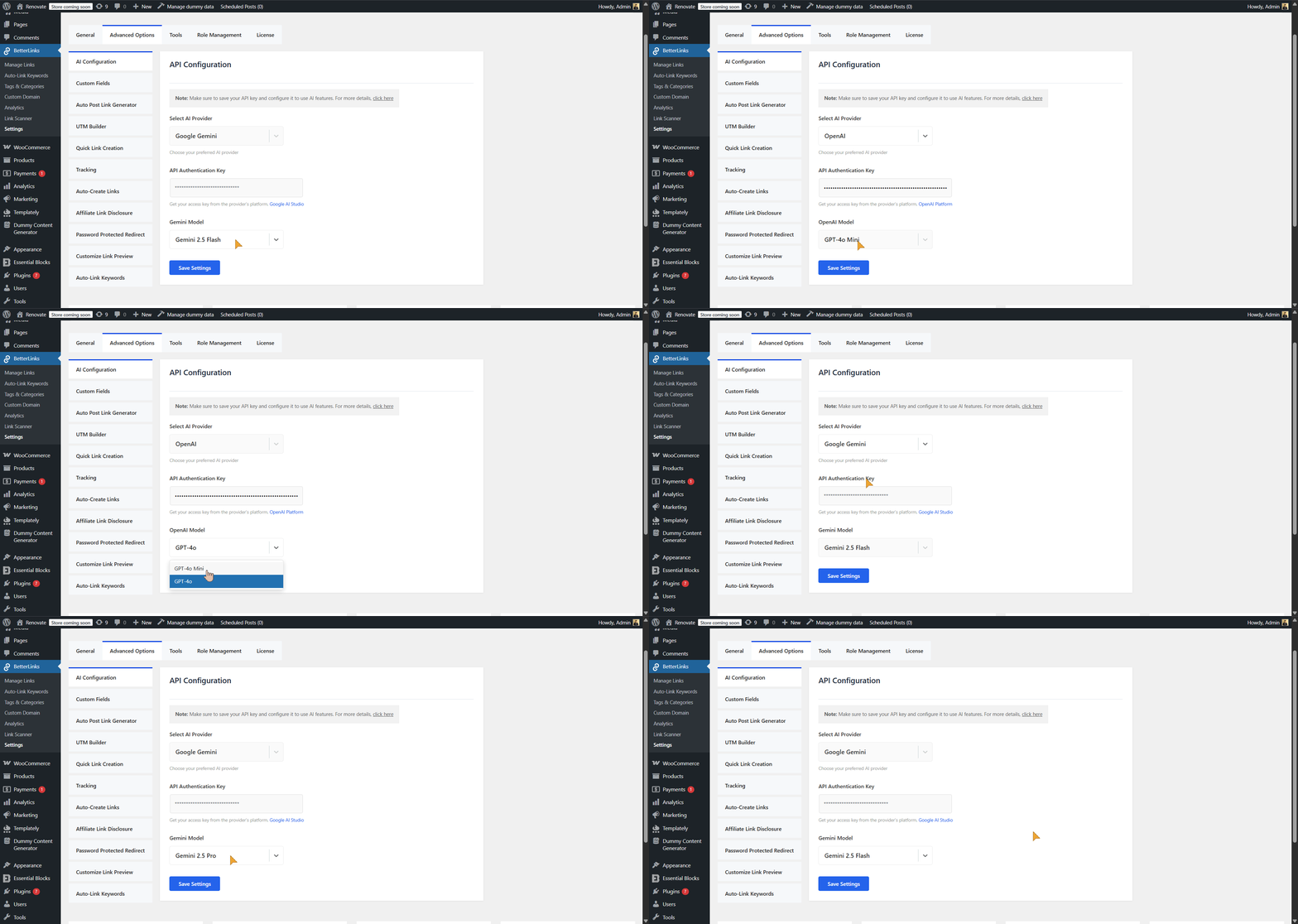
You can also switch your API model from the ‘API Model’ dropdown. After configuring the AI API, click ‘Save Settings’ to confirm your API configuration.
Step 03: Configure AI Bulk Link Generator & Generate Links #
After successfully configuring the API, navigate back to ‘Manage Links’ and click on ‘AI Bulk Link Generator’. You will no longer see any API configuration warnings. From here, customize the AI Bulk Link Generator settings according to your preferences.
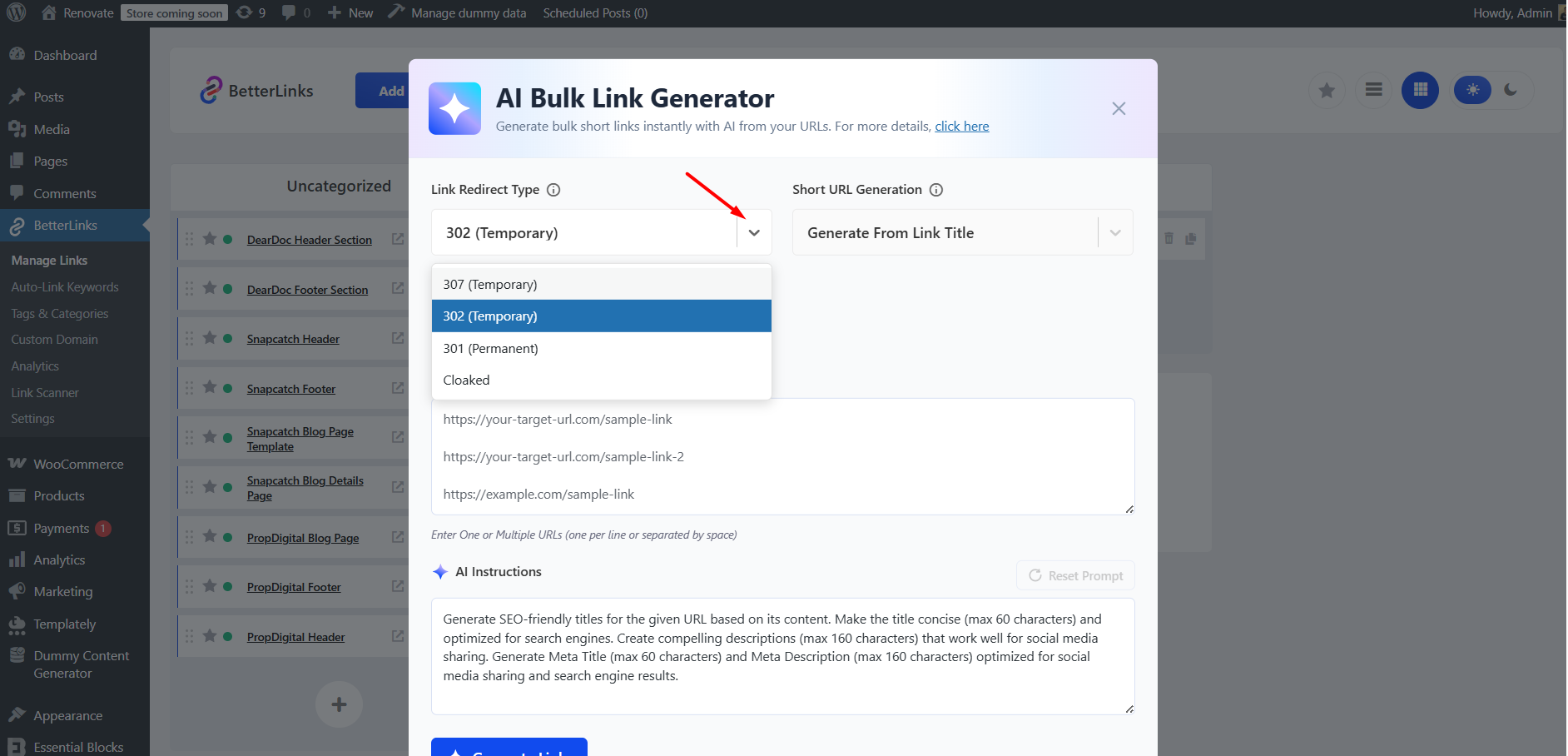
Link Redirect Type #
In the ‘Link Redirect Type’ field, choose your preferred redirect option from the dropdown. The available types are:
- 301 (Permanent)
- 302 (Temporary)
- 307 (Temporary) and
- Cloaked
Short URL Generation #
From the‘Short URL Generation’ dropdown, select the input source that AI will use to create your short links. You can choose from the following generation methods, depending on your preferences:
- Generate from Link Title: Creates short URLs based on the title of the link.
- Generate from Target URL: Uses the destination URL itself as the basis for generating the short link.
- Random Strings: Produces short URLs using randomly generated character strings.
- Random Numbers: Generates short URLs composed of random numeric values.
- Random Alphanumeric: Creates short URLs using a mix of random letters and numbers.
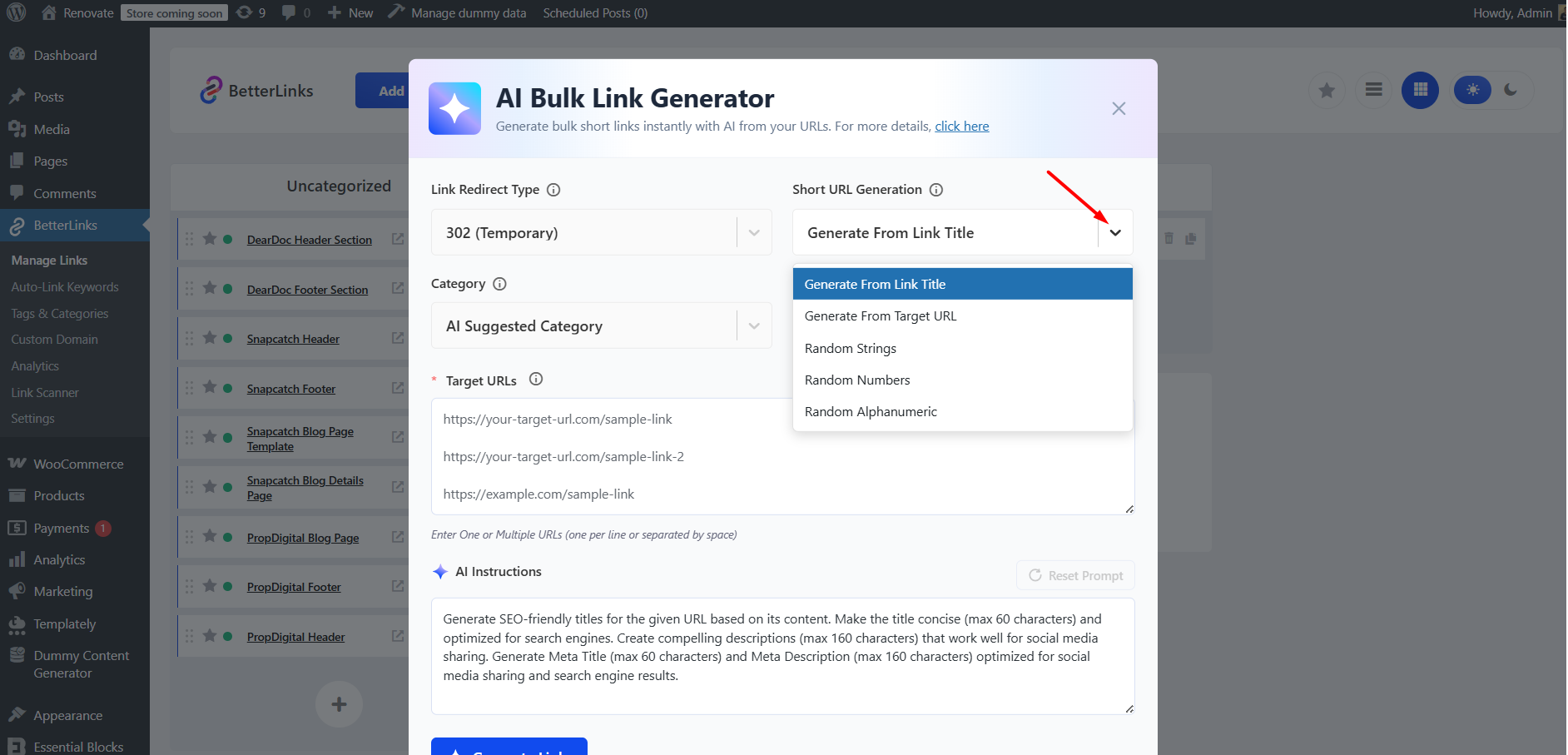
Choose the option that best fits your needs. You can decide whether your short links should be descriptive (based on titles or target URLs) or more secure (using random strings, numbers or alphanumeric combinations).
Category #
In the ‘Category’ dropdown, you can either select a category manually or allow AI to assign one automatically.
- Manual Selection: Choose from the list of previously created categories in the dropdown. Once the links are generated, your selected category will be applied and displayed with each link.
- AI Suggested Category: If you prefer automation, select ‘AI Suggested Category’. In this case, AI will analyze your input and assign the most relevant category to the generated links.
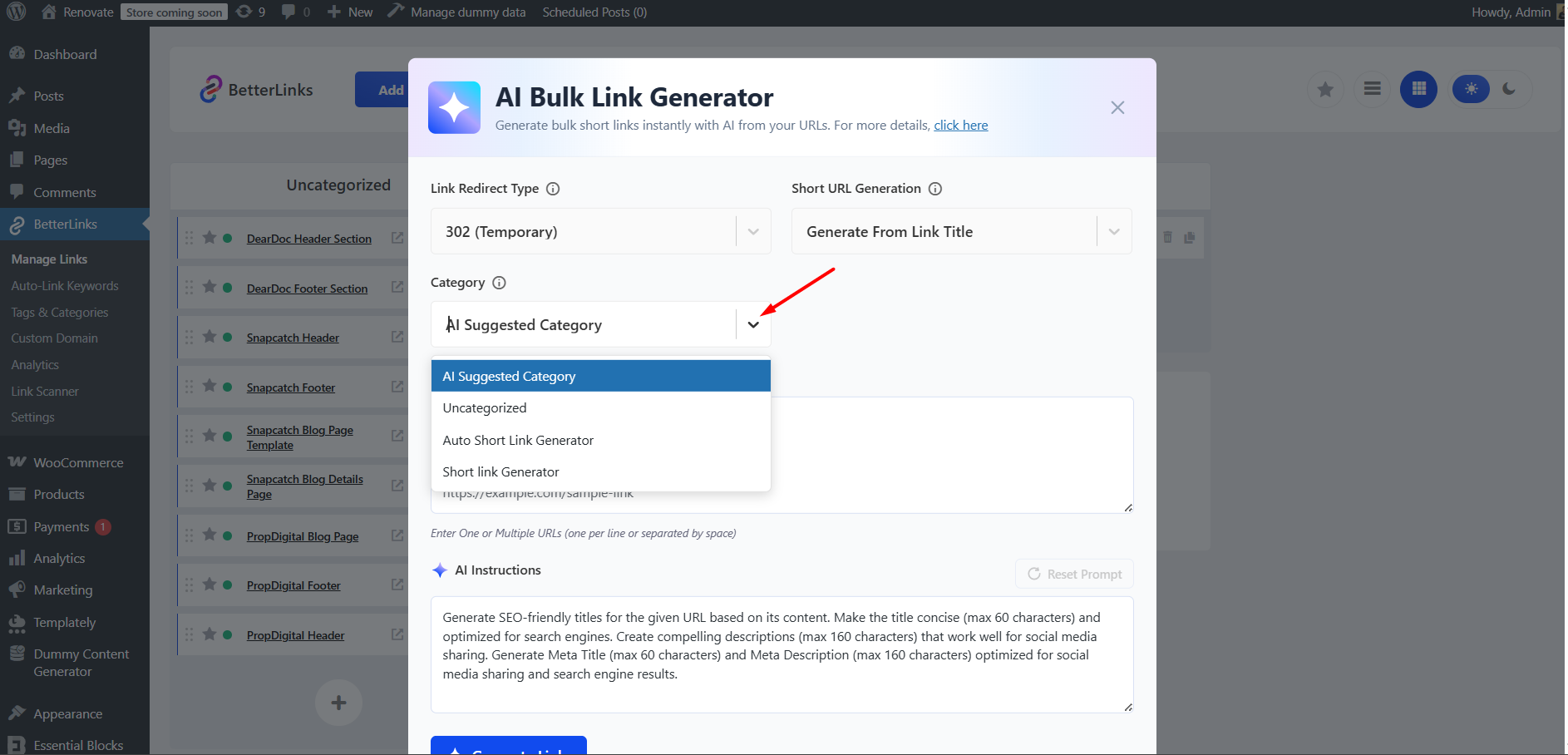
This flexibility ensures that you can maintain consistency with your existing categories or let AI handle categorization for faster setup.
Target URLs #
Enter your destination URLs in the ‘Target URLs’ box for AI‑powered bulk link generation. You may enter one or multiple URLs (either one per line or separated by spaces). A default AI prompt will appear in the AI Instruction box. You can modify this prompt or reset it to the default by clicking ‘Reset Prompt’.
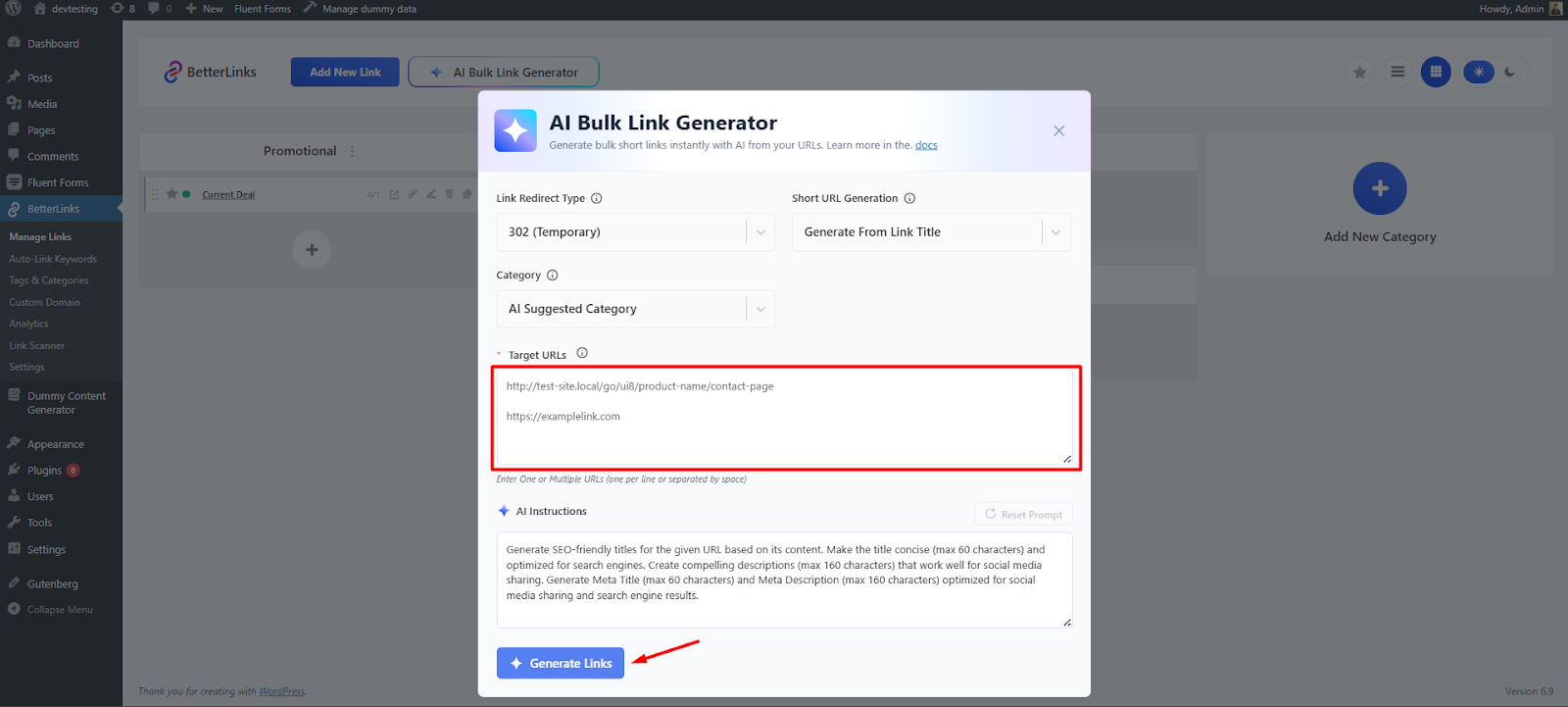
After configuring the settings in AI Bulk Link Generator to match your preferences, click ‘Generate Links.’
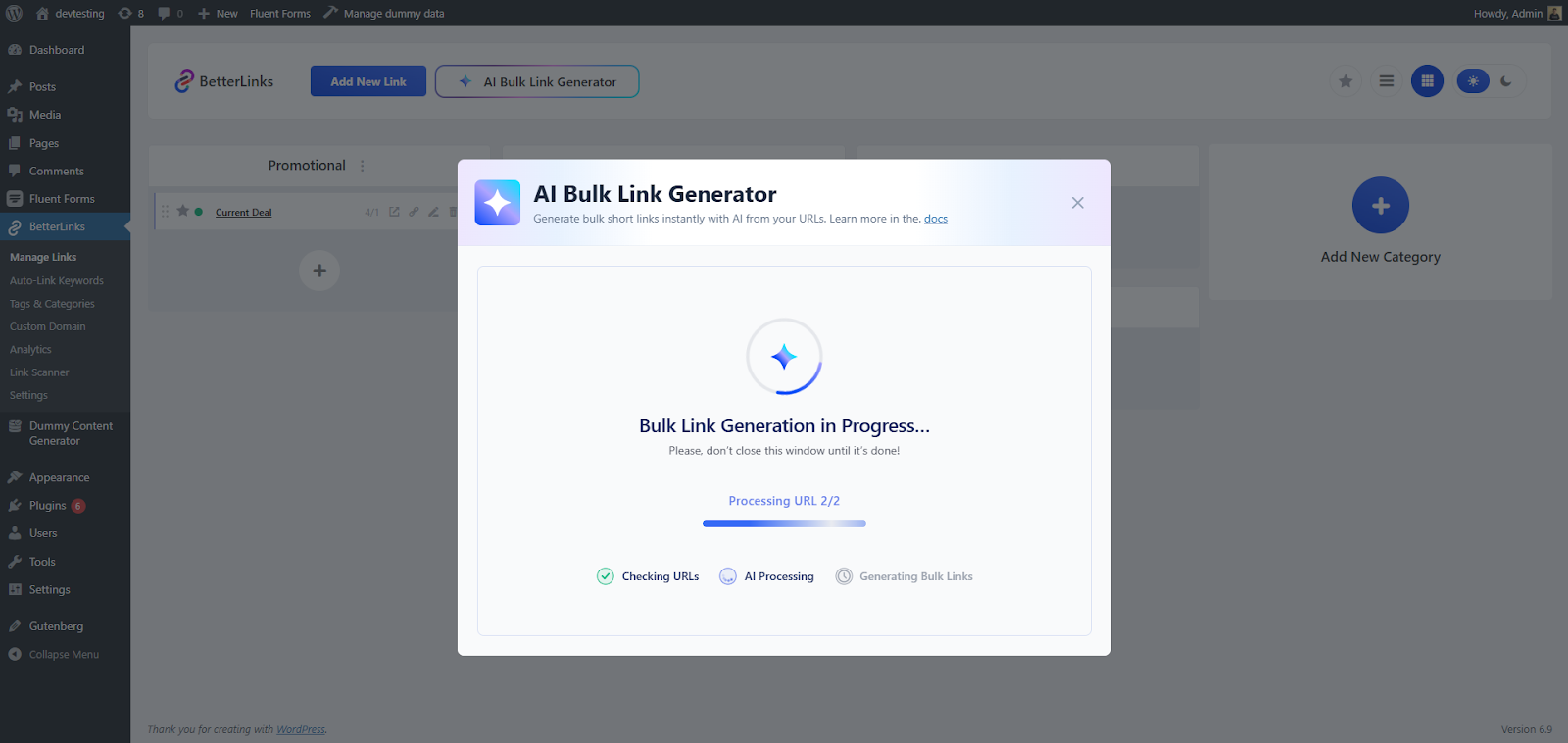
You will see that your configured AI Bulk Link Generation has started and is currently in progress. Additionally, the generation progress is displayed in three phases:
- Checking URLs,
- AI Processing and
- Generating Bulk Links.
Note: Please do not close this window until the process is complete.
Step 04: Review and Publish Generated Links #
In this step, you’ll carefully review the preview of your generated links before publishing. After reviewing and confirming, publish all links.
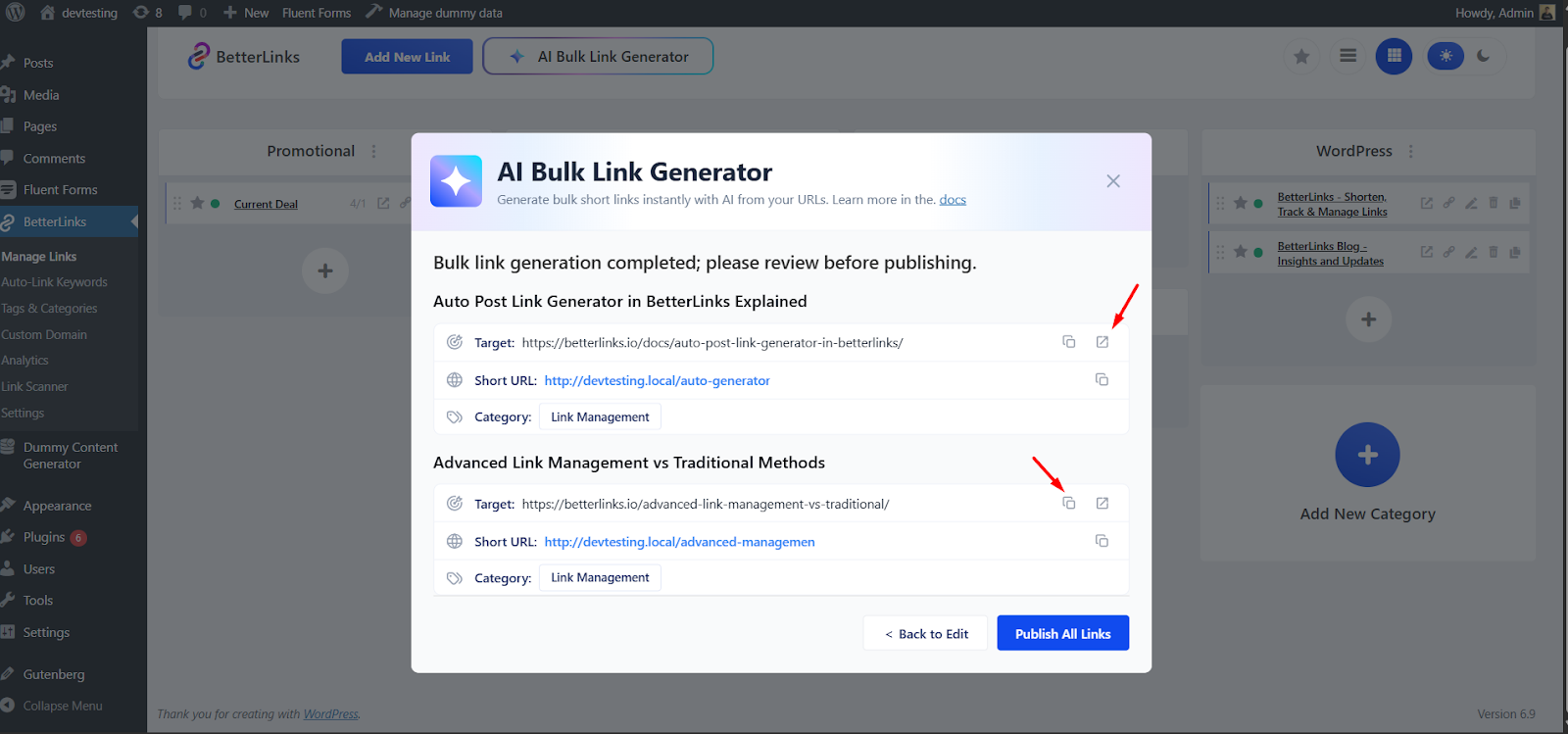
You will see a preview once your bulk link generation is complete. Please review it carefully before publishing. The preview allows you to verify the generated links, whether the category was assigned automatically by AI or selected manually. Be sure to check the ‘Target URL’, ‘Short URL’ and ‘Category’.
If needed, you can copy a target URL directly from the preview and test the link to confirm.
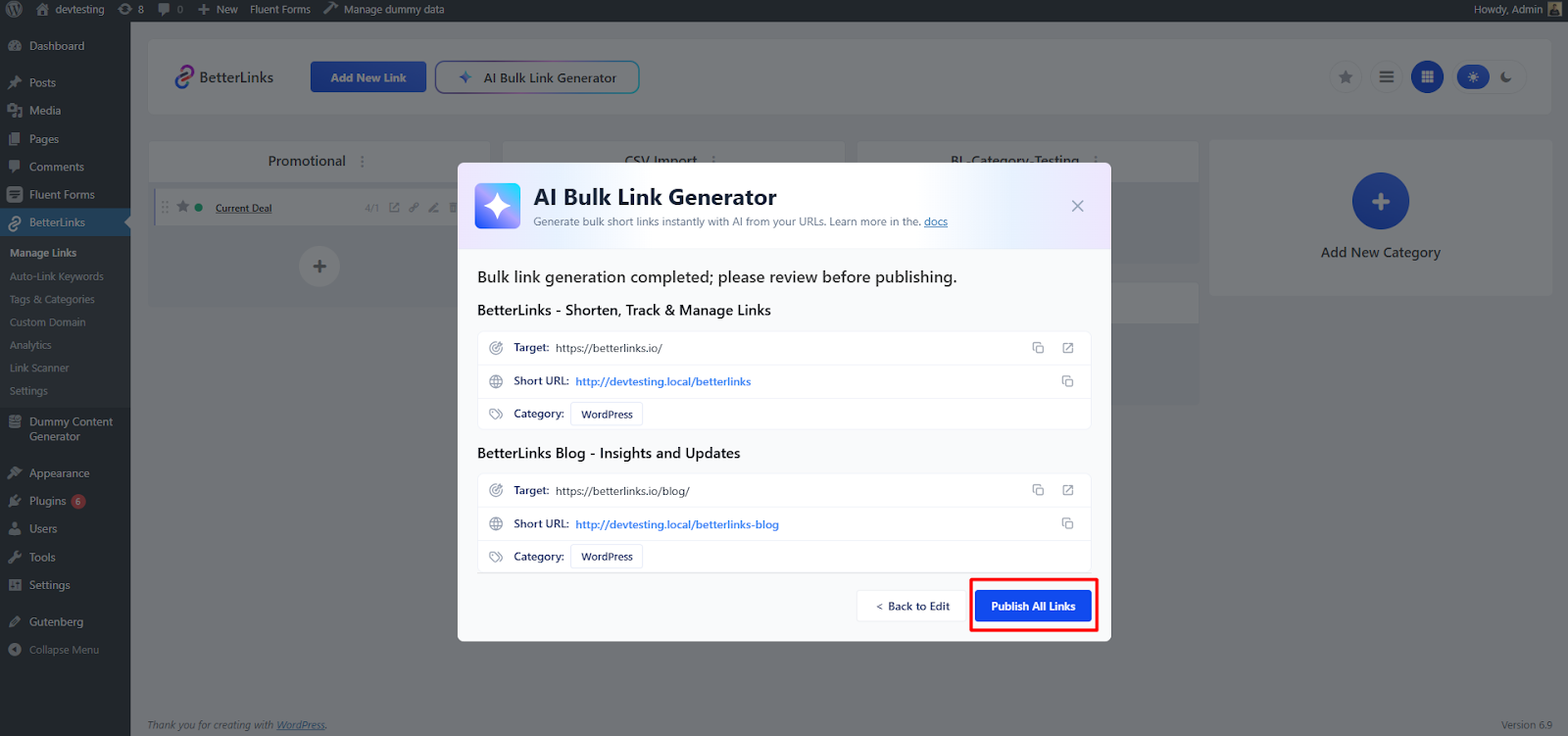
Once you have completed your review, tap ‘Publish All Links’ to finalize and publish the generated links. This action will make all reviewed links active and available for use.
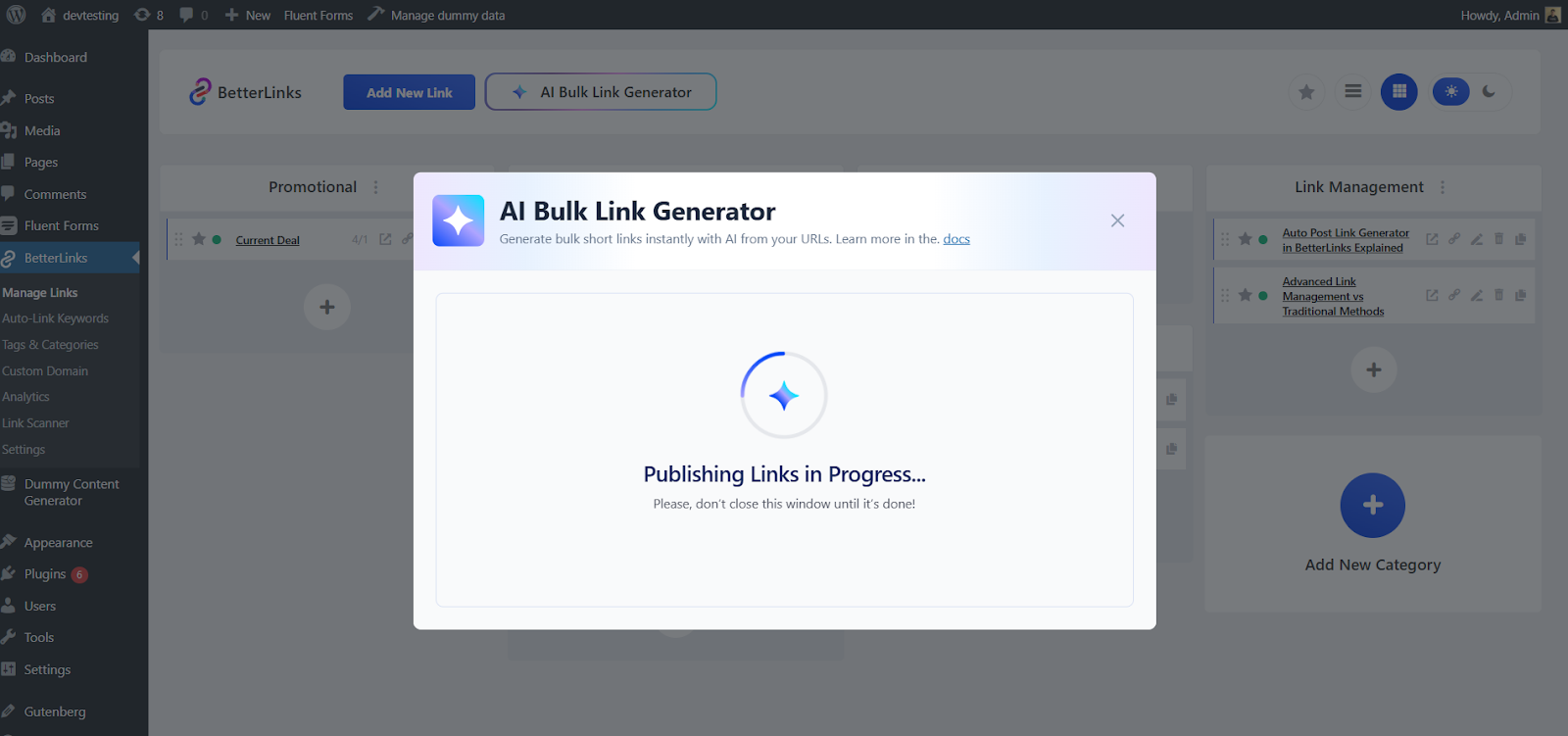
You will see a pop-up window message, ‘Publishing Links in Progress’. Once publishing is complete, you will be redirected to ‘Manage Links’, where the published links will appear under the preferred category.
That’s how you can automatically generate bulk links with AI using BetterLinks in just minutes.
Need help with something? You are welcome to contact our support team at any time.


