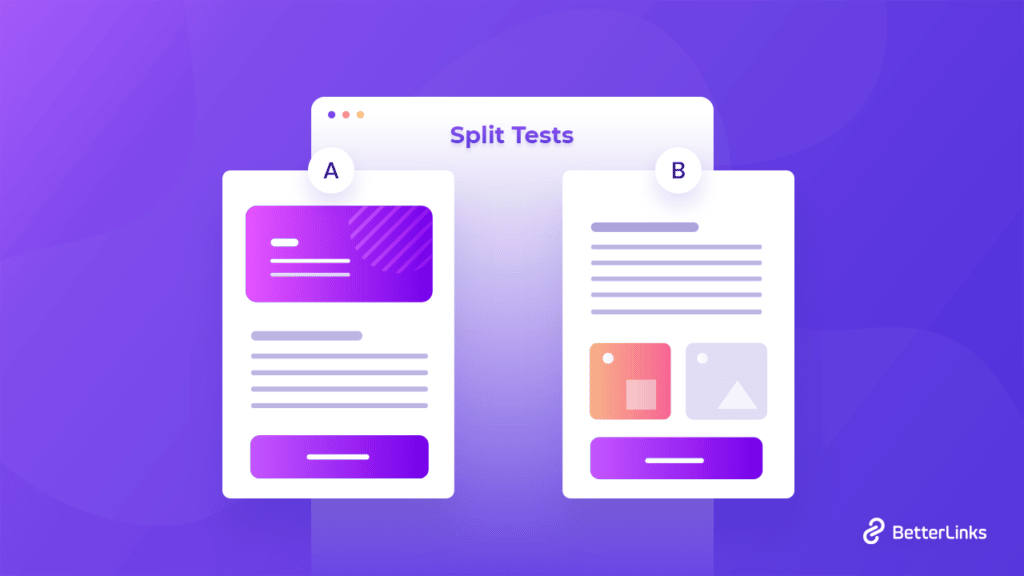
Did you know, with advanced A/B split tests feature by BetterLinks, now you can easily compare multiple marketing campaigns to track which ones convert better? That’s right: data-driven split tests can help you measure the performances of each campaign URL, and put you ahead of the competition.
Continue reading “Track Your Campaign URLs Better Using A/B Split Test From BetterLinks”How To Schedule Marketing Campaigns & Set Expiration Dates Using BetterLinks?

Would it not be relieving if there were tools to help you schedule marketing campaigns prior to the actual publishing day? Or to have a solution that allows you to set link expiration dates so you do not have to individually disable them one at a time? Well, we come bearing some exciting news – BetterLinks now brings you amazing new features to do just these, and much more.
Continue reading “How To Schedule Marketing Campaigns & Set Expiration Dates Using BetterLinks?”WordPress URL Slug: What Is That & How To Optimize It For SEO
If you want to attract more visitors to your WordPress website, optimizing clean URL slugs can be the first step towards it. WordPress Website URLs usually include descriptive information that allows a visitor or a search engine to figure out what the page is about, that is called a URL slug.

SEO optimization of your WordPress website URL slug needs to be thoroughly researched first. You need to determine what kind of content you want to represent in your website URL. The clean URL slug consists of a dash instead of space and all the letters are in lowercase. In this blog, we will walk you through all the information you need to know about WordPress URL Slug.
What Does URL Slug Mean?
A WordPress slug is located at the very end of a URL that is completely customizable. This part of the URL can contain any focus keywords, date, time, author name, content title, or even random numbers. Depending on the permalink structure, anyone can customize the slug.
For better understanding, we will break down a clean URL to identify all the parts. For example,
https://wpdeveloper.net/what-is-wordpress-slug
The first component of the link above is called the scheme, and it contains HTTP or HTTPS. When you see HTTPS, that means the website is secured. Wpdeveloper.net is the subdomain of the link that we have. After the second slash, it is the slug of this link. ‘What-is-WordPress-slug’ is usually written in lowercase. Now you know which section of your WordPress website URL needs to be optimized.
What Are The Uses Of URL Slug?
When a new website is created, search engine crawlers go through every single page to get clues about your website content. That is why optimizing the clean URL slugs is the first and foremost step to attract more visitors and increase engagement. Let’s go through all the use cases of a URL slug below:
💡 The main purpose of using slug is to enhance website user-friendliness. If your website URLs are full of numbers or irrelevant characters, it can give visitors a bad initial impression of your WordPress website. Users frequently avoid clicking on these types of URLs because they appear untrustworthy. A clean URL slug can send the proper message to the crawler or reader about the content of your website and make a big difference.
💡 You can include keywords in your URL slug to improve your SEO ranking. When you include the focus keyword of your content in the slug, the search engine knows right away whether or not it should be promoted.
💡 A slug can help the visitors what to expect from the web page you have created. For example, if you have a folder on your computer called “Family Picture Image,” you know what kind of photographs you might discover there. However, if the folder is named something like “image.20147.jpg,” it’s uncertain what you’ll get. Just like this case, a slug can help a visitor in understanding what they can expect from a web page.
Why Is URL Slug Necessary For SEO?

As mentioned earlier, search engine crawlers identify the URL slugs before it goes through the content of your WordPress website. Clean URL slugs can come to great use in terms of SEO optimization. Let’s learn why URL slug is necessary for better SEO ranking.
⭐ WordPress website URL slugs must be SEO optimized in order to enable complete homepage transparency. For example, you may have included a term in the slug of your website’s URL. When someone searches for something relevant to that keyword, the search engine will first crawl through your website URL slug to determine whether or not it can recommend your web page. Search users will click on your link if the slug appears to be precise and clear.
⭐ For better SEO performance, it’s also necessary to identify various pages on your WordPress website. If your website has several pages for different types of content, a slug for each page can help search engines like Google distinguish between them. It will improve the relevancy of each of your pages in the search engine results.
How To SEO-Optimize Your Website URL Slugs?
For your WordPress website, writing a good SEO-friendly slug can bring more benefits than you think. Let’s see which steps should be followed when creating SEO-friendly clean URL slugs.
👉 Insert Keywords In Slugs
The most critical aspect of SEO optimization is keywords. Because you have the option of changing the website URL slug, you may include the keyword that you want your content to rank for. It is recommended that you use long-tail keywords in your URL slugs. It will drive more organic traffic to your WordPress website.
Your content title, for example, may be “Where To Find Soft Toys For Children Online.” To indicate the main topic of the material, you might use the slug “soft-toys-for-children.” Thus you can first decide the main keyword and insert it to rank better in search engine results. It is recommended that you use long-tail keywords in your clean URL slugs.

👉 Use Short And Relevant Slugs
As slugs are the most readable section of your website, they should be short and precise. To describe the entire content, use short, precise words. Instead of copying and pasting the content title, focus on key elements of the content so that search engine bots can understand what the actual content is and readers can quickly remember your website link when browsing through your WordPress website.
👉 Avoid Using Filler Words
Filler words like a, and, or, then, of, on, and so on should be avoided because they can make your slug longer than it needs to be. When words don’t serve a specific purpose in your website URL slugs, you should leave them out, or else the link will be automatically filtered out by Google. Because of improved SEO performance, this step is required.
How To Create Website URL Slugs?
Creating website clean slugs, according to this article, might be useful for a variety of reasons. However, you must understand how to correctly optimize your slugs. You must follow a different process depending on which slug you wish to alter. It’s simple to change or create a clean URL. To build slugs for various types of content, follow the step-by-step blog below.
👉How To Make A Slug For A Post
To create a slug for a post, you need to create a new post from your WordPress dashboard. Click on ‘Publish’ to make the post live. Now under the published post’s title box, you will find the permalink’s URL.

Now you need to click on the ‘Edit’ button to be able to optimize it. You can now change the slug of the link as you desire. After you have changed it, click on ‘Ok’ and update the change.

👉How To Create A Page Slug
In terms of a page slug, you need to follow pretty much the same steps as a post slug. Just like the page, you need to create a new page and publish it. Clicking on the ‘Edit button you can add your own slug and update it.

What Is The Difference Between Permalinks And Slugs?
Permalinks allow you to customize the clean URL structure of your whole WordPress website. They basically instruct WordPress where to put each of the slugs you manually set. Head over to Settings → Permalink to find out your site’s permalinks.
If your permalink structure is Month and name, for example, WordPress will add the slug after the year and month in which the post was published:

Whereas permalinks are the permanent part of a WordPress website URL, but Your posts, pages, categories, and tags have slugs, which are customizable URL-friendly names. That means you can change the slug to make it more SEO-friendly, but you should be cautious about changing the entire permalink because it is a permanent component of a clean URL.
Bonus: Create Effective URL Slugs Using BetterLinks
As you have optimized all your slugs for better SEO performance, wouldn’t it be amazing if you could measure the effectiveness of all WordPress website URLs? You can use a free WordPress link shortener plugin BetterLinks with a user-friendly interface and its powerful ‘Tracking’ tool. This link shortener plugin will help you to create effective and clean URL slugs.

Now you know what WordPress URL slug is and how you can optimize it for better SEO performance. We have also given you suggestions on how you can keep track of your URL and get a thorough analysis of them. If you have any questions, feel free to reach out to us. For more blogs like this, subscribe to our blog or follow us on Facebook.
How To Generate Expiring URL Of Any Page In WordPress
Whether you are a content creator or an affiliate marketer, you can generate expiring URLs in WordPress for your newly launched short time campaigns. Expiring URLs are commonly used by affiliates and marketers when a link loses its relevance after a certain campaign, for example. Let’s have a look at how to create expiring URLs for any sort of page in WordPress using some of the best WordPress plugins.
Continue reading “How To Generate Expiring URL Of Any Page In WordPress”The Pros and Cons of Link Shortening: Ultimate Guide for Marketers

When it comes to measuring the effectiveness of your social media marketing campaigns, link shortening and link management tools can help you plan and implement better digital marketing strategies. It’s a core job for a marketer to share their content in the most attractive and readable way to grab more leads & conversions. If you are wondering what will be the advantages and disadvantages of using URL shorteners, then this post is for you.
Continue reading “The Pros and Cons of Link Shortening: Ultimate Guide for Marketers”Introduction To BetterLinks QR Code Generator: A Complete Guide
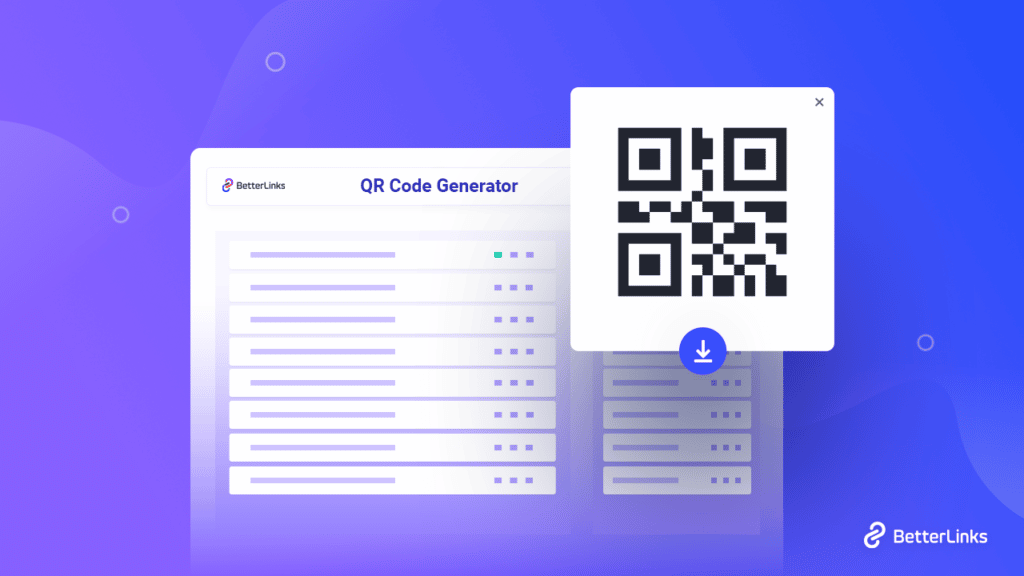
In this fast-paced digital world, most businesses are switching to newer digital marketing strategies and one of the most popular ones is the use of QR codes. And to help all WordPress marketers around the world, the ultimate link management tool BetterLinks brings you a brand new feature – the BetterLinks QR Code Generator.

How Can QR Codes Help With Link Management In Marketing?
So before we get into BetterLink’s useful new feature, let’s understand what QR codes are and how they help with link management in digital marketing.
A QR (or Quick Response) Code is a two-dimensional barcode that can be read and interpreted by the cameras of smartphones and devices via a QR code scanner. These days, such 2D barcodes are widely used in advertising, sales brochures, product documentation, and packaging for many different marketing communications and link management.

While it is a type of barcode, it can hold up to thousands of alphanumeric characters of information which is quite an upgrade from the traditional barcodes. Moreover, QR codes can be read in full 360 degrees in any direction, which eliminates any background or irrelevant issues with the barcodes, enabling you to have smooth communications with stored information every time.
When your website users and customers scan a QR code from your site or brochures with their phones, the codes can redirect them to a web link or content you set onto the code. And as the name of the code suggested (‘Quick’ Response), this redirection or communication takes place instantly.
For example, if you embed a QR code into the emails that you send your clients or customers, they can easily scan the code and access important information, offer pages, contests, and much more. This will not only highly improve customer satisfaction but also help spread a positive view of your business to potential clients and users.
And finally, the best part is that a QR code lets you keep track of all the redirected links. You will be able to instantly monitor the performances and the effectiveness of the marketing links and campaigns.
Step-By-Step Guide To Use BetterLinks QR Code Generator
To help you instantly generate QR codes for all your website links, BetterLinks brings you a new feature – BetterLinks QR Code Generator. With this super easy feature, you will be able to create and download QR codes in a couple of steps without breaking a sweat.
Step 1: Enable The QR Code Generator
To start off the process of generating a QR code for your desired URL, you need to enable the BetterLinks QR code generator. To do so, you need to navigate to BetterLinks → Settings from your WordPress website’s dashboard.
Here, all you have to do is click on the checkbox for ‘Enable QR Code Generator’, under the ‘General’ tab, as shown below. This will immediately turn on the BetterLinks QR code generator and you will be able to generate codes for all the existing and new links registered on your plugin.

Step 2: Generate QR Codes With Ease
The next step here is to generate a QR code for the web page link you need. But before you can do that, there’s one thing to keep in mind – you must create and publish (or import) the website URL using your BetterLinks plugin before you can generate its code.
So, if you are a new user, check out this step-by-step documentation to learn how easy it is to create and manage links using the ultimate link management solution.

If you have existing links on your BetterLinks plugin and you have already carried out step 1 as mentioned above, simply navigate to the BetterLinks→ Manage Links interface.
Here, you will find a new BetterLinks QR Code generator icon on your existing links, as shown below. Simply click on this icon and a QR code will be automatically generated for the shortened or redirected link.

And that’s it, it is that simple to generate QR codes for any and every one of your web page links, affiliate marketing URLs and more.
Step 3: Download QR Code Images
Once your QR code has been generated, it is important for you to share the QR code in emails, marketing campaigns, printed flyers, store brochures, or anywhere else needed to bring site traffic to that specific link.
Using BetterLinks, it is super easy to download and store the QR code for later use. When you generate the QR code, it automatically comes with a blue ‘download’ button, as shown below. You can simply click on it and a .png image file of the QR code will be downloaded onto your device instantly.

In these 3 very easy and simple steps, you can generate QR codes and optimize your digital marketing practices effortlessly using the ultimate link management plugin, BetterLinks.
Manage Links Better With Many New Features From BetterLinks
Here at BetterLinks, we are constantly trying to help enhance your link management system for WordPress. Therefore, we are always trying to introduce new features to ensure you get all the facilities you need to create, manage and track your website URLs.

And so, along with the recent QR Code Generator, we have many more features with the latest updates of BetterLinks:
⏳ Link Scheduler:
First up, we have the Link Scheduler from BetterLinks. This feature enables you to easily manage the status of your website links and helps you schedule a time for the URLs to be published at a later date using just a few quick steps.

This feature is extremely helpful when you have a few upcoming marketing or affiliate campaigns planned out for later. You will be able to create and manage links beforehand and schedule a particular time and date for them to go live or active on.
⚠️ Broken Link Checker:
On the other hand, we understand that at times, even when you are extremely careful about all your website and affiliate marketing URLs, one or two broken or expired links might slip through the cracks.
To help you locate and fix such broken links from among hundreds on your site, BetterLinks brings you another new feature – the Broken Link Checker, which will enable you to effortlessly scan for broken URLs and take your WordPress link management process a notch higher.

To learn more about all new features of BetterLinks, check out this blog here and give this ultimate link management plugin a try; you will not be disappointed. Let us know about your experience by commenting below. Or, take your URL management experience to newer heights using BetterLinks PRO.
Join our Facebook group to communicate or subscribe to our blog for more useful tutorials, the latest news, and updates.

Guide: BetterLinks User Role Management Explained
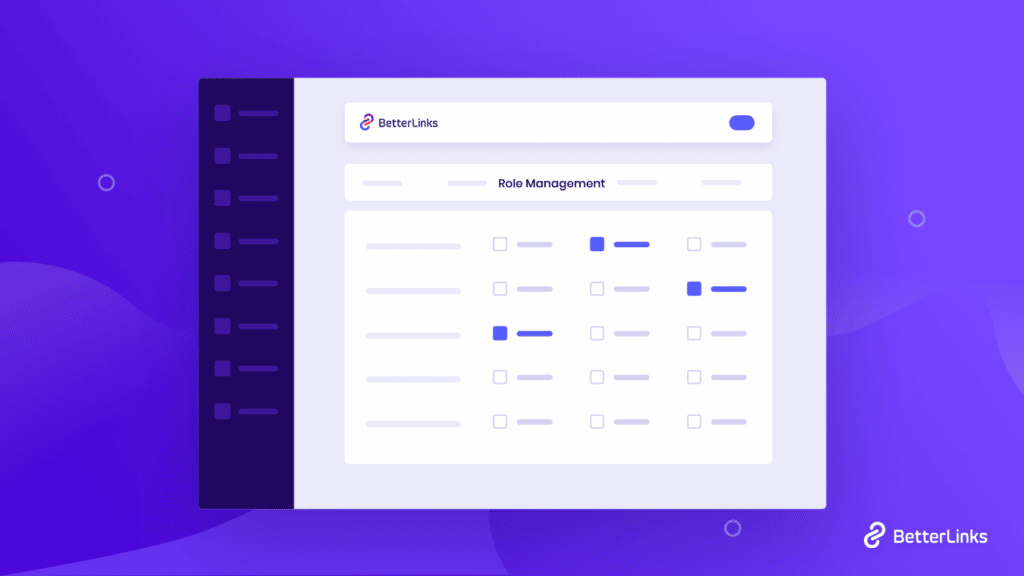
BetterLinks brings you advanced user role management features to collaborate within the team and assign roles based on the responsibilities. Excited to know in detail? Take a deep dive into this blog.

The user role management facility is essential for any type of WordPress website. And for advanced link management solutions, it is a must. Website links are the most sensitive function to deal with; your website ranking, SEO score, search volume, affiliate marketing, entire campaigns everything depends on it.
Whether your business is small, growing, or established, in any case, you have to be careful about giving access to the right people to manage your links efficiently. Not anyone can make any changes to your links or any further world. That’s why user role management needs are relying on.
You can decide to control who can create, edit and view the results of your links individually. It is one of those essential features you have to look at before getting any link management solution for your online business.
Guess what? BetterLinks comes with this premium user role management tool to make sure you can enjoy full freedom to give access to your shortened links to desired team members. You can provide access individually who can create new links, edit links or entire settings, check analytics, or others in advance. Let’s get started!
Why Choose BetterLinks As Your Link Management Solution?
BetterLinks is the latest, all-in-one link management solution for WordPress. Already BetterLinks is growing its user base within this short period because of lots of advanced, exclusive, and up-to-date features. You can not only shorten any type of URLs, but you can also create link redirects with 301, 302, 307 redirect types, manage your affiliate links, marketing campaigns, track them with BetterLinks in-built analytics tool, and much more.
This is because if your link management solution hits your entire database that makes your site slow and makes the entire process lengthy. BetterLinks ensures this to make your site faster and smooth without any hassles.
Check out what more BetteLinks has to offer you below:
- Create, customize & shorten any type of links
- Manage affiliates or campaign links in advance
- Different redirections types like 302, 301, or others
- Manage links with separate categories, tags, etc.
- Get exclusive Wildcards facility
- Automatically disable any bot links
- Fetch data directly from JSON file
- Get advanced UTM builder support
- Set up link redirection expiry date & status
- Export/Import all link shorten data anytime
- Forcefully redirects target URLs in HTTPS
- Advanced User Role Management facility
- Mesure link performance with In-built Analytics
- Powerful integration with Google Analytics
- Split Testing facility for dynamic URLs & a lot more
Guide: BetterLinks User Role Management Explained
BetterLinks offers you this advanced user role management feature to streamline your workflow when tracking and monitoring your links, marketing campaigns, or affiliate links. This user role management feature comes with BetterLinks PRO to give you more flexibility and control.
Note: Make sure to install & activate BetterLinks plugin for WordPress. Since user role management is a premium feature, you will also need to install BetterLinks PRO.

Without any other intro let’s follow the step-by-step guide below to configure BetterLinks user role management feature below:
Step 1: Configure Your BetterLinks Settings
First, you have to navigate to BetterLinks → Settings → Role Management from your WordPress dashboard. Here you can see the lists of options by which you can assign desired roles to your team members.
Step 2: Manage User Roles & Assign Individual Task
Afterward, check the boxes and assign permissions to your WordPress website users depending on their roles such as ‘Editor’, ‘Author’, ‘Subscriber’, and more. You can decide who can view links, create links, edit links, check analytics and edit BetterLinks settings.
BetterLinks gives you the freedom to provide multiple roles to each member. And after making all the changes, press the ‘Save Settings’ button and save all the changes.
Now Manage Your User Roles In Advance With BetterLinks
This is how simply BetterLinks user role management premium feature can be configured with a few clicks. And you can easily manage all your team member accesses and assign them their preferred with BetterLinks. So in one link management solution, you are getting all.
Hope you find this helpful and feel free to share your thoughts with us by commenting below. If you want to read more exciting blogs, visit our blog page, and join our Facebook community to get along with all WordPress experts.
WordPress Short URL: How To Create It Using BetterLinks
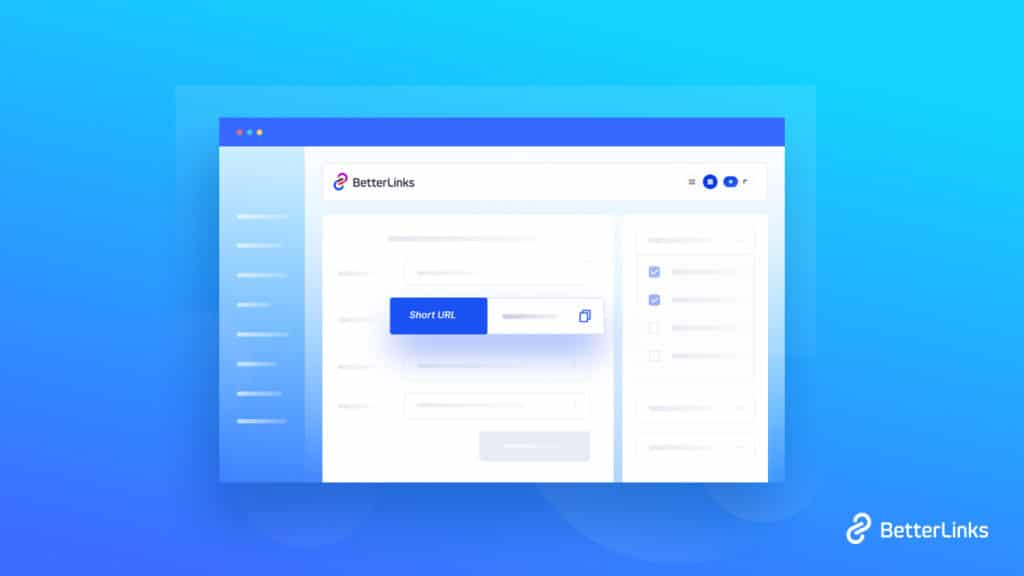
Instead of using long URLs of your WordPress website content to do promotional activities, social shares or any related purpose looks messy. If you make links short, and simple they can easily get noticed and understandable for online visitors. You just have to get the best WordPress short URL solution to create short links, track link performance, and more with some simple steps.

Don’t you worry! BetterLinks – the latest best link management solution for WordPress has come to solve all kinds of link-shortened issues. And improve your site link performance, affiliate marketing, or any type of promotion activities in advance. You can easily track each link’s performance, manage user roles, and more by using this all-in-one solution. Excited? Enjoy reading till the end!
Why Does Your Business Need A URL Shortener?
Tons of benefits is relying on getting a complete URL shortener to manage any kind of links online. You can run successful campaigns, do shares, boost click-through rates of your links and track them all exclusively. Let’s take a look at all pinpoints below:
Make Your Links More Manageable
Suppose your desired link is https://wpdeveloper.net/clear-cache-major-browsers/ and you can make wpdeveloper.net/clear-cache look more specific, short, and understandable. This can easily be memorable and shareable for your online visitors on social media platforms, communities, or can look for any time. And you can do this quickly by using an advanced link shortener solution without hassles.
Easily Can Choose Link Redirection Types
Advanced URL shortener helps not only help to shorten links but you can also choose different redirection types for your separate links. Like 301 for permanent link redirections, 302, 307, or others for temporary link redirections and all.
Track & Compile Clicked Data
URL shorteners can easily track individual links and generate compile lists including all links. The best URL shortening solution comes with in-built analytics so that you can check your link performance growth at a time and get a detailed report of it. Except this, you can export, analyze it personally and choose to or import new whenever you want.
Accelerate Click-Through Rates
When your links are short, your visitors can feel safe to click and view your content. Long URLs sometimes look like spam and are unorganized too. To provide a professional look at your all workable links whenever you want can provenly increase click-through rates.
Promote Sharing On Social Media Networks
Short URLs are easily shareable on social media networks. Because socially shared content is itself very tiny and very focused. And it looks awkward when you do any marketing promotion with long links, or with long post links. Either way URL shortener works like a blessing. You can easily shorten, redirect, and track all link data in advance.
Guide: How To Create WordPress Short URL With BetterLinks
Introducing BetterLinks the complete URL shortening, tracking, and redirection solution for WordPress users. You can now easily create WordPress short URLs, choose your preferable link redirection types, manage affiliates, marketing campaigns, and more with this latest advanced link management solution BetterLinks.
And BetteLinks is the latest and best because of its advanced data fetching workability. It completely fetches data without hitting your website direct database rather than first checking on your JSON file.
If your database is hit first it makes your site slow and the link organizing process lengthy. BetterLinks make sure your site faster loading and efficiently manage your links in advance. Check out what more BetteLinks has to offer you below:
What BetterLinks Has To Offer You?
- Create, customize & shorten any type of links with ease
- Choose between affiliates or campaign links like no follow, sponsored, etc.
- Set up link redirection with 302, 301, or other types as per your need
- Manage links with separate categories, tags & get Wildcards facility
- Help to disable any bot links in advance & make your site link secure
- Fetch data directly from JSON file & process in fast mode
- Evaluate marketing campaigns with advanced UTM builder
- Set up link redirection expiry date & status
- Export/Import all link shorten data anytime
- Forcefully redirects target URLs in HTTPS
- Advanced User Role Management facility
- Mesure link performance with In-built Analytics
- Powerful integration with Google Analytics
- Split Testing facility for dynamic URLs, and a lot more
Start Making Your WordPress Short URL With BetterLinks
BetterLinks helps you to add, create and generate new links with ease. Follow this step-by-step guide below to create new links from your website dashboard.
Step 1: First Add New Category
Navigate to your WordPress dashboard BetterLinks → Manage Links. Then you will find the option to ‘Add New Category’. All you have to do is just click on the blue ‘+’ icon to add a new category.
Afterward, provide a suitable name for your new category and hit the ‘Submit’ button. This is how you can add new categories successfully to manage links.
Step 2: Now Create New Links
Now you are on your way to creating new links with BetterLinks, and you can make it happen in two ways. You can click on the ‘Add New Link’ or click the plus icon button under the new category.
Either way, a popup will appear as you can see below and you have to fill up some mandatory fields like Title, Redirect Type, Target URL, and you can manage your shortened URL from there. Besides, you can add Description, Category, and Tags as per your preferences.
After filling up every section carefully, hit the ‘Publish’ button. Your new link will be created successfully under your selected category. This is how easily you can create WordPress short URL and manage any links with ease. And you can also go through this detailed documentation on creating new links with BetterLinks & know more.
More Powerful BetterLinks Features To Look At
Rather than creating WordPress short links, you can do the split test of your customized or shorten links using BetterLinks. This is helpful in your campaign purpose or checking which links work better for future advancement. Affiliate marketing links can also be selected as sponsored links and make them track with BetterLinks advanced support.
You can even do much more with BetterLinks Dynamic Redirects feature. You can easily add and get track of your four types of dynamic URLs. By which you can do any type of link experiment and examine your marketing success exclusively.
For instance, you can do time-based, device-based, rotation-based, or geolocation-based redirects. And take your marketing promotions, campaigns success to the next level by managing and analyzing your links in advance. These are all BetterLinks’ advanced premium features to look at.
Besides, you can any type measure the performance of your links with BetterLinks’ built-in analytics tool. You can check day-wise, weekly, or monthly reports and analyze your links’ latest status.
BetterLinks also has powerful integration with the Google Analytics tool in any case you want to measure both built-in analytics and Google Analytics data.
BetterLinks comes with an advanced user role management facility to get control over your link access. You can choose roles who can create, edit, check analytics, and more in advance. Also, you have the WildCards support to manage bulk links with ease.
Even if you face any issue, anytime you can refresh your database by clearing cache and make your link management process faster than before. So that you don’t face any type of cache issues that can create obstacles in your link management path.
Moreover, BetterLinks helps to detect bot links to protect your website from any kind of harmful links in advance. So you don’t have to worry at all about site security that causes bot links. You just have to enable this feature and it will then automatically work for this.
On the other hand, if you want you can export or import data to redirect those links directly, to make it sorted, or for further analyzing it. There are many more you will get with this complete link shortening and management solution for WordPress.
And if you are worried about migrating your database then you can also easily do that by following its easy migration process. So you will get an all-in-one solution to manage your entire website links with ease.
Now It’s Your Turn To Explore
Hope you find this helpful and feel free to share your thoughts with us by commenting below. If you want to read more exciting blogs, visit our blog page, and join our Facebook community to get along with all WordPress experts.
A Beginners Guide to UTM Parameters & How to Use Them
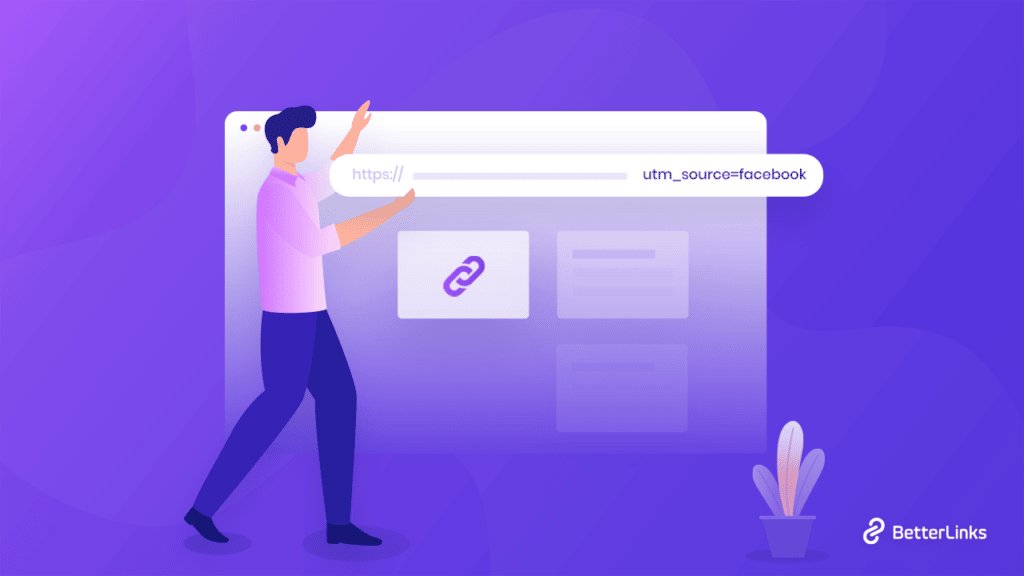
The most important part of digital marketing is that you have to track the performance of each of your links using UTM parameters and optimize your marketing strategy. UTM stands for ‘Urchin tracking module’ and UTM parameters are snippets of texts that you can add to your links and track your links based on that. Let’s learn all about UTM parameters and see how to use them for your benefit using UTM builder.
Continue reading “A Beginners Guide to UTM Parameters & How to Use Them”BetterLinks Analytics: Everything You Need To Track Your Links Well
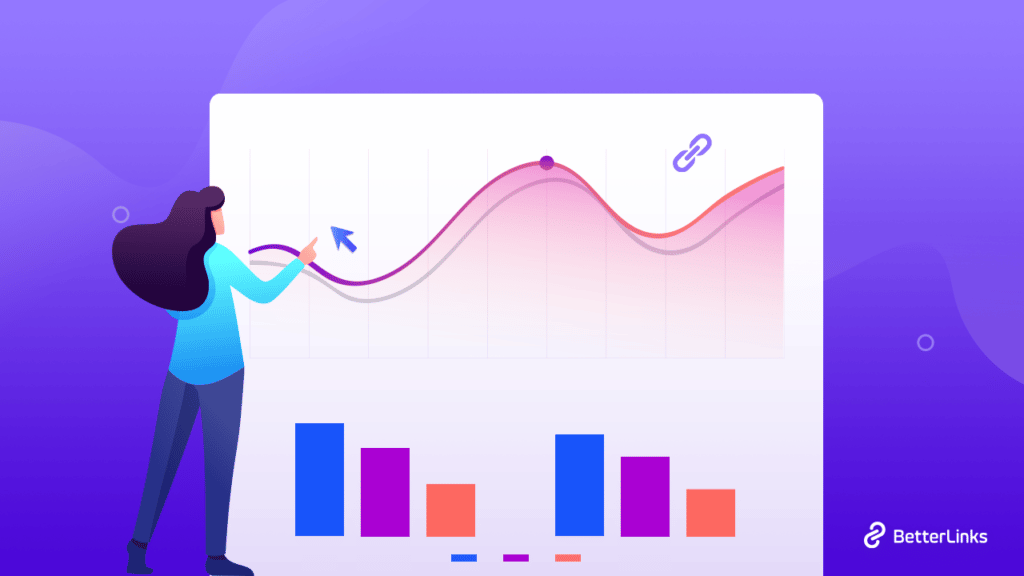
Are you looking for an easy solution to help you track and analyze the performance of all your website URLs, marketing campaigns, and affiliate links? Then, you will be delighted to know that you can do all that and much more using BetterLinks Analytics in a few, simple clicks.

BetterLinks is the ultimate link management solution for WordPress that brings multiple unique and outstanding features to help you shorten, monitor, and manage hundreds of Website URLs completely hassle-free. But most importantly, it provides businesses and marketers like you with many advanced analytics features to help track your links well, and enhance your digital marketing experience with ease.
This useful link shortening and redirection plugin not only brings you an in-built analytics tool but many more exclusive features like Google Analytics integration, A/B Split Testing, and several types of Dynamic Redirections with BetterLinks PRO. So, without further ado, let’s dive in and find out why it is essential to track your links for the success of your marketing campaigns, and the number of ways BetterLinks analytics can help you do so.
Create Better Campaigns With Advanced Link Tracking & Management
Digital marketers need to track URLs – of their websites, blog posts, affiliate links, and more – to manage their businesses more efficiently. Tracking URLs help marketers like you to understand the effectiveness of activities or campaigns; it is a source of direct insight into what provides the most value and drives the greatest traffic to your business.

By measuring click-through rates on the links that you create or publish on social media you’ll be able to know exactly how many clicks or the amount of traffic came from a specific post or page. To be more specific, you’ll be able to know which type of topic, time of day, social network, and message works better for your business and actually boosts sales.
But not just clicks on single posts or pages, it is crucial to monitor marketing campaigns, especially for businesses during the holiday seasons. If you have multiple affiliate links referring to a particular campaign or website, it is always a good idea to keep track of which one is performing better.
Understanding these useful insights of your website pages and campaigns will help you figure out who your audience is and how your clients’ minds work and eventually. You can also get a clear idea of where they are from and what types of products make a better sale. Advanced analytics is essential to get your business conversions to skyrocket.
However, it can be quite difficult to measure the performance of URLs based on all the different link tracking factors without using an advanced tool. This is why BetterLinks is your go-to, all-in-one link management plugin for WordPress. Let’s dive in and take a closer look to understand why.
BetterLinks Analytics: Get Insightful Data About Link Performance
BetterLinks is the ultimate plugin with tons of advanced features and facilities to enable you to easily redirect URLs, shorten links, and analyze every and each aspect of a link’s performance smoothly.

This all-in-one tool is perfect to track and analyze link performance, integrate it with Google Analytics, carry out split testing with Dynamic Redirects and add campaign parameters with an advanced UTM Builder, and much more.
Track Your Links Using Advanced, Built-In BetterLinks Analytics
BetterLinks is more than just a link shortener plugin. To help you manage your campaigns better, this useful plugin comes with an advanced built-in BetterLinks analytics tool that will give you insightful data about the performance of your links.

It lets you track and measure your click-through rate, along with details of the browser used to engage with the URL, link name, referrer, target URLs, and much more. You can even filter the data collected according to date and time to see how many clicks a particular link is getting during specific seasons or time periods.
Analyzing this BetterLinks analytics data can help you determine whether the promotional activities of your campaigns or affiliate links are performing well, enabling you to make better predictions and plan successful campaigns with more accuracy. And the best part, you will be able to access all these insightful data straight from your website dashboard, with a single click.

Monitor Data For Individual, Redirected URLs With BetterLinks PRO
To monitor data for specific, individual website URLs or affiliate campaigns, BetterLinks PRO brings you an even more advanced feature. With the help of this ultimate link management plugin, you can now track the performance of individual links from the plugin’s user interface.

When you create or redirect a shortened URL, you will find click-through rate data next to the links. Just hovering on this data, will show you a popup giving you more BetterLinks analytics details – the number of clicks as well as unique clicks.
All you need to do is click on these data counts to get in-depth information visualized in a highly interactive graphical view on the analytics page of BetterLinks, for easier navigation.
Seamlessly Integrate With Google Analytics To Follow Campaigns
Using Google Analytics can give you an overview of all insightful data about your marketing campaigns and bring you more information about how your website visitors are interacting with your shortened links.

And to help you further in this aspect, BetterLinks PRO enables you to seamlessly integrate with Google Analytics to view important data that could help you finetune your campaigns.
You have to simply retrieve your ‘Tracking ID’ from your Google Analytics account, and input it in the required input fields on the ‘Google Analytics’ tab from your plugin’s settings interface. And that’s it – it is that easy to integrate the powerful web analytics platform to BetterLinks analytics for link management.
Add Parameters To Monitor Marketing Campaigns Using UTM Builder
Once you have configured Google Analytics with BetterLinks PRO, you can easily access another exclusive, premium feature of BetterLinks analytics – the advanced UTM builder. This outstanding feature enables you to easily generate a UTM code that you can use to track your links and marketing campaigns.

Using this advanced BetterLinks analytics feature, you can set parameters to your marketing or affiliate campaigns automatically and use it to fetch data from Google Analytics with ease.
Moreover, you can also save the configured data as a template and use it later for all your other redirected or shortened web URLs effortlessly.
Carry Out Split Tests With BetterLinks Dynamic Redirections Feature
Besides this, BetterLinks PRO lets you perform split testing with dynamic redirects. You can even create link rotations with dynamic redirects as well.
‘Split testing’ is a very important way for marketers to finetune their strategy and campaigns. To do this, you must have two offer pages (or more) and a goal landing page on your website. The offer pages are the web pages where you will set the redirect link (through a hyperlink or call-to-action buttons) and the main landing page is where the user will be redirected to.

Once you have inserted the redirect links to your offer page, it’s only a matter of enabling the dynamic redirects feature and split testing option to see how your offer pages are performing using BetterLinks analytics.
You can view and analyze the results of your split testing with the built-in BetterLinks analytics tool mentioned above, and see the conversion rates and other reports for each of the offer pages in a beautiful graphical format.

Enable Dynamic Geolocation, Device or Time-Based Redirections
Using the advanced Dynamic Redirections feature from BetterLinks PRO, you can also enable link redirects based on geolocation or device of the website user, or the time period of URL visit. These types of BetterLinks analytics features can easily heighten your link management procedures and make them more insightful.
🌍 Geolocation Based Dynamic Redirection:
Geolocation redirects enable you to automatically redirect a user to a page with a specific country or city domain or a completely different domain. A good example of this feature can be the website Uber.com – which takes its site visitors to specific country-based subdomains for a better user experience.

If you have a multinational-based WordPress website, BetterLinks PRO enables you to create seamless geolocation-based redirections using a few simple steps. All you have to do is set your dynamic redirection type as ‘Geolocation’, and add target URLs for different countries under the ‘Geographic Target URLs’ section.
💻 Device Based Dynamic Redirection:
Device-based dynamic redirects enable you to automatically redirect a user who is accessing your links from a particular device to be redirected to a different page. This type of dynamic redirection is best suited for websites or applications with more than one version developed to be responsive on different devices.
Enabling this advanced feature will allow your website visitors to view your site from different devices, such as mobile phones, tablets, laptops, or desktops with different screen sizes.

Again, BetterLinks PRO brings you this useful feature to create fully responsive, smooth device-based dynamic redirections using similar steps as mentioned earlier for Geolocation based redirects.
Here, you have to select your redirection type as ‘Device’ and set your target URLs for different device types under the ‘Device Based Target URLs’ section. Not only that, you can customize this type of device-based dynamic redirection even further by choosing the browser, and operating system. Users who are using these devices, browsers, or operating systems will then be redirected to the link you have set for them.

⏰ Time Based Dynamic Redirection:
Time-based dynamic redirects allow you to send your website or link users to a different web page or domain when they click on a link during a specific time period.
To use this incredibly helpful feature, you need to choose the ‘Redirection Type’ to ‘Time’ to create a time-based dynamic redirect. Then, under the ‘Time-Based Target URLs’ section, you can set the starting date and time as well as the ending date and time during which your site visitors will be redirected to the target URL you have specified.

You can add as many time-based target URLs as needed, and configure this particular dynamic redirection feature for multiple time periods throughout the day or even the month. This way, for example, you can specify target URLs where the user will be redirected after a particular campaign has ended or is no longer available.
Experience Advanced Link Management With BetterLinks Analytics
BetterLinks enables all digital marketers like yourself to get useful, in-depth insights about your links and campaigns without using any codes or external, third-party applications. You’ll be able to know all necessary details such as who is clicking on your link from which location, the number of unique clicks on a campaign link, analyze which of your affiliate links are bringing in more traffic, and much more.

Try BetterLinks, the ultimate link management solution for WordPress and analyze your campaigns and links with just ease, and make the right decisions to skyrocket your engagement rates and conversion with just a few clicks. Or, take your URL management experience to newer heights using BetterLinks PRO; purchase any of our premium packages at an exclusive, limited-time offer at only $49!
Let us know about your experience, we would love to hear from you. Leave a comment below with your thoughts or suggestions. Join our Facebook group to communicate or subscribe to our blog for more useful tutorials, the latest news, and updates.