If you’ve ever copied and pasted a link into one of your social media pages, you’ve definitely thought to yourself, “Wow, that seems absurdly long.” This is where the URL shortener tools come to your aid! URL shorteners perform exactly what you expect. They take long, messy URLs and shorten them to make them clearer to the eyes. Today in this blog we will talk about the 5 best URL shortener services for your WordPress website.
Continue reading “Top 5 Best URL Shortener Services to Shrink & Track Links”5 Common Affiliate Marketing Mistakes To Avoid

In this present age, affiliate marketing is one of the most popular digital marketing techniques. Besides digital marketers, many newbies have started practicing affiliate marketing to earn money online. But, in a hurry of earning more in less time, they are making some major affiliate marketing mistakes. Here, in this article, you will get to know 5 common affiliate marketing mistakes that you should avoid in your affiliate business.
Continue reading “5 Common Affiliate Marketing Mistakes To Avoid”15+ Best WordPress Affiliate Programs for Bloggers To Make Money
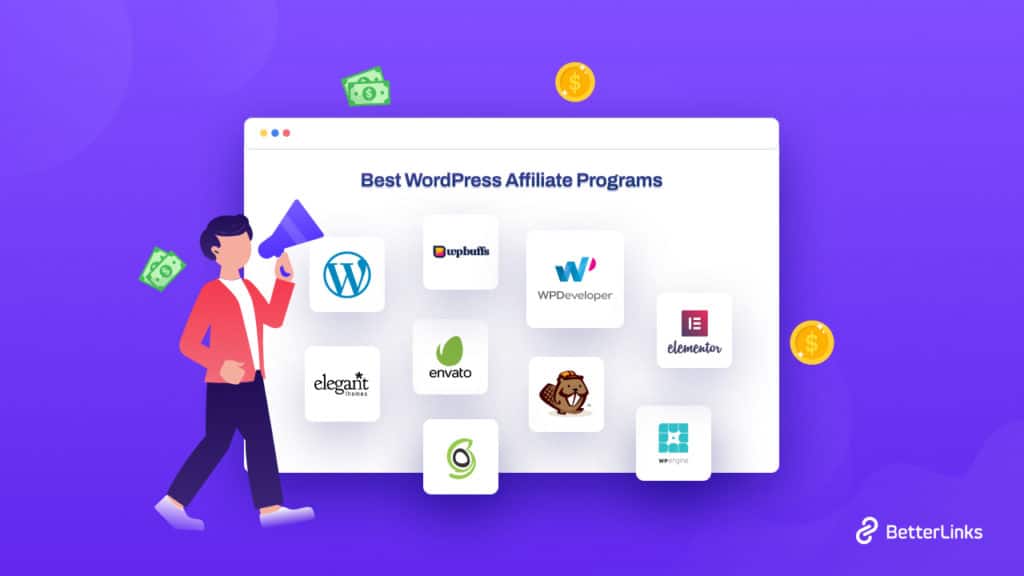
There are many channels for bloggers to monetize their platforms these days. And if you are a WordPress enthusiast, then you can easily choose some of the best WordPress affiliate programs that can enormously benefit bloggers. So today, we are going to know about the top 10 best WordPress affiliate programs for bloggers that can help you increase traffic and revenue at the same time.
Continue reading “15+ Best WordPress Affiliate Programs for Bloggers To Make Money”How To Prevent Hotlinking In WordPress (2025)
When you publish content online, there is always the possibility that someone could use your linked media files, such as images, without your permission. This is known as hotlinking. In today’s tutorial, we will talk about hotlinking, its impact, and how to tackle this issue in a smart way.
Continue reading “How To Prevent Hotlinking In WordPress (2025)”How To Add The WordPress Logout Link To Navigation Menu [2026]
Want to add a fully responsive WordPress logout link to your website’s navigation menu? If you run a website with multiple user roles, a membership site, bbPress forum, eCommerce store, or a learning management system (LMS), having a logout link can be really helpful. And to help you do just that, we bring you a complete guide. So without further ado, dive right in.
![How To Add The WordPress Logout Link To Navigation Menu [2026] 11 WordPress Logout Link](https://betterlinks.io/wp-content/uploads/2022/05/Logout-Link.jpeg)
Why Add A WordPress Logout Link To Your Navigation Menu?
The WordPress logout link looks like this:
http://example.com/wp-login.php?action=logout
You need to replace the “example.com” with your WordPress website’s domain name.
This link will immediately log you out of your WordPress session. When you go to this logout link, you’ll see a notification saying that if you really want to log out, click the logout option and you’ll be taken off the website.
![How To Add The WordPress Logout Link To Navigation Menu [2026] 12 WordPress Logout Link](https://betterlinks.io/wp-content/uploads/2022/05/How-To-Create-Elementor-Headers-Using-New-Theme-Builder-1024x576.png)
On a WordPress website, as an admin, you can easily log out from the admin bar in the top right corner whenever you want. So why do you need a WordPress logout link? If there are multiple users working on your WordPress alongside you in other user roles, they might want to logout from their accounts easily.
Apart from that, when your website has numerous user roles, you might hide the admin bar, and there are a variety of other reasons to do so. So, if you add your logout to the navigation bar, you may easily log out of the website without using the admin panel.
Ensure A User’s Privacy With A WordPress Logout Link In Nav Menu
Many times, a user may be concerned about sharing personal details while signing up to your website for privacy concerns. You will find many interested website visitors who simply do not become a user for this very reason.
However, if you add a very visible WordPress logout link to your site’s fully responsive navigation menu, it might give them the assurance they need to get started. Users will know they can log in, explore the website, purchase whatever they need, and later log out with just a single click.
Check out some of the use case scenarios where your site users might want to access the WordPress logout instantly:
🛑 When There Are Multiple Users In Your WordPress Website
As we have mentioned earlier, if there are multiple users with access to your website’s admin panel, might want to protect your own privacy by limiting their access to your site. And this includes hiding the admin panel from your particular users.
At times like this, you can add a WordPress logout link on the website frontends’ navigation menu from where they can easily logout within a single click. That way both your privacy and their user satisfaction will remain intact.
🛑 When A User Logs In To Their Account From A Public Device
![How To Add The WordPress Logout Link To Navigation Menu [2026] 13 WordPress Logout menu](https://betterlinks.io/wp-content/uploads/2022/05/Job-Satisfaction-In-Workplace-Meaning-Factors-Importance.png)
A lot of your site users may use a device that belongs to someone else or isn’t private. Especially if a majority of the users are college-goers or of the working-age – it is more than likely that they will be using public devices.
These users will definitely prefer using your WordPress website if you provide them with a logout link in the navigation menu. They will know they can easily sign out of their account and keep their detail private and secured; away from prying eyes who might also use the public devices afterward.
🛑 When Users Need To Send Their Devices For Maintenance
On the other hand, there are times you just need to send your laptop or phone to the maintenance store for repair. Although the chances are very slim, no one wants to take the risk of allowing anyone to access to their personal information. So, it’s best practice to log out from your accounts.
Your website users would prefer to do the same. And you can easily ensure that their user experience from your site is the best by adding a WordPress logout link to the navigation menu, from where they can easily access the link whenever and on whichever web page they are exploring.
How To Add The WordPress Logout Link To Navigation Menu
Table multiple users to logout of the system or website directly from the navigation bar in your website, you can follow the easy steps given below.
Add Logout Link Directly From Your WordPress Dashboard:
Without a doubt, you will need to log in to your own admin account to get started with this process. Then, once you’re in the dashboard, simply go to the ‘Appearance’ option from the left-hand side panel and click the option for ‘Menus’, as shown below.
![How To Add The WordPress Logout Link To Navigation Menu [2026] 14 WordPress logout link](https://betterlinks.io/wp-content/uploads/2022/05/screely-1652261710752.png)
Next, when you get to the ‘Menu’s screen, simply select ‘Top Bar’ and then press on the ‘Add to Menu’ button, to add to the navigation menu.
You will need to click the option for ‘Custom Links’ in the left column. This will open the settings menu for the link to help you create the WordPress logout link that you can customize according to your preference and set in the nav (Navigation) bar.
![How To Add The WordPress Logout Link To Navigation Menu [2026] 15 How To Add The WordPress Logout Link To Navigation Menu [2026]](https://betterlinks.io/wp-content/uploads/2022/05/screely-1652261845641.png)
In the ‘URL’ field, paste the URL of the link – the link we talked about at the beginning of this guide. But be sure that you need to insert the actual link (containing your website’s domain name) in this input field.
http://actualwebsitedomainname.com/wp-login.php?action=logout
You can also find another field right below that – the ‘Link Text’ input field. Here you can enter any custom text that you think will make proper meaning, such as ‘Logout’ or something similar in this case.
![How To Add The WordPress Logout Link To Navigation Menu [2026] 16 WordPress logout link](https://betterlinks.io/wp-content/uploads/2022/05/screely-1652262190480-1024x523.png)
Finally, click the ‘Save Menu’ button on the right side of the screen. And that’s it, the WordPress logout link will be displayed in the navigation menu on the frontend of your website for any user to sign out of their accounts whenever they need.
![How To Add The WordPress Logout Link To Navigation Menu [2026] 17 WordPress logout link](https://betterlinks.io/wp-content/uploads/2022/05/screely-1652262225844.png)
Bonus: Create A Responsive Navigation Menu To Improve UX In Elementor
With that, we want to complete our guide on how to add WordPress logout links for your website users in the navigation menu. However, this is not where it ends. If you’re an Elementor user, you can also check out our article on how to easily create a responsive navigation bar using the ultimate Elementor widgets library, Essential Addons. You will find a tutorial as well as some amazing tips and tricks.
We hope this blog was easy to understand and helpful for all new website owners, no matter the type of site you are building. Let us know of your experience with link building by commenting below; we would love to hear from you. Join our Facebook group to communicate or subscribe to our blog for more useful tutorials, the latest news, and updates.
Top 5 Best WordPress Migration Plugins For 2026
Moving an entire WordPress website is now super easy with the best WordPress migration plugins in 2026. Though hundreds of migration plugins are available on the WordPress plugin market, stick with this insightful article to know about the best five.
Continue reading “Top 5 Best WordPress Migration Plugins For 2026”What Is Link Rot & How To Deal With It In WordPress
When links on a website break, this is known as link rot. It’s simple: the links stop going where they should, and the user often receives a 404 Page Not Found error. Isn’t this rather common on the internet? Link rot can seriously impact the performance of your website. Today in this blog we are going to talk about some use cases of link rot and how you can get rid of it easily.
Continue reading “What Is Link Rot & How To Deal With It In WordPress”Best 5 Free QR Code Generators & How To Create QR Code Easily In Few Steps
A vast range of industries, starting from major businesses to local restaurants, use QR codes for many use cases today. You may have seen or heard about QR codes. Have you ever thought about how QR codes can benefit your business? There are a lot of benefits of Quick Response Codes. So, here we are with the best 5 free QR code generators with an easy guide to create them in a few steps.
Continue reading “Best 5 Free QR Code Generators & How To Create QR Code Easily In Few Steps”Top 10+ Affiliate Marketing Blogs You Need To Follow To Grow Your Business

Nowadays, many bloggers are bringing excellent affiliate marketing centric blogs on the web. As people are very interested in making money from affiliates and they need more content to learn how to earn via blogs. If you are looking for affiliate marketing blogs to get helpful resources, then we’re here to help.
Continue reading “Top 10+ Affiliate Marketing Blogs You Need To Follow To Grow Your Business”How To Become An Amazon Affiliate: Step By Step Guide [2026]

Amazon Affiliate program (also known as Amazon Associates) is undoubtedly one of the most popular affiliate programs for marketers. It is also one of the easiest to get into, and with the right strategies, you can successfully monetize your website using your affiliate links. Let’s find out how you can become an Amazon Affiliate and start earning effortlessly.
Continue reading “How To Become An Amazon Affiliate: Step By Step Guide [2026]”