You published a page. You optimized it. You shared it. But Google still has not crawled or ranked it. Sound familiar?
This is one of the most frustrating situations in SEO.
The problem often comes down to crawlability problems that silently block search engines from ever reaching your content. In most cases, if Google cannot crawl a page, it cannot properly evaluate or index its content. And if it cannot index them, they will never appear in search results.
In this guide, you will learn exactly what crawlability issues are, why they happen and how to fix every major one quickly. Whether you are a beginner running a blog or a technical SEO managing a large eCommerce site, this guide covers everything you need to know to keep Googlebot moving freely across your website.
TL;DR: Crawlability Problems at a Glance
Crawlability problems are technical SEO issues that prevent search engines from accessing, discovering or crawling website pages effectively.
Common crawlability issues include robots.txt blocks, orphan pages, broken links, missing XML sitemaps, redirect chains and incorrect no-index directives. Fixing these problems helps search engines crawl and index content more efficiently, improving organic visibility.
| Problem | Main Cause | Quick Fix |
| Robots.txt blocking pages | Wrong disallow rules | Update robots.txt rules |
| Missing XML sitemap | No sitemap submitted | Create and submit sitemap in GSC |
| Broken internal links | Deleted or moved pages | Fix or redirect broken URLs |
| Orphan pages | No internal links pointing to page | Add internal links from relevant pages |
| Redirect chains | Multiple redirects stacked | Merge redirects into one 301 |
| Incorrect noindex tags | Mistaken tag left on live pages | Remove noindex from pages to be indexed |
| Canonical tag errors | Wrong canonical pointing elsewhere | Fix canonical to point to correct URL |
| Slow website performance | Server issues, heavy scripts | Improve Core Web Vitals and server response time |
| JavaScript rendering issues | Content only loads via JS | Use server-side rendering or dynamic rendering |
| Crawl budget waste | Low-value pages getting crawled | Block or noindex thin and duplicate pages |
What Is Crawlability in SEO?
Crawlability refers to how easily a search engine crawler can access and navigate your website. When a search engine like Google sends its crawler, known as Googlebot, to your site, it follows links from page to page to discover content. If anything blocks or disrupts that process, your pages may not be discovered, indexed or may struggle to rank properly.
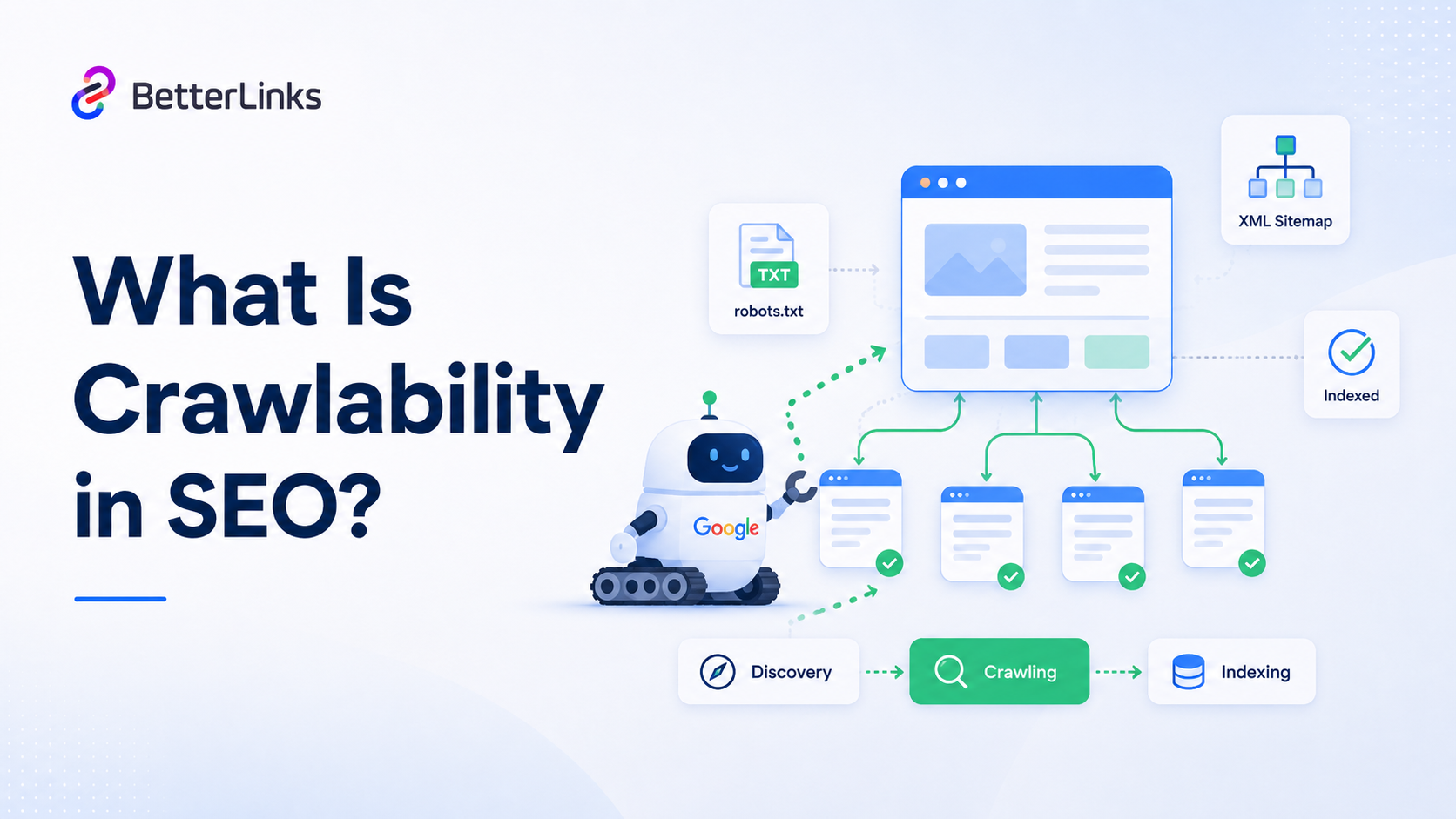
Think of your website like a library. Googlebot is the librarian walking the aisles. If the doors are locked, the aisles are broken or the signs are missing, the librarian cannot find the books. Crawlability ensures those doors are open and the paths are clear.
Website crawlability depends on several factors, including your site architecture, internal linking structure, server health, robots.txt configuration and the type of content on your pages. A well-crawlable site gives search engine crawlers a smooth, unobstructed path through all your important content.
Why Crawlability Matters for SEO Performance
Many website owners focus entirely on content quality and backlinks while overlooking the technical foundation that makes content discoverable. The reality is simple: even high-quality content may not perform well if search engines struggle to access it.
Crawlability is the first step in the SEO pipeline. Before Google can evaluate content, understand context, or assign rankings, it must first discover and crawl the page. If crawling is blocked or disrupted at any stage, other SEO efforts may not contribute effectively to visibility.
Crawlability Process: How Googlebot Works
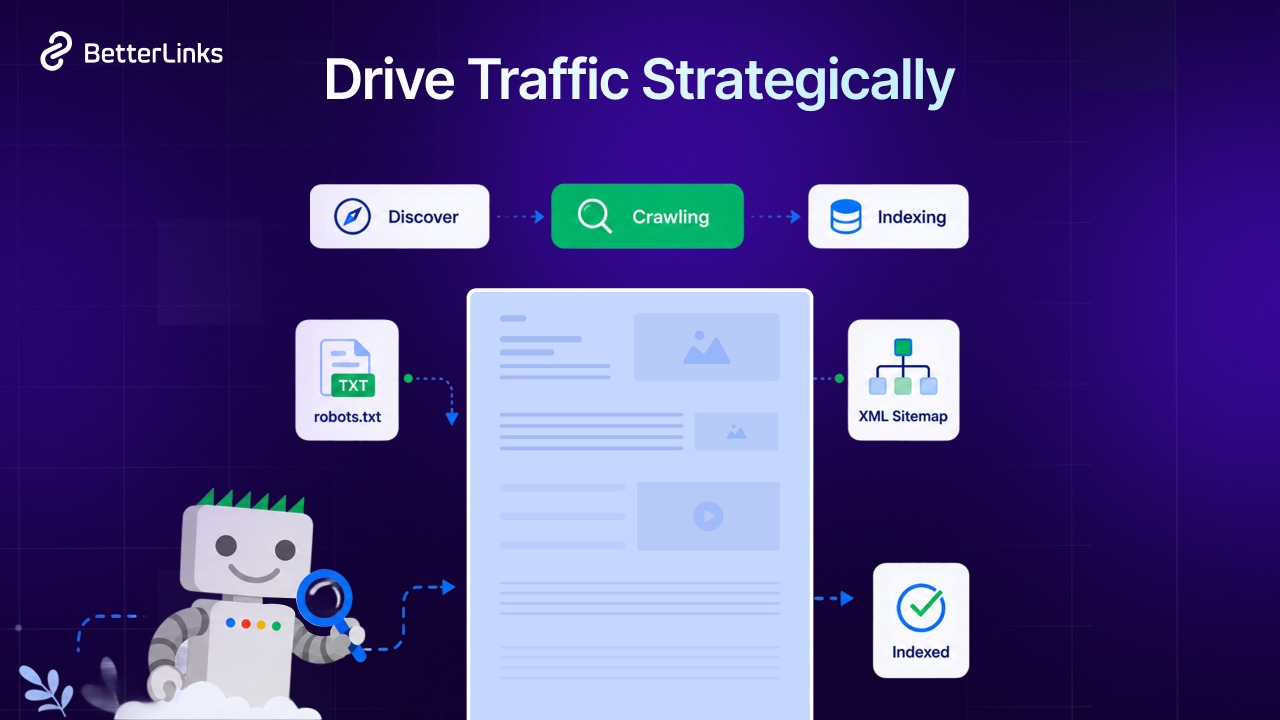
If any stage in this process fails or gets restricted, the page may not move further in the indexing pipeline. This helps explain how Googlebot processes a page from discovery to indexing and why crawlability matters:
Googlebot → Robots.txt Check → Page Crawl → Rendering → Index Evaluation → Index
- Googlebot discovery: Google finds URLs through links, sitemaps, or previous crawls
- Robots.txt check: The bot checks whether crawling is allowed
- Page crawl: If allowed, Googlebot fetches the page content
- Rendering: The page is rendered to process JavaScript and layout
- Index evaluation: Google analyzes content quality, relevance, and signals
- Indexing: Eligible pages are stored in the search index
Why It Impacts SEO Performance
Crawlability also directly influences how efficiently search engines allocate resources across a website. Google assigns a limited crawl budget based on factors like site authority, server performance, and overall site health.
If this budget is consumed by low-value pages, duplicate URLs, or blocked resources, important content may be crawled less frequently or missed during updates.
This applies to all types of websites, from small blogs and business sites to large ecommerce platforms and SaaS products. Even smaller websites can face visibility issues if technical barriers prevent search engines from accessing key pages.
For larger websites with faceted navigation or dynamic URLs, crawlability challenges often scale faster and require more frequent monitoring. Small technical issues that seem harmless early on can turn into significant indexing gaps as the site grows.
Many website owners and SEO experts still struggle to clearly separate crawlability from indexability and other stages of search engine processing. Let’s break down how these two important concepts differ.
Crawlability vs Indexability: Understanding the Difference
Search engines rely on two key processes to decide how your site appears in results: crawlability and indexability.
Crawlability indicates whether search engines can access and explore your pages. Indexability indicates whether those pages can be stored and shown in search listings. Knowing how each works helps you spot issues and improve visibility.
These two terms are often used interchangeably but they describe two separate stages of the search engine process. Understanding the difference helps you diagnose problems more accurately:
| Factor | Crawlability | Indexability |
| Definition | Can Googlebot access the page? | Can Google add the page to its index? |
| Blocked by | Robots.txt, server errors, broken links | Noindex tags, canonical tags, duplicate content |
| Stage | First (discovery and access) | Second (evaluation and storage) |
| Effect if blocked | Page is never visited by crawler | Page is visited but not stored in the index |
| Diagnosed via | Crawl Stats, URL Inspection Tool | Page Indexing Report, URL Inspection Tool |
| Common symptoms | Pages not found in Google | Pages found but not ranking or disappearing |
A page can be crawlable but not indexable. For example, if Googlebot can access a page but finds a noindex directive, it will crawl the page but refuse to index it. Conversely, a page might be perfectly optimized for indexing but blocked in robots.txt, meaning it never gets crawled in the first place.
💡 Google must first discover and crawl a page before it can evaluate whether that page should be indexed. Always check both crawlability and indexability when diagnosing why a page is not appearing in search results.
How Search Engines Discover & Crawl Pages
Before fixing crawlability problems, it helps to understand how Googlebot actually finds pages in the first place. Google does not rely on a single method to discover content.
Internal Links
Internal links are the primary way Googlebot navigates your website. When it crawls one page, it follows all the links on that page to discover new pages. This is why a well-structured internal linking strategy is so important. Pages with no internal links pointing to them are invisible to Googlebot unless they appear in a sitemap or have an external link.
XML Sitemaps
An XML sitemap is a file that lists all the important URLs on your website. Submitting it to Google Search Console signals to Google which pages you want crawled and indexed. Sitemaps are especially useful for large sites, new sites without strong link equity and pages that may not be easily discovered through internal links alone.
External Links
When another website links to a page on your site, Googlebot can follow that link and discover your content. This is one reason backlinks have SEO value beyond just authority transfer. They also help new pages get discovered faster.
Crawl Queue And Prioritization
Googlebot does not crawl every page at once. It maintains a crawl queue and prioritizes pages based on factors like page authority, internal links, server responsiveness, frequency of updates and available crawl budget. Pages that are frequently updated and have strong internal links tend to get crawled more often. Pages that are hard to reach, rarely updated or low in authority may sit in the queue for a long time or get skipped entirely.
15 Common Crawlability Problems & Quick Solutions
Now that we understand how Google discovers pages, the next step is understanding what interrupts that process.
Crawlability issues are often invisible until they start hurting your rankings. From blocked resources to messy site structures, these problems can stop search engines from fully exploring your content. The good news is most crawlability challenges have simple fixes.
This section covers 15 of the most common crawlability issues, along with quick fixes and examples to keep your site accessible to search engines. It also provides a clear breakdown of how to identify and resolve each issue.
Several of these fixes live inside your SEO plugin. On WordPress, ThinkRank handles per-post robots meta, robots.txt, canonical URLs and XML sitemaps in one plugin, which makes problems like blocked pages, missing sitemaps, incorrect noindex tags and canonical errors much quicker to fix.
1. Important Pages Blocked by Robots.txt
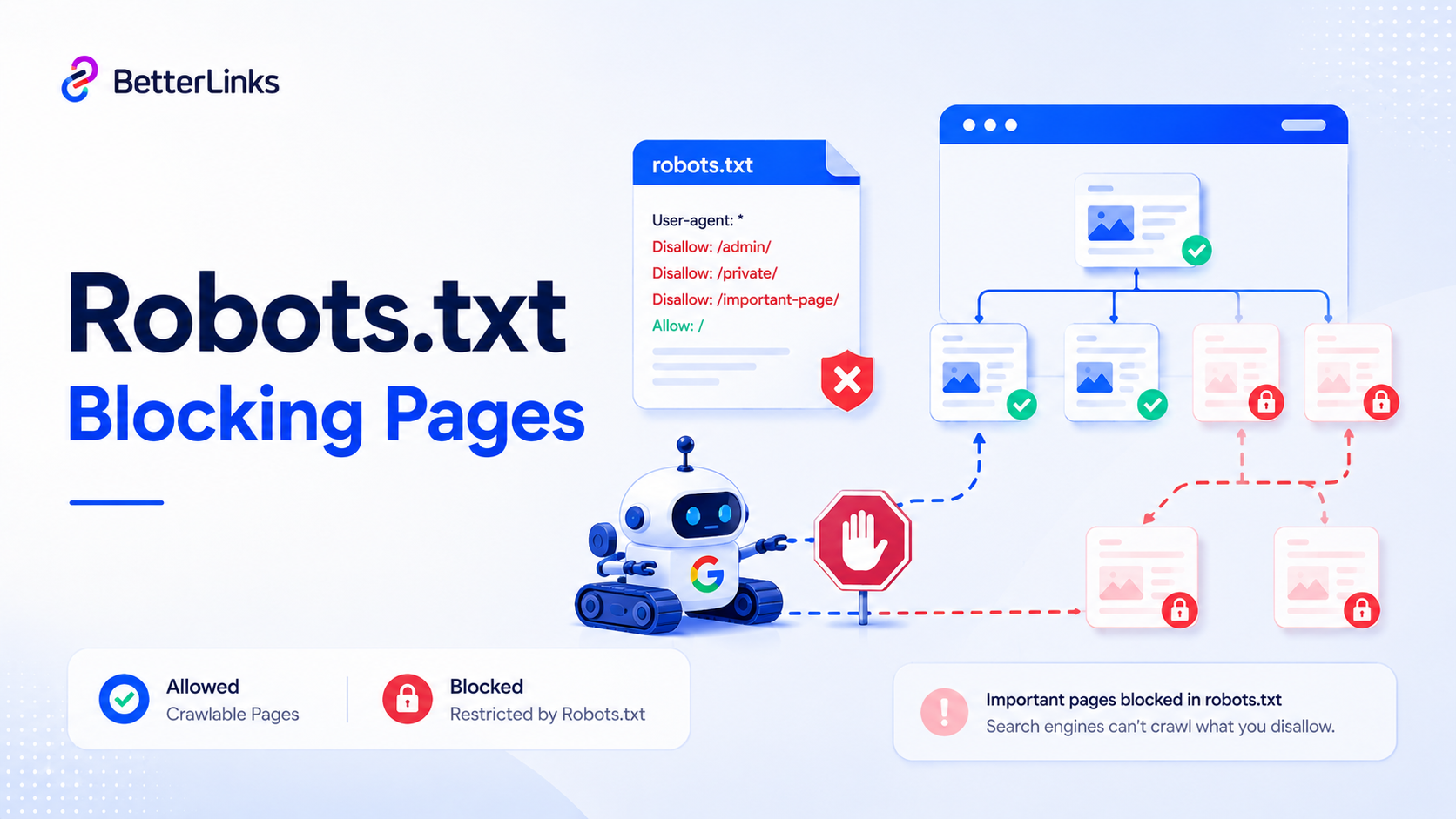
The robots.txt file tells search engine crawlers which parts of your site they can and cannot access. A misconfigured robots.txt can accidentally block your most important pages.
If Googlebot is blocked from accessing a page, it cannot crawl that page, which often prevents it from being indexed. Even a single misplaced disallow rule can remove entire sections of a site from search results.
🔎 How to Identify It
Open your robots.txt file at yourdomain.com/robots.txt. Look for Disallow rules that cover your important pages. You can also use the URL Inspection Tool in Google Search Console to check whether a specific page is blocked.
🛠️ Quick Solution
Remove or narrow the disallow rules that are blocking important pages. For example, Disallow: / blocks your entire site. Always test changes using Google Search Console’s robots.txt tester before publishing.
Example
An eCommerce store accidentally blocks /products/ in their robots.txt after a site migration. Their entire product catalog disappears from Google within weeks. Simply removing that one line restores crawlability.
2. Missing XML Sitemap
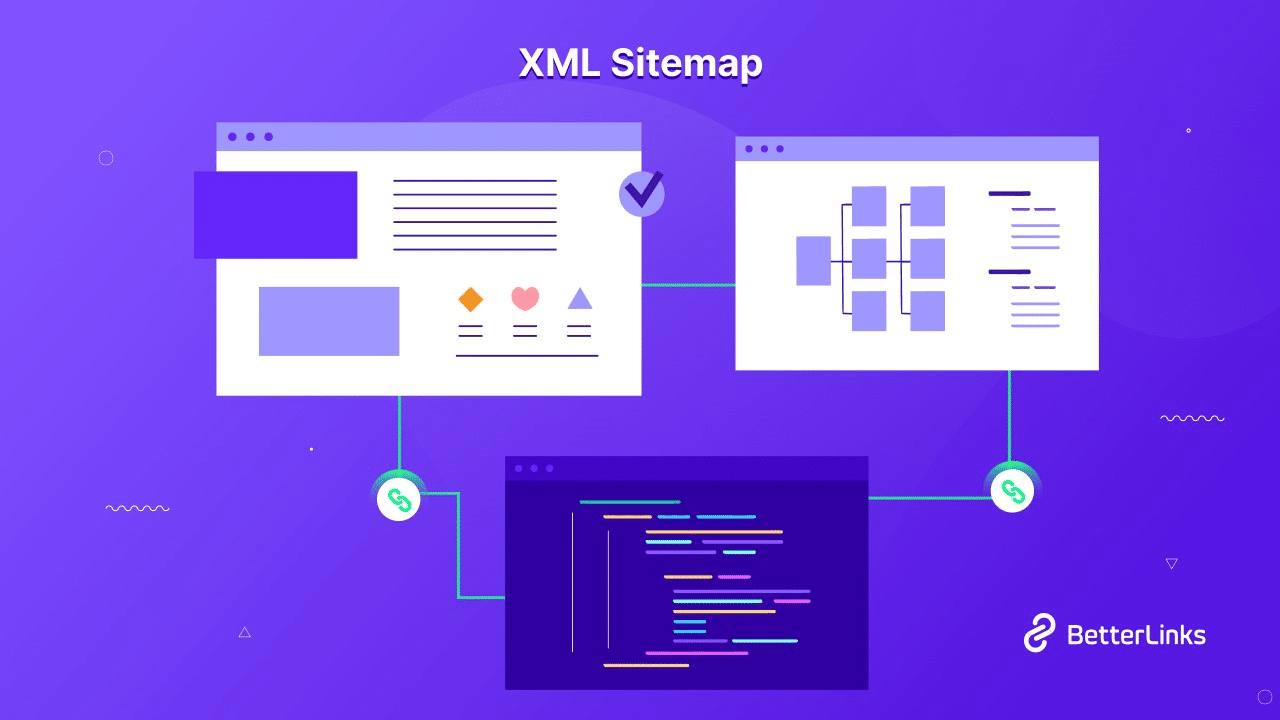
Your website has no XML sitemap or the sitemap has not been submitted to Google Search Console. Google recommends XML sitemaps, particularly for large websites, new websites, and sites with pages that are not easily discoverable through internal links.
Without a sitemap, Googlebot relies entirely on link discovery to find your pages. New pages, deep pages or pages with few internal links may never be found or take months to get crawled.
🔎 How to Identify It
Go to Google Search Console and check the Sitemaps report. If no sitemap is submitted, that is your crawlability issue. Also check whether your sitemap is accessible at yourdomain.com/sitemap.xml.
🛠️ Quick Solution
Generate an XML sitemap using a plugin like Rank Math for WordPress. Submit the sitemap URL in Google Search Console under the Sitemaps section. Ensure the sitemap only contains indexable URLs with a 200 status code.
Example
A new SaaS product blog launches 50 articles but has no sitemap. Googlebot only finds 12 pages via internal links. After submitting a sitemap, all 50 pages get crawled within a week.
3. Broken Internal Links
Internal links on your site point to pages that no longer exist, returning a 404 error.
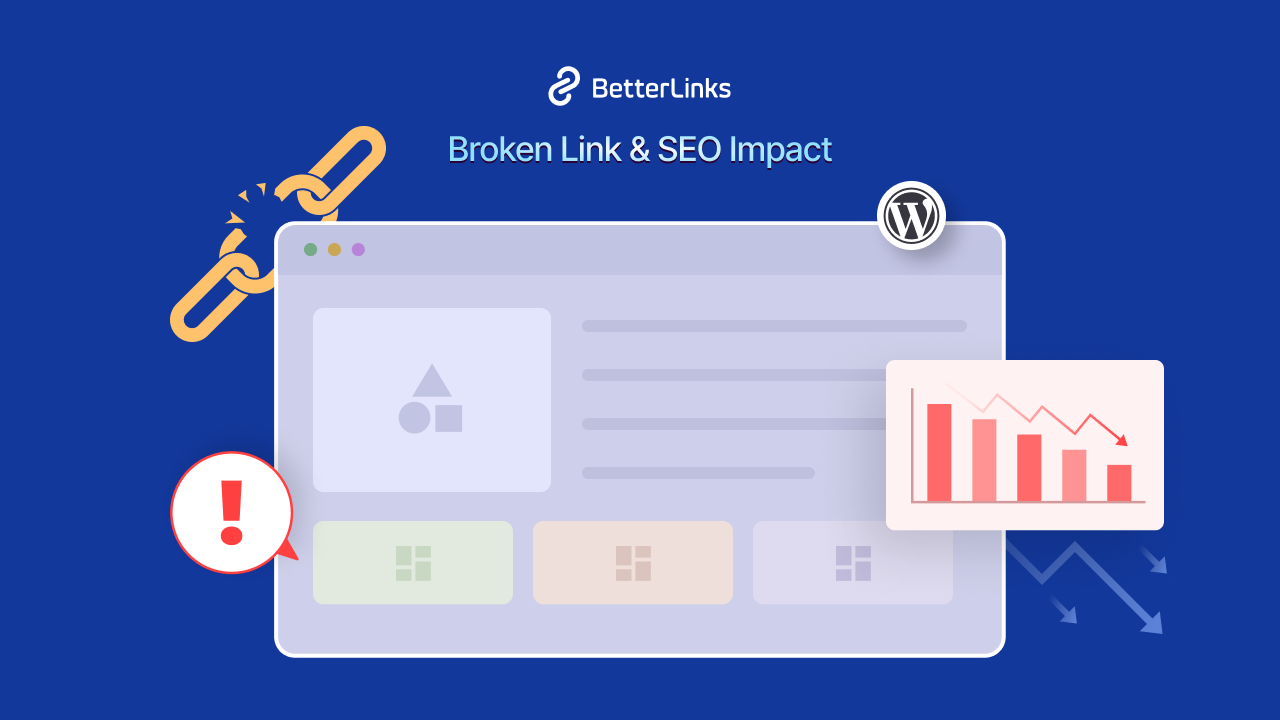
Broken internal links waste crawl budgets and confuse Googlebot. They also break the flow of link equity across your site. From a user experience perspective, they are equally damaging.
🔎 How to Identify It
WordPress plugins such as BetterLinks can help you detect and monitor broken links more proactively across your site. You can also use tools like Screaming Frog or site audit reports, while Google Search Console lists 404 errors under indexing reports.
🛠️ Quick Solution
Either update the broken link to point to a working page or set up a 301 redirect from the dead URL to a relevant live page. Regularly audit internal links as part of your SEO maintenance routine.
Example
A blogger deletes an old post but forgets that 15 other articles link to it. Googlebot hits a wall every time it follows those links, wasting crawl budget and creating a poor user experience.
4. Orphan Pages
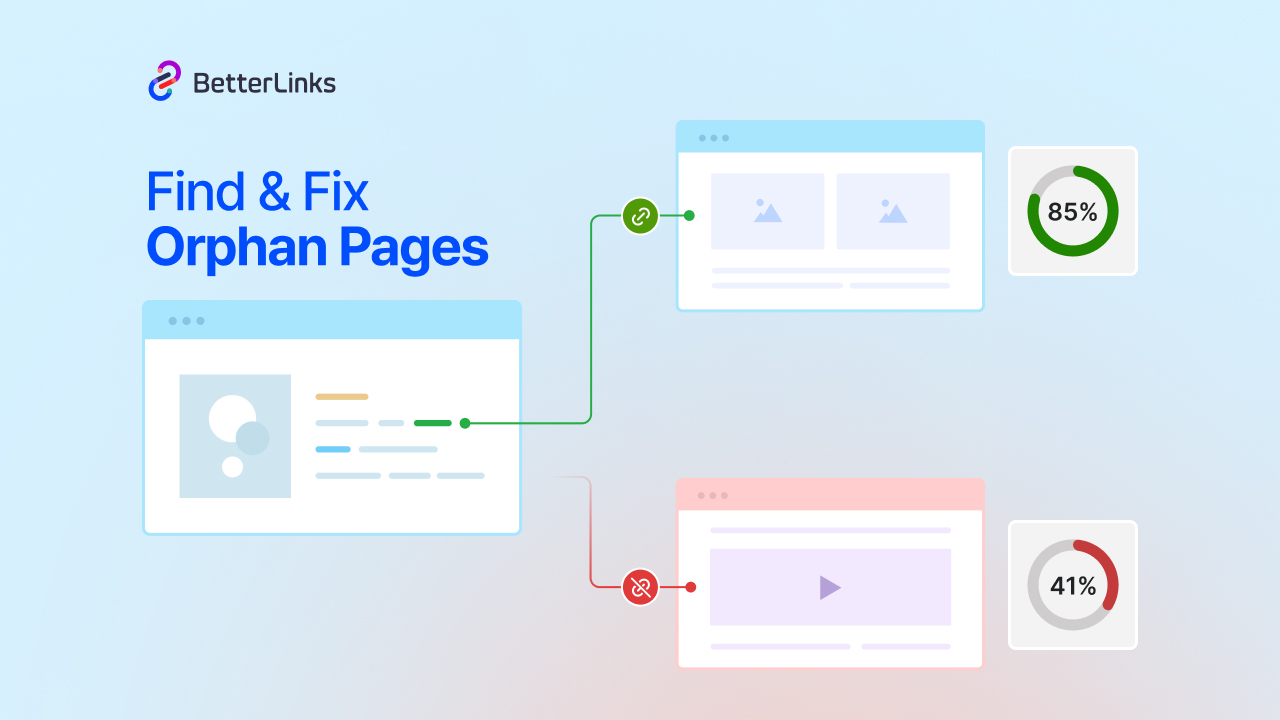
An orphan page is a page with no internal links pointing to it from anywhere else on your site.
If no page links to a piece of content, Googlebot has no path to follow to discover it. Even if it appears in your sitemap, orphan pages are crawled less frequently and carry weak authority signals.
🔎 How to Identify It
Use Rank Math to crawl your site and compare discovered URLs against your sitemap. Any URL present in the sitemap but not reachable through internal links can be considered an orphan page. Ahrefs Site Audit also provides a dedicated orphan pages report.
🛠️ Quick Solution
Add contextual internal links to orphan pages from relevant content across your site. Prioritize linking from pages with high internal link equity to give orphan pages a boost.
Example
A WordPress site publishes a detailed guide on a niche topic but never links to it from the main blog index or related posts. The page sits in the sitemap for months without being crawled regularly until internal links are added.
5. Redirect Chains
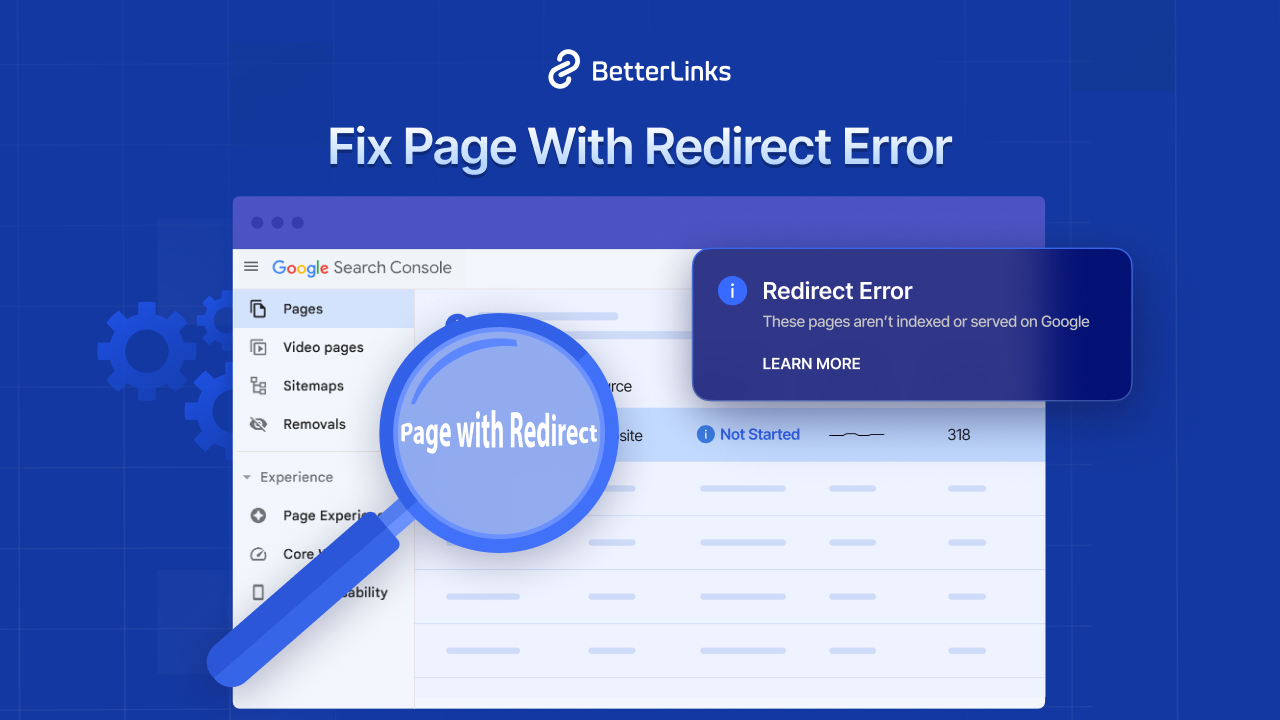
A redirect chain occurs when a URL redirects to another URL, which then redirects to another URL, creating a long chain of redirects before reaching the final destination.
Redirect chains increase crawl complexity and can slow discovery of the final URL. Googlebot may stop following a chain after a certain number of hops, meaning the final destination never gets properly crawled.
🔎 How to Identify It
Running a cloud-based site audit using Ahrefs or Semrush allows you to easily filter for ‘Redirect Chain’ issue flags. Spot-checking individual pages is also possible using browser extensions like Redirect Path or online tools like httpstatus.io.
These convenient methods map out the exact URL path so you can rewrite the first URL to link directly to the final destination in a single hop.
🛠️ Quick Solution
Update all redirect chains to point directly to the final destination URL with a single 301 redirect. This is especially important after site migrations, where multiple redirects have piled up over time.
Example
A site migrates from http to https, then from www to non-www and later restructures its URLs. A single original URL now passes through four redirects before reaching the live page, losing authority at each hop.
6. Redirect Loops
A redirect loop occurs when URL A redirects to URL B, which redirects back to URL A, creating an infinite loop.
Googlebot will immediately stop trying to crawl a URL that creates a redirect loop. The page becomes inaccessible to both the crawler and users.
🔎 How to Identify It
You can identify redirect loops primarily through Google Search Console. In the Indexing report or URL Inspection tool, Google often flags pages affected by redirect errors or loops under crawl issues.
Use the URL Inspection feature to test a specific page and see the full redirect chain and final status code.
Additionally, open the page in your browser, right-click → Inspect → Network tab and reload to observe the redirect loop in real time. A simple site:yourdomain.com search in Google can also reveal if affected pages are missing from results due to the loop.
🛠️ Quick Solution
Map your redirect structure carefully and identify where loops exist. Break the loop by pointing one of the redirects to the final intended destination instead of creating a circular path.
Example
A website incorrectly sets up canonicals and redirects during a redesign, causing the homepage to redirect to a staging URL, which redirects back to the homepage. Both users and Googlebot see an error.
7. Incorrect Noindex Tags
A noindex meta robots tag or X-Robots-Tag header tells search engines not to include a page in their index. When this tag is accidentally placed on important pages, those pages disappear from search results.
A noindex directive is absolute. Once Googlebot sees it, the page is dropped from the index entirely, regardless of how many backlinks or authority it has built.
🔎 How to Identify It
You can easily detect incorrect noindex tags using Google Search Console. Go to the Indexing report and check the ‘Not indexed’ section. Pages blocked by a noindex directive will be listed here with the reason ‘Blocked by robots.txt or noindex tag.’ Use the URL Inspection tool in Search Console to test any specific page and see exactly how Google interprets its indexing directives.
Additionally, perform a simple site:yourdomain.com search in Google to verify which pages are actually appearing in search results. You can also view the page source of any URL and look for <meta name=”robots” content=”noindex”> or X-Robots-Tag: noindex in the HTTP headers to manually confirm the presence of incorrect noindex tags.
🛠️ Quick Solution
Remove the noindex tag from any page that should be indexed. In WordPress, this is often controlled by SEO plugins like Yoast or Rank Math. Check your page-level settings carefully, especially for pages that were previously in draft or development mode.
Example
A developer sets a ‘noindex’ directive across the entire staging environment and forgets to remove it after the site goes live. The entire site drops out of Google within a few weeks.
8. Canonical Tag Errors
A canonical tag (<link rel=’canonical’>) tells Google which version of a URL is the preferred one. Errors occur when canonicals point to the wrong URL, are missing entirely or create conflicting signals.
Incorrect canonical tags confuse Googlebot about which version of a page to index. This leads to the wrong page being indexed or valuable pages being completely deindexed.
🔎 How to Identify It
Google Search Console’s Index Coverage report flags canonical tag errors like ‘Alternate page with proper canonical tag’ or ‘Duplicate, Google chose a different canonical than user,’ signaling duplicate content or misconfigured canonicals.
The URL Inspection tool displays both your declared canonical (rel=”canonical”) and Google’s chosen canonical, making it easy to spot mismatches. Inspect your HTML using browser developer tools to verify whether your CMS or plugins generate incorrect canonical tags pointing to wrong or blocked URLs.
🛠️ Quick Solution
Ensure every indexable page has a self-referencing canonical tag pointing to its own clean URL. For duplicate pages, point the canonical to the preferred version. Never set a canonical to a noindex or redirected page.
Example
A Shopify store has product pages with multiple URL variations due to faceted navigation filters. Without proper canonical tags, Google is unsure which version to index and ends up spreading authority across dozens of thin duplicate pages.
9. Slow Website Performance
Google recommends a Largest Contentful Paint (LCP) of under 2.5 seconds as part of Core Web Vitals. A slow website delays Googlebot’s ability to crawl pages efficiently. If pages take too long to load, the crawler may time out or reduce the frequency of its crawl.
Google has stated that crawl speed and server response times affect how often Googlebot can crawl a site. Consistently slow responses train the crawler to visit less often, which reduces crawl frequency over time.
🔎 How to Identify It
Use Google Search Console’s Crawl Stats report to check average response times. PageSpeed Insights and Core Web Vitals reports also highlight performance issues that may impact crawl efficiency.
🛠️ Quick Solution
Optimize images, enable browser caching, use a content delivery network and reduce server response time below 200ms. Consider upgrading your hosting plan if your server is frequently overloaded.
Example
An eCommerce site with thousands of product images has an average server response time of over 3 seconds. Googlebot reduces crawl frequency automatically, causing new products to take weeks to appear in search results.
10. JavaScript Rendering Problems
Google can render JavaScript, but JS-heavy sites may experience delays in crawling and indexing. When important page content, links or metadata are only loaded via JavaScript, Googlebot may not see them during the initial crawl.If Googlebot cannot access content during the first crawl pass, that content may not be indexed promptly or at all. Internal links inside JavaScript components may also be missed, orphaning entire sections of a site.
🔎 How to Identify It
Use the URL Inspection Tool in Google Search Console and compare the ‘HTML’ and ‘Screenshots’ views. If important content appears in the screenshot but not in the raw HTML, it is being rendered via JavaScript and may cause crawlability issues.
🛠️ Quick Solution
Implement server-side rendering (SSR) or dynamic rendering so that important content is available in the initial HTML response. Ensure all internal navigation links are standard HTML anchor tags rather than JavaScript-driven click events.
Example
A React-based SaaS website renders its entire navigation menu and blog post links through JavaScript. Googlebot misses most of the internal link structure during crawling, causing dozens of pages to become orphaned.
11. Crawl Budget Waste
Your crawl budget is the total number of URL requests Google makes to your site in a given period. Wasting it on low-value pages means important content gets crawled less frequently.
For larger sites, crawl budget is often a limited resource. If Googlebot spends most of its time on thin pages, session ID URLs, filter combinations or duplicate content, important pages may get less attention.
Smaller websites are usually less affected, but crawl inefficiencies can still slow the discovery and indexing of new or updated pages.
🔎 How to Identify It
Use Google Search Console’s Crawl Stats report to check for crawl budget waste by looking for spikes or drops in crawl requests, repeated errors, or pages not being crawled despite being important. Review the Index Coverage report to spot low-value or duplicate pages consuming crawl resources, such as infinite URL parameters, session IDs or filtered product pages.
You can also analyze server log files to see exactly which pages Googlebot visits and identify patterns where it crawls unimportant URLs instead of valuable content.
🛠️ Quick Solution
Block low-value URLs via robots.txt, add noindex tags to thin content and use canonical tags to consolidate duplicate pages. Consider using URL parameter handling in Google Search Console if your site generates excessive parameterized URLs.
Example
A travel booking site generates thousands of filter URL combinations for dates, locations and prices. Google spends 80% of its crawl budget on these filtered pages instead of the core destination and hotel content.
12. Infinite URL Parameters
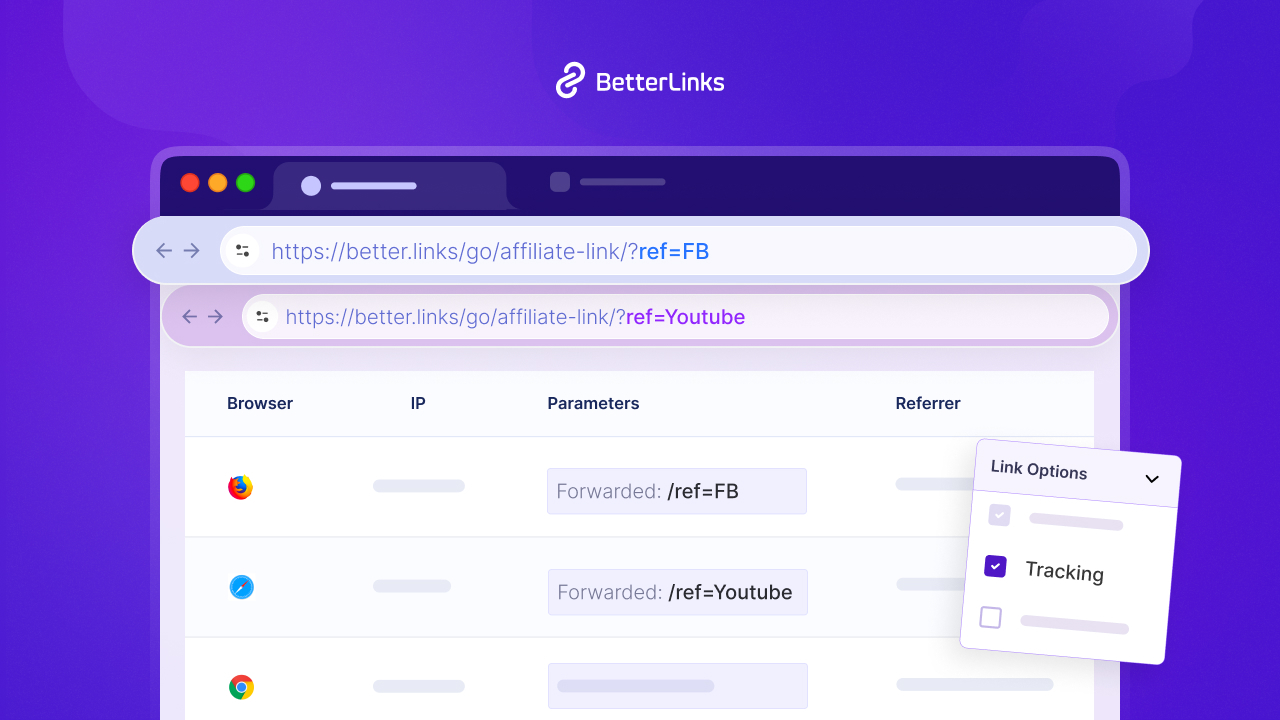
URL parameters are query strings like ?color=red&size=large that, often create dozens of variations of the same page. Without proper management, these can generate thousands of near-duplicate URLs.
Search engines may crawl all these URL variations, wasting enormous amounts of crawl budget and creating duplicate content problems at the same time.
🔎 How to Identify It
Check your server logs or Crawl Stats in Google Search Console for high volumes of parameterized URLs. Screaming Frog can also help identify which parameter patterns are generating the most URL variants.
🛠️ Quick Solution
Use canonical tags to point all parameter variants back to the clean base URL. Alternatively, configure URL parameter handling in Google Search Console or disallow specific parameter patterns in robots.txt where crawling adds no value.
Example
An eCommerce site with 500 products generates over 80,000 unique URLs through color, size and sort parameter combinations. The vast majority of Googlebot’s crawl budget is consumed by these variations rather than the 500 canonical product pages.
13. Soft 404 Errors
A soft 404 is a page that returns a 200 OK HTTP status code but shows content that is essentially empty or meaningless, such as ‘No results found’ or ‘Page not available.’ Google may treat these as 404s or simply ignore them.
Soft 404s confuse Googlebot and waste crawl budgets. They can also cause legitimate-looking URLs to be crawled repeatedly without ever contributing to your indexed content.
🔎 How to Identify It
Use Google Search Console’s Index Coverage report, which explicitly flags pages as ‘Soft 404’ when they return a 200 OK status code but contain no real content or error messages. A soft 404 occurs when a page doesn’t exist but still returns a 200 response code instead of the proper 404 or 410 status.
Check the Coverage report’s ‘Excluded’ tab to find pages Google has marked as soft 404s, which waste crawl budget and will not appear in search results. You can also use Ahrefs Webmaster Tools or Bing Webmaster Tools to crawl your site and identify pages with incorrect HTTP status codes.
🛠️ Quick Solution
Return a proper 404 or 410 HTTP status for genuinely missing pages. For pages with dynamic content that may sometimes show empty results, add logic to return appropriate status codes when no content is available.
Plugins like BetterLinks can also help you monitor and manage broken links more effectively to avoid indexing issues caused by dead URLs.
Example
A product search page for a discontinued item returns a 200 status but shows ‘We couldn’t find what you’re looking for.’ Google crawls this thousands of times, expecting content that never appears.
14. Broken Hreflang Implementations
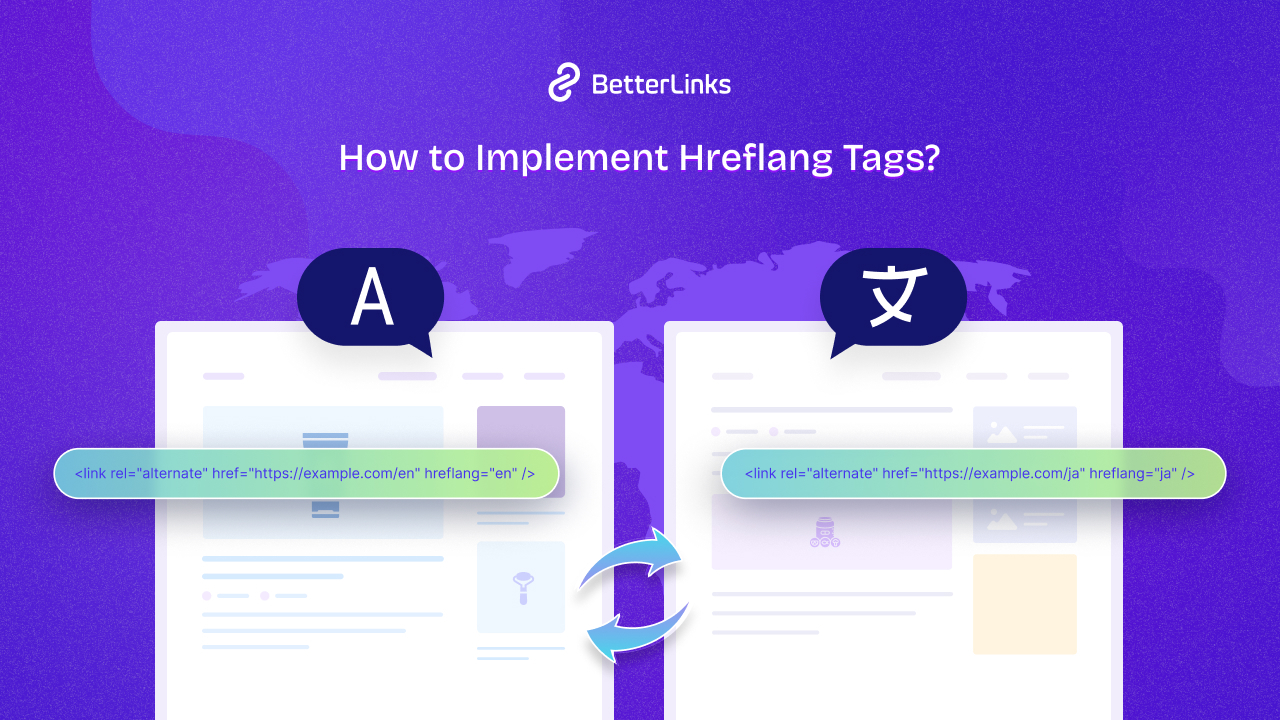
Hreflang tags tell Google which language and regional version of a page to show to users in different locations. Incorrect hreflang setup causes crawlability issues and international SEO problems.
If hreflang tags reference URLs that do not exist, are non-canonical or contain incorrect language codes, Google may ignore them entirely or index the wrong regional version of your content.
🔎 How to Identify It
Use Screaming Frog’s hreflang validation feature or Ahrefs Site Audit to check for broken hreflang references, missing reciprocal tags and incorrect ISO language codes.
🛠️ Quick Solution
Ensure every hreflang tag references a valid, indexable URL. Add reciprocal hreflang tags on each referenced page and use correct ISO 639-1 language codes combined with ISO 3166-1 country codes where applicable.
Example
A multilingual WordPress site has hreflang tags pointing to old URLs that were migrated six months earlier. Google cannot validate the hreflang cluster, causing it to index inconsistent regional versions and confuse search intent matching.
15. Poor Site Architecture
Site architecture describes how pages are organized and linked together. A flat, logical structure makes crawling easy. A deep, siloed structure makes it difficult for Googlebot to reach all pages efficiently. Many SEO professionals recommend keeping important pages within three to four clicks of the homepage to improve discovery and internal link flow.
Pages buried more than three to four clicks from the homepage tend to receive fewer crawls and carry less internal link authority. Complex navigation structures also make it harder for crawlers to understand the topical relationship between pages.
🔎 How to Identify It
Use Google Search Console’s Index Coverage report to spot indexation issues like orphan pages or URLs that Google can’t discover due to poor site structure. Check the Sitemap report in Search Console to verify if important pages are being indexed, indicating whether your site hierarchy is clear to Google.
If key pages take more than 3 clicks from the homepage or have zero internal links, your site architecture likely needs restructuring.
🛠️ Quick Solution
Flatten your site architecture so that important pages are reachable within three clicks from the homepage. Use breadcrumb navigation, hub pages and strategic internal linking to connect deep content back to your main site structure.
Example
A blog with 1,200 articles only links to posts from their specific monthly archive page. Articles published two years ago require 15+ clicks to reach. Google rarely crawls them and they carry almost no internal link authority.
HTTP Status Codes That Affect Crawlability
Every time Googlebot requests a URL, the server returns an HTTP status code. These status codes tell search engines whether a page is accessible, redirected, missing or experiencing technical issues.
Some status codes support crawling and indexing, while others can slow down discovery, waste crawl budgets or cause pages to disappear from search results.
Key HTTP Status Codes and Their SEO Impact
| Status Code | Meaning | SEO Impact |
| 200 OK | The page is available and loads successfully | Search engines can crawl and index the page normally |
| 301 Moved Permanently | The URL has permanently changed | Most ranking signals are transferred to the destination URL |
| 302 Found (Temporary Redirect) | The redirect is temporary | Search engines may continue treating the original URL as canonical |
| 404 Not Found | The page does not exist | Google may eventually remove the URL from its index |
| 410 Gone | The page has been permanently removed | Usually results in faster deindexing than a 404 response |
| 500 Internal Server Error | The server cannot process the request | Crawling may stop until the issue is resolved |
| 503 Service Unavailable | Temporary server unavailability or maintenance | Google typically retries crawling later rather than removing the page |
Best Practices for Managing Status Codes
Regularly auditing status codes helps ensure that search engines can access important content efficiently and focus their crawl budget on valuable pages. Best practices are:
- Return a 200 status code for pages you want indexed.
- Use 301 redirects when moving content permanently.
- Avoid redirect chains and loops that create unnecessary crawl paths.
- Fix recurring 404 errors caused by broken internal links.
- Monitor and resolve 5xx server errors as quickly as possible.
- Use 503 responses during planned maintenance instead of blocking search engines completely.
How to Audit Crawlability Issues Using Google Search Console
Google Search Console is one of the most effective tools for spotting crawlability problems before they impact your rankings. It shows how search engines access your site, highlights blocked pages, and flags errors that prevent proper crawling.
Google Search Console is your most direct window into how Googlebot sees your website. Here is how to use its key reports to diagnose crawlability problems.
Crawl Stats Report
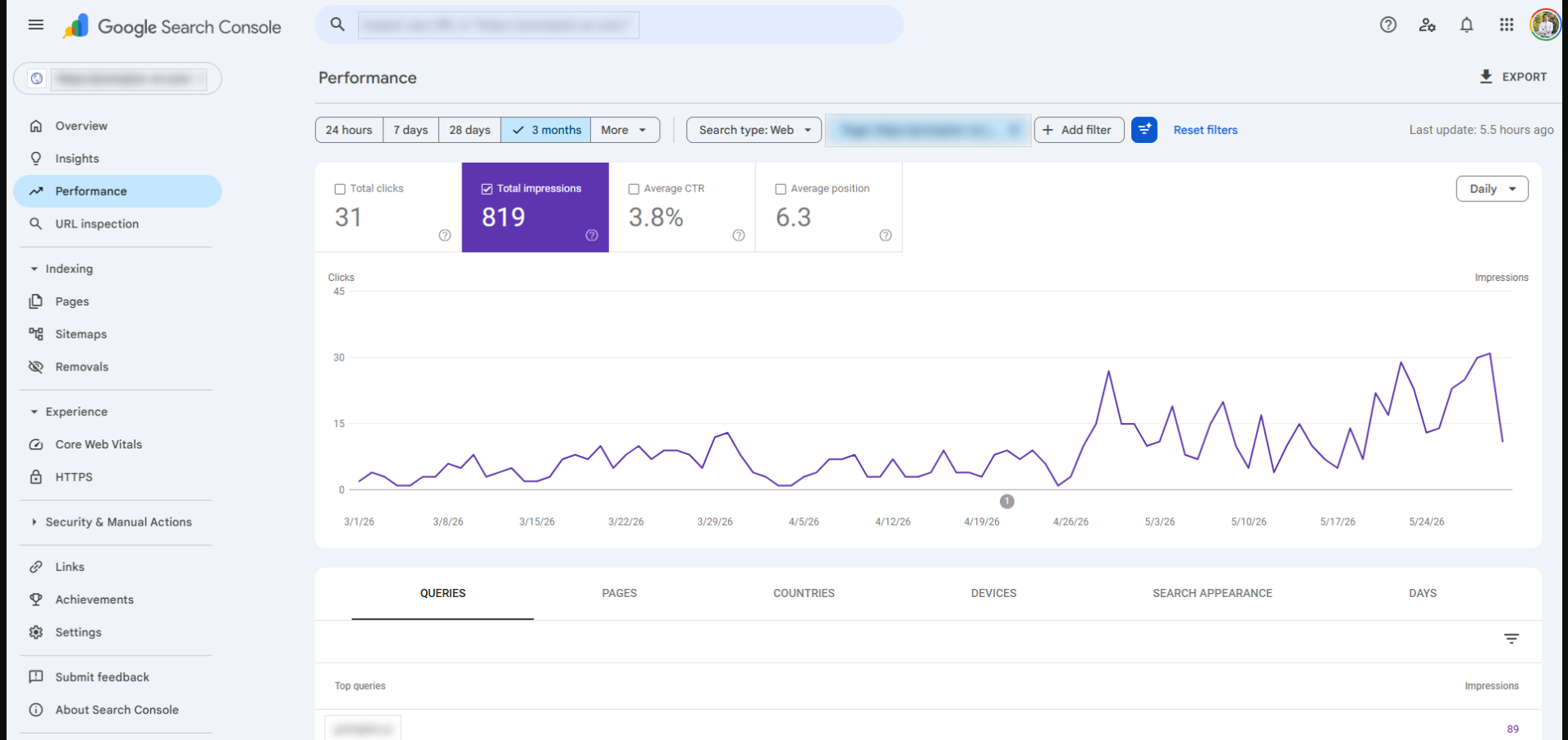
The Crawl Stats report shows how often Googlebot crawls your site, how many pages it requests per day and the average response times. Navigate to Settings > Crawl Stats in Google Search Console to access it. Look for sudden drops in crawl requests, which may indicate Google has deprioritized your site. Also check for high response times that could be limiting crawl efficiency.
URL Inspection Tool
The URL Inspection Tool lets you check the crawlability and indexability status of any specific URL on your site. Enter a URL and look at the ‘Coverage’ section to see whether the page is indexed, crawlable or blocked. Use the ‘Test Live URL’ feature to simulate a real Googlebot crawl and see the rendered page as Google sees it. This is invaluable for diagnosing JavaScript rendering issues and checking canonical tag behavior.
Page Indexing Report
The Page Indexing report (formerly known as the Coverage report) shows which of your pages are indexed and which are excluded. It categorizes excluded pages by reason, such as ‘Excluded by noindex tag,’ ‘Crawled but currently not indexed,’ ‘Discovered but currently not indexed’ and ‘Alternate page with proper canonical tag.’ Use these categories to pinpoint the exact nature of your crawlability or indexability problems.
XML Sitemap Report
The Sitemap report shows all sitemaps you have submitted and how many URLs from each sitemap have been indexed versus discovered. A large discrepancy between submitted URLs and indexed URLs is a red flag for crawlability issues. Check for any sitemap submission errors and ensure your sitemap does not include noindex pages, redirected URLs or 404 pages.
| GSC Report | What It Diagnoses | Key Metric to Check |
| Crawl Stats | Crawl frequency and server health | Crawl requests per day, average response time |
| URL Inspection Tool | Individual page crawlability | Indexing status, robots.txt block, canonical |
| Page Indexing Report | Site-wide indexing coverage | Excluded pages and reasons |
| XML Sitemap Report | Sitemap health and indexing rate | Submitted vs indexed URL count |
Log File Analysis: See How Search Engines Actually Crawl Your Website
Many SEO tools simulate a crawler’s perspective but log file analysis reveals what search engine bots are doing in reality. Server log files record every request made to your website, including visits from Googlebot and other search engine crawlers.
By analyzing these logs, you can uncover crawlability issues that may not appear in standard site audits.
Why Log File Analysis Matters
Log files provide direct evidence of how search engines interact with your website. They help answer critical questions such as:
- Which pages are crawled most frequently?
- Are important pages being discovered and revisited?
- Is the crawl budget being wasted on low-value URLs?
- Are bots encountering errors or redirect chains?
- How quickly does Google crawl newly published content?
Common Crawlability Insights from Log Files
| Finding | What It May Indicate |
| Important pages receive little or no bot activity | Weak internal linking or crawl budget limitations |
| Bots repeatedly access 404 URLs | Broken links or outdated references |
| High crawl activity on parameter URLs | Crawl budget waste caused by duplicate URL variations |
| Frequent requests resulting in 5xx errors | Server performance or stability issues |
| Newly published pages never appear in logs | Discovery and indexing problems |
How to Use Log File Analysis
Log file analysis is one of the most reliable ways to validate crawlability because it is based on actual bot behavior rather than assumptions.
For large websites, eCommerce stores and enterprise SEO projects, it can reveal issues that traditional crawling tools often miss. How to use:
- Obtain server log files from your hosting provider or server administrator.
- Filter requests made by search engine bots such as Googlebot.
- Identify pages receiving excessive or insufficient crawl activity.
- Investigate recurring errors, redirects, and crawl traps.
- Optimize internal linking and technical SEO based on findings.
Recommended Log Analysis Tools
The right log analysis tools give clear visibility into bot activity, helping you fix crawlability and indexing problems faster. Here are some recommended log analysis tools:
- xCloud: Built-in server and site log viewer to track access logs, errors and server events in real time.
- Screaming Frog Log File Analyser: Deep crawl data analysis with segmentation and filters
- JetOctopus: SEO-focused log file analysis with crawl budget insights
- Splunk: Enterprise-level log monitoring and querying
- ELK Stack (Elasticsearch, Logstash, Kibana): Advanced log processing and visualization
Crawlability Checklist for Website Owners
Keeping your site crawlable is one of the most important steps in SEO. A simple checklist helps website owners spot common barriers that prevent search engines from exploring content fully.
Most beginners waste time checking minor issues while major blocks remain. Follow this simple 4-step workflow:
- Check if Google can even reach your site (10–15 mins)
- Verify your most important pages are indexable (15–20 mins)
- Fix internal discovery (linking & sitemaps)
- Monitor & maintain (ongoing)
Recommended order of priority (check these first):
High-impact blockers → Medium issues → Optimization
Phase 1: Critical Access & Blocking Issues (Check FIRST)
| Priority | Check | How to Verify | Why It Matters | Fix |
| 1 | Robots.txt | Visit yoursite.com/robots.txt | Can completely block Google | Allow important pages, remove blanket blocks |
| Google Indexing Status | Search site:yoursite.com in Google | Shows what Google actually sees | Fix noindex tags, server errors | |
| HTTPS | All pages load with padlock | Google prefers secure sites | Redirect HTTP → HTTPS | |
| 2 | Meta Robots Tags | View page source → look for <meta name=”robots”> | Can block indexing per page | Remove noindex, none |
| Server Errors (5xx) | Google Search Console → Indexing → Pages | Google stops crawling broken pages | Fix server/database issues |
Phase 2: Discovery & Sitemap Issues
| Priority | Check | How to Verify | Fix |
| 3 | XML Sitemap | Submit yoursite.com/sitemap.xml in Google Search Console | Create/update dynamic sitemap |
| Sitemap in robots.txt | Should reference your sitemap | Add Sitemap: https://yoursite.com/sitemap.xml | |
| 4 | Internal Linking | Crawl site with free tool (Screaming Frog, Sitebulb) | Add logical navigation, breadcrumb links |
| Orphan Pages | Pages with no internal links | Link them from relevant content |
Phase 3: Technical & Rendering Issues
| Priority | Check | Tool | Fix |
| 5 | Page Speed | Google PageSpeed Insights | Optimize images, enable compression |
| Mobile-Friendliness | Google Mobile-Friendly Test | Use responsive design | |
| 6 | JavaScript Rendering | Google Search Console → URL Inspection | Make sure important content is not JS-only |
| Canonical Tags | Check for proper rel=”canonical” | Fix self-referencing or missing canonicals | |
| 7 | Redirect Chains | Screaming Frog | Keep redirects to one hop max |
✅ Checklist
Use this checklist to audit your site for crawlability problems and keep your technical SEO foundation solid.
| Task | Status | Tool |
| Robots.txt reviewed and tested | ☐ | Google Search Console |
| XML sitemap submitted and validated | ☐ | Google Search Console |
| Internal links audited for 404 errors | ☐ | Screaming Frog / Ahrefs |
| Orphan pages identified and linked | ☐ | Screaming Frog / Ahrefs |
| Redirect chains resolved | ☐ | Screaming Frog |
| Redirect loops eliminated | ☐ | Screaming Frog |
| Noindex tags reviewed on all pages | ☐ | Screaming Frog / Rank Math |
| Canonical tags validated | ☐ | Screaming Frog |
| Page speed and server response time checked | ☐ | PageSpeed Insights / GSC |
| JavaScript rendering verified via URL Inspection | ☐ | Google Search Console |
| Crawl budget waste reviewed | ☐ | GSC Crawl Stats |
| URL parameters managed | ☐ | robots.txt / canonicals |
| Soft 404 errors addressed | ☐ | Google Search Console |
| Hreflang tags validated (if multilingual) | ☐ | Screaming Frog / Ahrefs |
| Site architecture depth reviewed | ☐ | Screaming Frog |
Crawlability Best Practices for 2026
Search engines are evolving quickly and crawlability has become more critical than ever. In 2026, keeping your site accessible means focusing on clean structures, efficient resource handling, and smart technical setups that guide crawlers without wasting their time.
Following best practices ensures your content is discovered, indexed, and ready to compete in modern search results.
✅ Prioritize Core Web Vitals: Google’s crawling efficiency is closely tied to your site’s server performance. Fast-loading pages with good Core Web Vitals scores get crawled more frequently than slow, heavy sites.
✅ Use Server-side Rendering for JavaScript-heavy Pages: As JavaScript frameworks become more common, ensuring that important content is available in the initial HTML response has become a critical crawlability requirement. Do not rely on client-side rendering for core navigation, headings or body content.
✅ Keep Your Sitemap Clean and Current: Your XML sitemap should only contain URLs that return a 200 status code, are indexable and represent your most valuable content. A bloated sitemap with 404 pages and noindex URLs sends confusing signals to Googlebot.
✅ Audit Internal Links Regularly: A strong internal linking structure is the backbone of good crawlability. Review your internal links quarterly and ensure every important page is reachable within three to four clicks from your homepage.
✅ Monitor Crawl Anomalies in Real Time: Set up Google Search Console alerts and check your Crawl Stats report monthly. A sudden drop in crawl requests often signals a server issue, a robots.txt change or a major crawlability problem that needs immediate attention.
Common Crawlability Mistakes to Avoid
Many websites struggle with crawlability, not because of complex technical issues, but because of simple mistakes that block search engines from exploring content. From misconfigured robots.txt files to broken internal links, these errors can quietly limit visibility. Knowing what to avoid helps keep your site open to crawlers and ready to perform in search results.
Even experienced SEOs make these mistakes. Here is what to watch out for:
❌ Blocking CSS And Javascript in Robots.Txt
Google needs to render your pages to understand their content. Blocking CSS or JS files prevents proper rendering and can make your site appear broken to Googlebot. Always allow Googlebot access to these resources.
❌ Including Noindex Pages in Your Sitemap
If a page has a noindex directive, it should not appear in your sitemap. Submitting noindex pages in a sitemap sends contradictory signals to Google and can cause indexing confusion.
❌ Over-Disallowing In Robots.txt During Development
Many developers block the entire site during development using Disallow: / and forget to update the file when the site goes live. Always double-check your robots.txt immediately after any launch or migration.
❌ Ignoring Crawl Errors for Months
Crawl errors in Google Search Console should not sit unaddressed. Persistent 404 errors, server errors and redirect issues erode crawl budget over time and signal poor site health to Google.
❌ Setting up Pagination Incorrectly
Paginated pages that are not linked properly or that use JavaScript-based pagination can create dead ends for Googlebot. Ensure each paginated page is accessible via standard HTML links.
❌ Forgetting to Update Sitemaps After Content Changes
After publishing, deleting or restructuring content, always update and re-submit your sitemap. An outdated sitemap pointing to deleted pages wastes crawl budget and delays discovery of new content.
Now that you know the most serious crawlability mistakes, best practices and checklist as well, let’s look at how you can put this into action faster.
BetterLinks provides powerful features to detect and fix these issues effectively.
How BetterLinks Helps You Detect & Fix Crawlability Issues
Crawlability problems often hide inside internal links, redirects and broken URL paths.
As a powerful WordPress AI-powered link management plugin, BetterLinks stands out as one of the most suitable link management solutions for WordPress websites. It helps you surface these issues quickly by giving you complete control over how links behave, how they are structured and how they are maintained across your entire site.
While it is not a full technical crawler, BetterLinks acts as a smart, practical layer that improves link health, fixes common crawl barriers and supports better indexing.
Fix Broken Links Before They Break Crawling Flow
Broken links are one of the most common crawlability issues. When search engine crawlers hit a 404 page, it disrupts crawling paths and wastes crawl budget.
BetterLinks helps you identify broken internal and external links so you can fix or redirect them before they impact indexing. By cleaning up these URLs, you maintain a smooth path for crawlers to navigate your site without interruption.
Improve Crawl Paths with Smart Redirect Management
Redirect issues like chains and loops can confuse search engines and slow down crawling efficiency. Poor redirect setups also dilute link signals.
With BetterLinks, you can manage 301, 302, and 307 redirects in a structured way. This helps ensure that crawlers always reach the correct destination without getting stuck in unnecessary hoops or loops.
Strengthen Internal Linking to Reduce Orphan Pages
Orphan pages are a major crawlability problem because search engines cannot discover them through internal links.
BetterLinks supports automated keyword-based internal linking, helping you connect related pages across your website. This improves crawl depth and ensures important pages are reachable from multiple entry points.
Clean URL Structure for Better Crawl Efficiency
Search engines prefer clear and consistent URL structures. Messy or inconsistent URLs can reduce crawl efficiency and create indexing confusion.
BetterLinks helps you maintain clean, structured, and trackable links, improving how search engines interpret your site architecture.
Maintain Ongoing Link Health with Continuous Monitoring
Crawlability is not a one-time fix. As your website grows, broken links, outdated redirects, and weak internal connections can reappear.
BetterLinks helps you continuously manage link health so your site stays crawl-friendly over time. This reduces technical SEO debt and keeps your pages consistently accessible to search engines.
Fix Crawlability Issues Before They Impact Rankings
Crawlability problems are silent ranking killers. They work in the background, quietly preventing your pages from being discovered, crawled and indexed while you wonder why your SEO efforts are not paying off.
The good news is that most crawlability issues are fixable once you know what to look for. Start with a basic technical SEO audit using Google Search Console.
For ongoing success, make crawlability checks a regular part of your SEO workflow. Audit your site quarterly, monitor your Crawl Stats monthly and always test your robots.txt after any major site changes.
Is your URL architecture holding you back? Join our Facebook community to stay updated on advanced technical SEO strategies or subscribe to our blog for deep-dive WordPress solutions.
People Also Ask: Advanced Crawlability Questions
Crawlability issues often confuse website owners because they look technical but usually come down to simple configuration or structure problems.
Below are the most common questions asked by SEO beginners and practitioners:
Why is Google crawling my site but not indexing pages?
How long does it take for Google to recrawl a fixed crawlability issue?
Can too many internal links hurt crawlability?
Does JavaScript delay Google crawling and indexing?
What happens if the crawl budget is exhausted?
Can server errors permanently affect crawlability?
Why are some pages crawled but never shown in search results?
Google may also crawl pages to evaluate them but choose not to include them in its index.