Internal linking plays a major role in improving navigation, distributing link authority and helping search engines understand your website. Yet, finding the right pages to link manually can be time-consuming, especially as your content library grows. Because of this, many relevant linking opportunities are missed or overlooked.
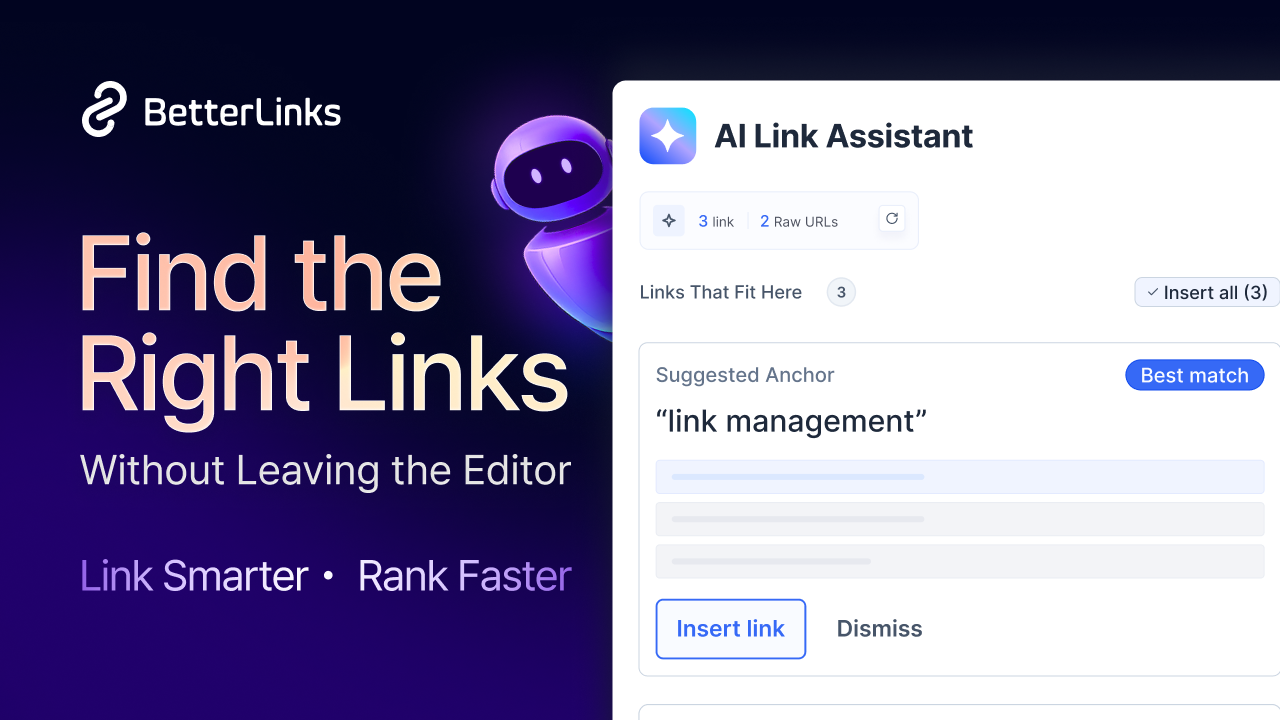
AI Link Assistant solves this problem by analyzing your content and recommending relevant BetterLinks directly inside the WordPress editor. Instead of searching through existing posts or links yourself, you receive contextual suggestions as you write. In this guide, you’ll learn what AI Link Assistant is, how it works and how to set it up step by step with BetterLinks.
What Is the AI Link Assistant?
AI Link Assistant is an in-editor linking system from BetterLinks that helps you insert the right links as you write. Instead of pausing to dig through your list of short links, it reads your content directly inside the WordPress editor and recommends the most relevant links for you to add with a single click.
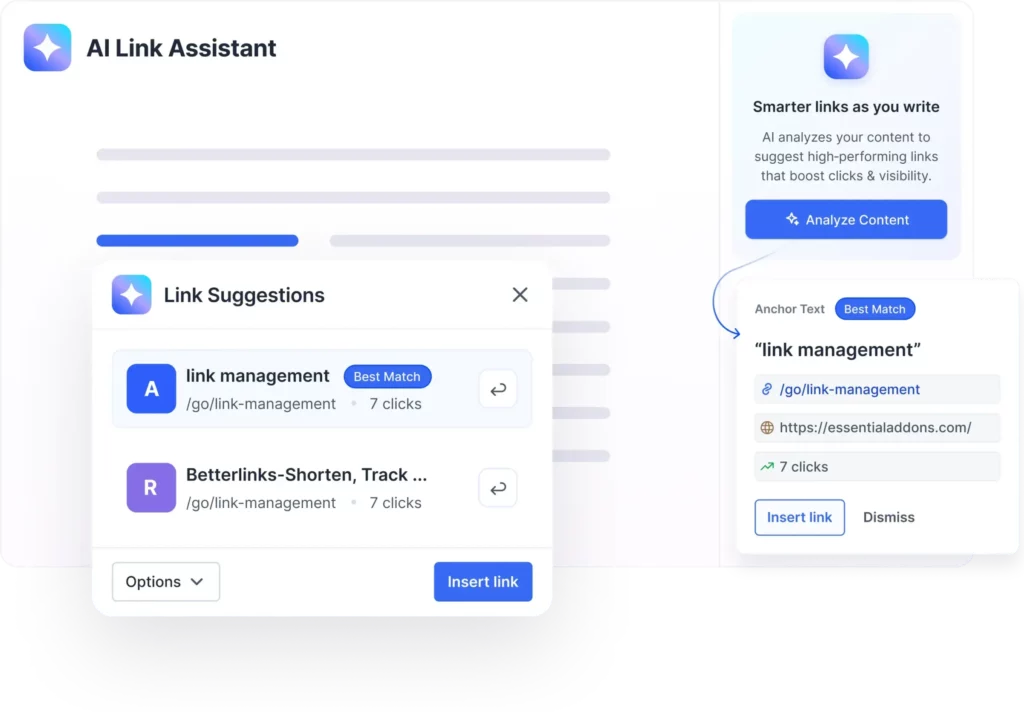
What makes it different is that every suggestion is backed by real data. It understands the meaning and intent of your content, then prioritizes the BetterLinks that have already proven to perform. So the links you insert are the ones most likely to earn clicks. It can also spot plain, untracked URLs in your text and offer to turn them into short, trackable links without breaking your writing flow.
Why Smart Internal Linking Matters for SEO
Before jumping into setup, it helps to understand why this feature is worth using. Internal links spread authority across your site, keep visitors engaged longer and give search engines a clear map of your content. When links are relevant and consistent, your topical authority grows and your pages get discovered more easily.
The problem is that manual linking is slow and easy to forget. You end up missing chances to connect related posts or worse, leave raw URLs sitting in your content with no tracking at all. The AI Link Assistant removes that friction so your linking stays strong on every post you publish. If you also want to keep those links healthy over time, pairing it with automated link monitoring keeps your whole site clean.
Key Features of the AI Link Assistant
The AI Link Assistant in BetterLinks includes powerful features that simplify link management inside the WordPress editor. From smart link suggestions to one-click insertion, each feature helps you build a better internal linking strategy while saving time.
A closer look at what the feature actually does inside your editor:
- AI-powered link intelligence: It goes beyond simple keyword matching by understanding the meaning of your content, then ranking your BetterLinks by real click data.
- Smart URL detection: It finds raw or untracked URLs in real time and lets you convert them into branded, trackable short links in one click.
- Inline link experience: You review ranked suggestions and add the best match right where you are writing, without switching screens.
- Sidebar assistant: A side panel analyzes your whole post in one click and shows context-based linking opportunities ranked by performance.
- AI configuration control: From Settings, you connect OpenAI or Google Gemini, add your API key, pick your model, and set token limits to suit your workflow.
How to Use the AI Link Assistant with BetterLinks
With the features in mind, let us walk through the setup. This guide shows you how to enable the AI Link Assistant, connect your AI provider, and use smart link suggestions directly inside the WordPress content editor.
Step 1: Enable the AI Link Assistant
From your WordPress dashboard, navigate to BetterLinks → Settings and open the Advanced Options tab. Next, select AI Configuration from the left sidebar to configure your AI provider.
Under API Configuration, choose your preferred provider from the Select AI Provider dropdown. Then, paste your API key into the API Authentication Key field. You can obtain an API key from your chosen provider, such as OpenAI or Google AI Studio. If required, select an AI model and configure the Maximum Token Limit based on your preferences.
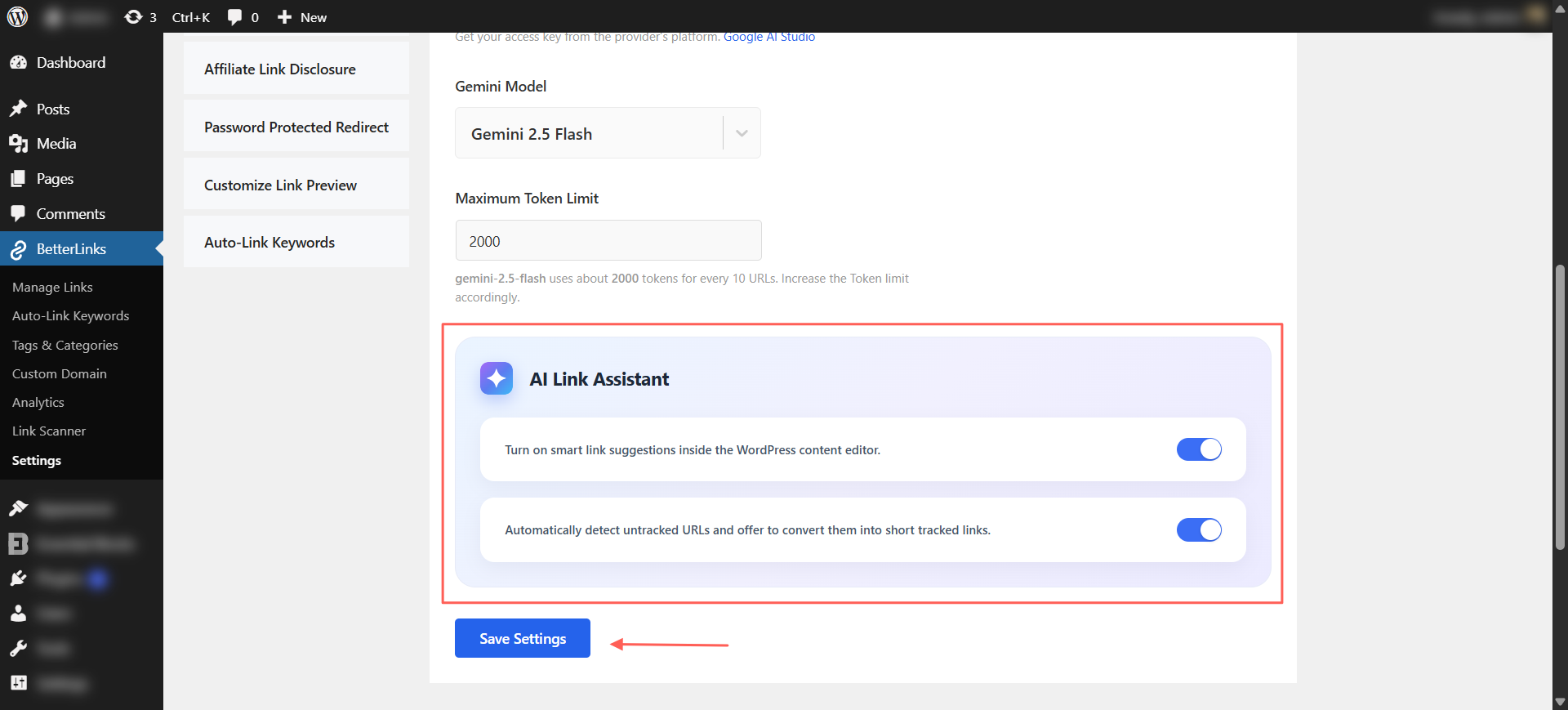
Scroll down to the AI Link Assistant section and enable the following options:
- Enable AI Link Assistant to receive smart link suggestions directly inside the WordPress content editor.
- Enable Untracked URL Detection to automatically identify untracked URLs and recommend converting them into shortened, trackable links.
After enabling both options, click Save Settings to apply your changes.
Step 2: Analyze & Insert Smart Links
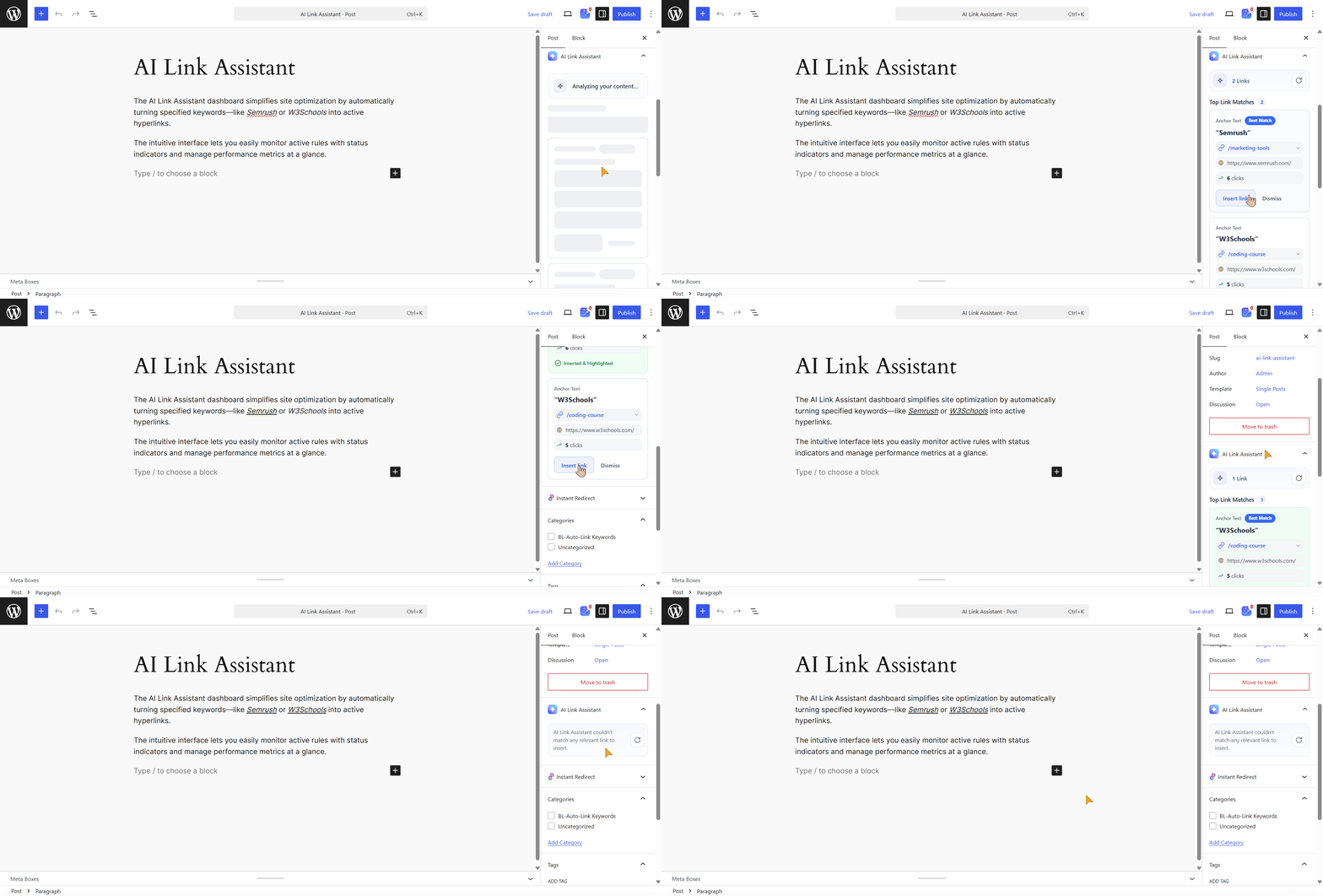
Open any post or page in the WordPress editor and click Analyze Content from the AI Link Assistant panel. Review the suggested links, then click Insert Link to add the best match or Dismiss to skip it. You can also highlight any text and select Generate Link to get AI-powered link recommendations for that specific phrase.
Step 3: Convert Untracked URLs
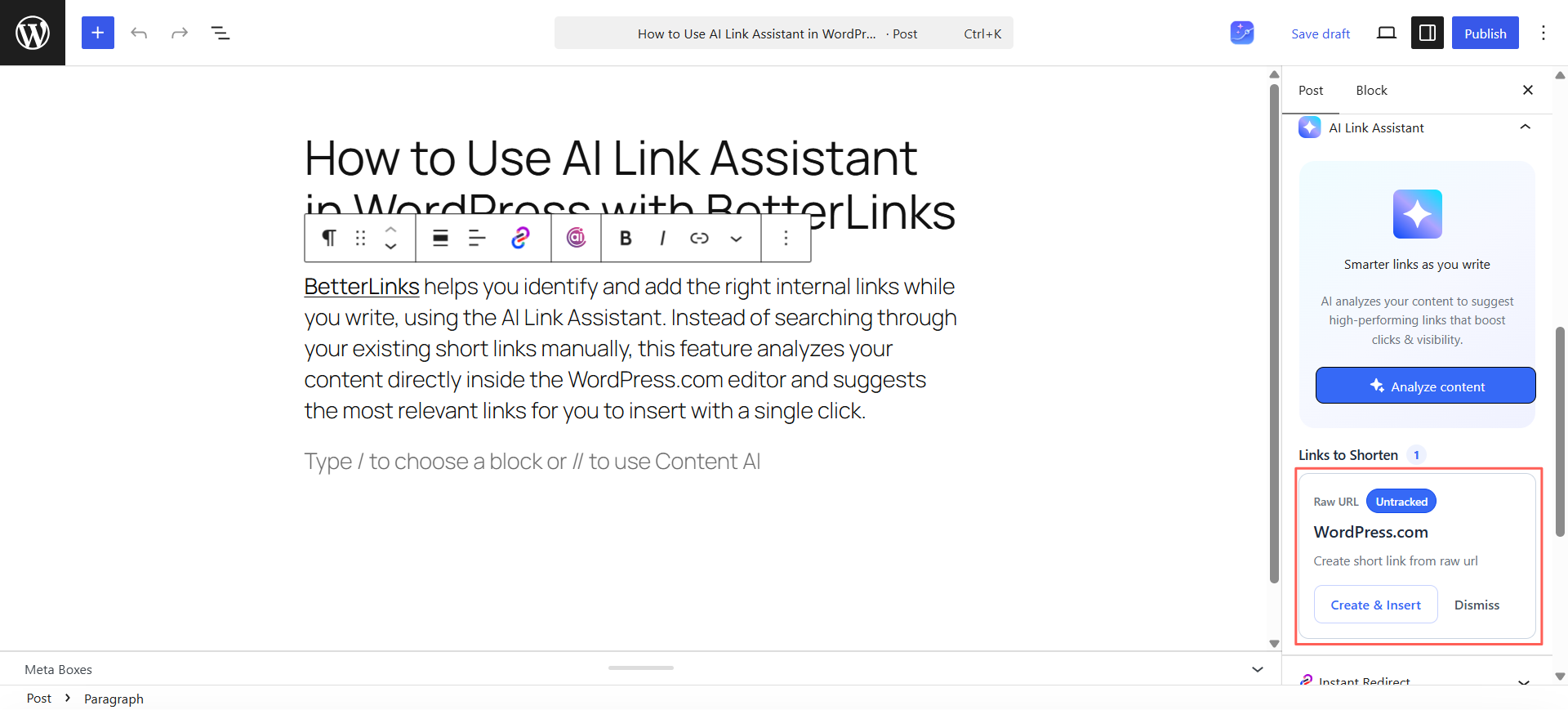
The AI Link Assistant automatically detects untracked URLs in your content. Click Create & Insert to replace them with trackable BetterLinks short URLs, or Dismiss to keep the original links.
Need more help? Check out this documentation.
Who Gets the Most Out of the AI Link Assistant
The AI Link Assistant is designed for anyone who wants to save time managing links in WordPress. Whether you create content, run affiliate campaigns, or manage a business website, it helps you add relevant links faster and keep your content organized.
This feature fits almost anyone who publishes on WordPress, but a few groups gain the most from it. Here is a quick look at how different users put it to work.
| User | How the AI Link Assistant Helps |
| Affiliate marketers | Surface and insert your highest-performing affiliate links in every post, so no monetization opportunity slips by. |
| SEO specialists | Reinforce internal links, improve topical authority and strengthen site structure as you write. |
| Content teams | Stop searching through old links and campaigns; your best-performing links appear the moment you need them. |
| Marketing teams | Highlight the BetterLinks driving engagement and convert raw URLs into branded links before publishing. |
| Agencies | Keep consistent linking standards and surface top-performing links across every client site. |
How to Get the Best Results from AI Link Assistant
AI Link Assistant delivers the best recommendations when your BetterLinks library is well maintained and your internal linking strategy stays consistent. A few simple practices can improve the quality of suggestions and help you build stronger content connections.
Build a Strong BetterLinks Library
The AI only recommends links that already exist in your BetterLinks library. Keeping it updated gives the assistant more relevant options to choose from.
- Add BetterLinks for your important pages and newly published content.
- Update or remove outdated links to keep recommendations accurate.
- Use clear link titles so the AI can better understand each destination.
Review Suggestions Before Inserting
Each suggestion is designed to save time, but reviewing it before insertion helps you maintain relevance, clarity and SEO quality.
- Make sure the suggested page matches the surrounding content.
- Choose anchor text that reads naturally within the sentence.
- Insert links only where they add value for readers.
Pair It with AI Bulk Link Generator
It also pairs well with the rest of your linking workflow. Combine it with the AI Bulk Link Generator to create links at scale, then use the assistant to place them naturally in your content.
- Generate BetterLinks in bulk for your important URLs.
- Let the AI Link Assistant recommend those links while you write.
- Review and insert the most relevant suggestions with a click.
Using both features together helps you create, manage and place internal links more efficiently while keeping your content organized and SEO friendly.
Start Linking Smarter Inside Your Editor Today
Strong internal linking should not slow you down or rely on memory. The AI Link Assistant brings smart, data-backed suggestions right into the WordPress editor, so you add the right links, convert raw URLs into trackable ones and keep your content clean without breaking your flow.
If you are ready to link smarter, get started with BetterLinks and turn on the AI Link Assistant on your next post. Want more WordPress tips and product updates? Subscribe to the BetterLinks blog and explore the rest of the site for the newest tutorials and demos.