Introducing Auto-Link Keywords Import and Export in BetterLinks, a feature built to simplify bulk keyword linking on WordPress websites. It enables you to manage linking rules through structured CSV files, making it easier to handle large volumes of keywords and URLs without manual input.
With this feature, you can quickly import keyword-link data into BetterLinks or export existing rules for backup or editing. This approach helps maintain consistency across your site while reducing the time and effort needed to manage internal or affiliate links. Explore this guide to see how you can use Auto-Link Keywords Import and Export in BetterLinks step by step.
TL;DR (Too Long, Didn’t Read?): Quick Overview
BetterLinks stands out as a top link management tool plugin for WordPress. It helps with cloaking, tracking and now auto-link keywords import. If you run an affiliate site or blog, you know manual link setup takes hours. This feature changes that.
| Feature Aspect | Key Benefit | Best For |
| Auto link keywords import | Upload CSV for hundreds of rules in seconds | Bulk keyword linking WordPress affiliates |
| Auto link keywords export | Download rules as CSV for backups or migration | Migrate auto link rules across sites |
| CSV Support | Handles keywords, URLs and targets | Import CSV auto-links beginners |
| Pro Requirement | BetterLinks Pro unlocks full power | Automatic keyword linking for PRO users |
| Time Saved | No manual dashboard entry | WordPress link automation scale-ups |
What Is Auto-Link Keywords Import And Export in BetterLinks?
Auto-Link Keywords Import And Export is a core PRO feature in BetterLinks. It helps you add or save auto-link keywords rules in bulk using CSV files. No more typing one by one in the dashboard.
Think of your WordPress site full of posts. You want ‘best hosting’ to link to your affiliate offer every time. Instead of editing each post, set a rule once. Betterlinks keyword import brings hundreds of such rules from a simple spreadsheet.
This ties into WordPress auto-link keywords workflows. BetterLinks scans your content and auto-inserts links based on keywords. Export keeps your setup safe for backups or moving to new sites.
Why Bulk Keyword Linking Matters for WordPress Users
Internal linking is repeatedly named one of the top 3 highest ROI ranking factors by Google, Ahrefs and Semrush. This is not an accident. It is because until bulk keyword linking existed, doing internal linking correctly was completely impractical at scale.
But why does it matter so much? Let’s break it down.
1. The Power of Internal Linking in SEO
Internal linking is a cornerstone of SEO. It helps search engines:
- Understand site structure and hierarchy.
- Distribute link equity (ranking power) across pages.
- Bulk Keyword Linking automates this process, ensuring every relevant keyword is linked to its corresponding page without manual intervention.
2. Why Manual Linking Falls Short
Most WordPress users start by manually adding links to keywords. However, this approach has critical drawbacks:
- Time-Consuming: Manually linking keywords across hundreds of posts is impractical.
- Inconsistent: Human error leads to broken links, over-optimization, or missed opportunities.
- Scalability Issues: As your site grows, manual linking becomes unsustainable.
3. Who Needs Bulk Keyword Linking?
This feature is a game-changer for:
| User Type | Why It Matters |
| Bloggers | Automate internal linking to improve SEO for hundreds of posts. |
| eCommerce Stores | Link product keywords to category pages, boosting conversions. |
| Affiliate Marketers | Auto-link affiliate keywords to maximize earnings without manual updates. |
| Agencies | Manage SEO for multiple client sites efficiently. |
| Content Teams | Ensure consistency across large content libraries. |
Step-by-Step Guide to Auto Link Keywords Import And Export
Follow the step-by-step guide below to learn how you can add links to specific keywords across your website posts or pages in just a few simple steps using the Auto-Link Keywords Import feature from BetterLinks.
You must have a published post or page on your WordPress website that contains the keywords you want to link using the BetterLinks Auto-Link Keywords feature.
Step 1: Create Redirect Links Using BetterLinks
Make sure you have the redirected or shortened links already created on your WordPress website using the BetterLinks plugin. These can include affiliate links, external URLs, or any destination you want to attach specific keywords through the Auto-Link Keywords feature in BetterLinks.
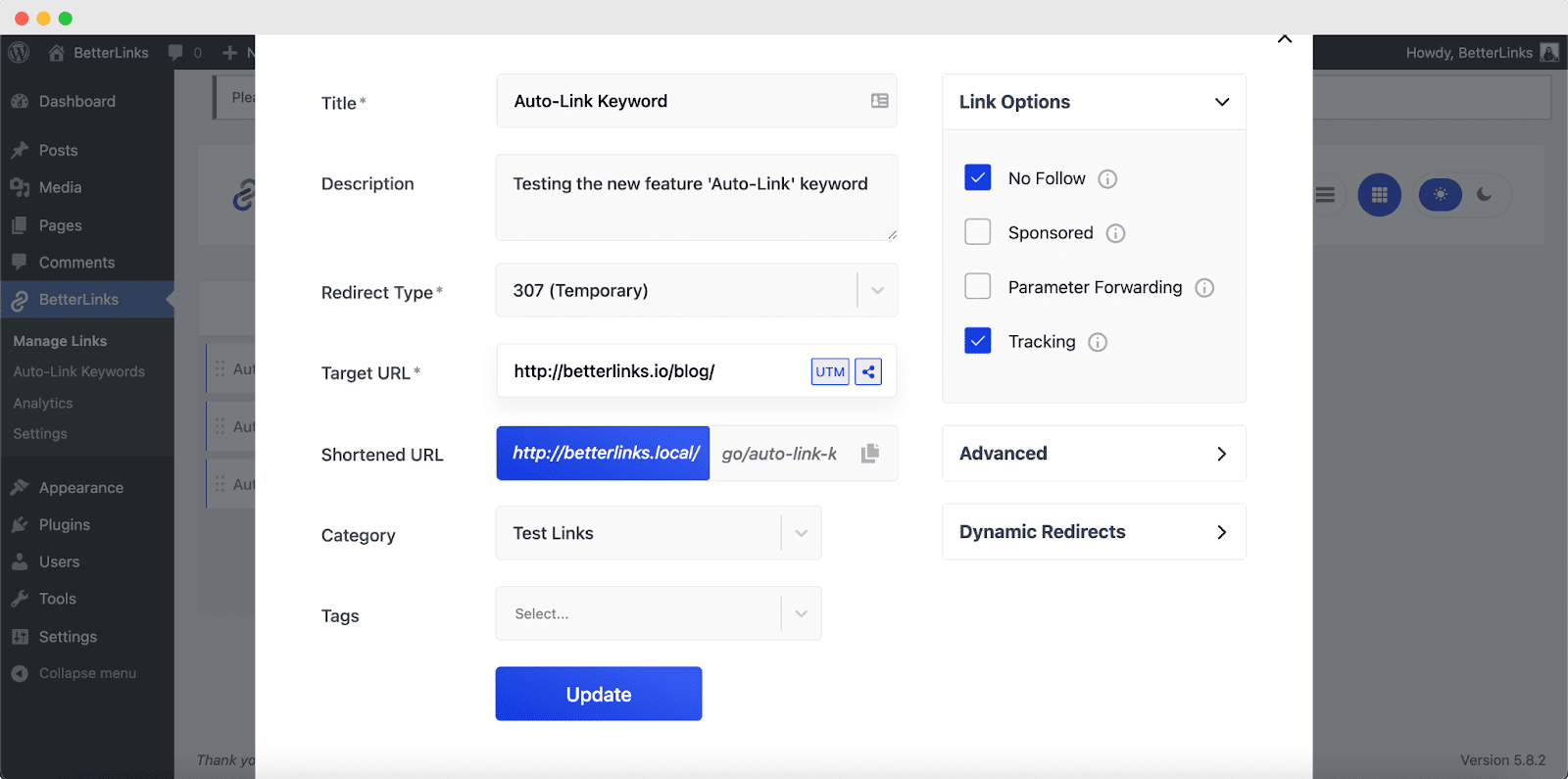
Check out this detailed documentation to learn how to easily create a shortened or redirected URL using BetterLinks.
Step 2: Use the Export Feature to Understand CSV Format
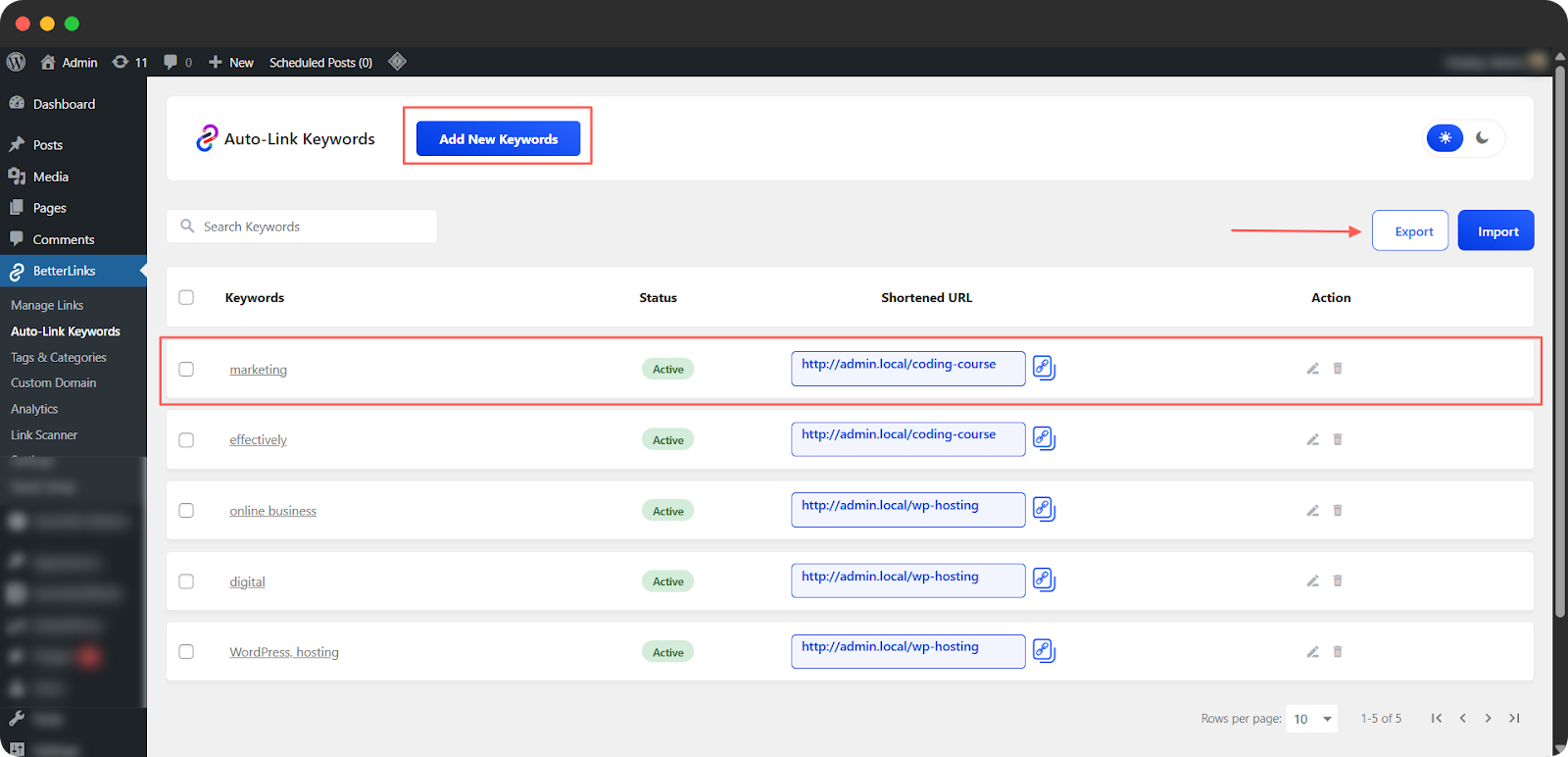
If you are not sure how to structure your CSV for Auto-Link Keywords, start with a simple setup by creating one or two keywords directly from the Auto-Link Keywords section. Click ‘Add New Keyword’ to begin.
After setting up a couple of keywords, export the data by clicking ‘Export’. This will give you a properly formatted CSV file that you can use as a reference or edit for bulk imports.
When you download and open the exported CSV file, you get a complete view of how each Auto-Link Keywords rule is structured inside BetterLinks. This file can be opened using MS Excel, Google Sheets or any standard CSV viewer, making it easy to review or edit your linking rules in bulk.
Each column in the file represents a specific configuration that controls how and where your keywords will be automatically linked across your website:
🟦 Keywords: This is the exact word or phrase you want BetterLinks to detect in your content. When this keyword appears in your posts or pages, it will automatically be converted into a link based on your setup.
🟦 Shortened URL: This field contains the BetterLinks-generated short link that will replace the keyword. It can point to an affiliate offer, internal page, landing page, or any external URL you want to promote.
🟦 Post Types: Defines where the auto-linking rule should be applied. For example, you can choose posts, pages, products, or custom post types depending on your website structure.
🟦 Categories: Allows you to limit auto-linking to specific categories. This ensures that links only appear in relevant content instead of being applied sitewide.
🟦 Tags: Works similarly to categories, giving you another layer of control. You can restrict auto-linking to posts that contain specific tags.
🟦 Open New Tab: This setting determines whether the link opens in a new browser tab when clicked. It is useful for keeping users on your site while still sending traffic to external pages.
🟦 Use No Follow: Adds a nofollow attribute to the link. This is commonly used for affiliate or sponsored links to control how search engines treat them.
🟦 Case Sensitive: When enabled, BetterLinks will only match the keyword if it exactly matches the capitalization you entered. This helps avoid unintended matches.
🟦 Left Boundary: Defines what character or space must appear before the keyword for it to be eligible for linking. For example, you can restrict linking when the keyword is part of another word.
🟦 Right Boundary: Defines what character or space must appear after the keyword. This helps ensure only complete keywords are matched.
🟦 Keyword Before: Adds an extra condition that a specific word must appear immediately before the keyword for the link to be applied.
🟦 Keyword After: Similar to the previous option, this requires a specific word to appear right after the keyword before linking occurs.
🟦 Limit: Controls how many times a keyword can be automatically linked within a single post or page. This helps maintain a natural reading experience and prevents over-linking.
🟦 Status: Indicates whether the rule is active or inactive. Only active rules will be applied to your content.
Do not modify the column headers in your CSV file. These headers are required for BetterLinks to correctly read and apply your auto-linking rules.
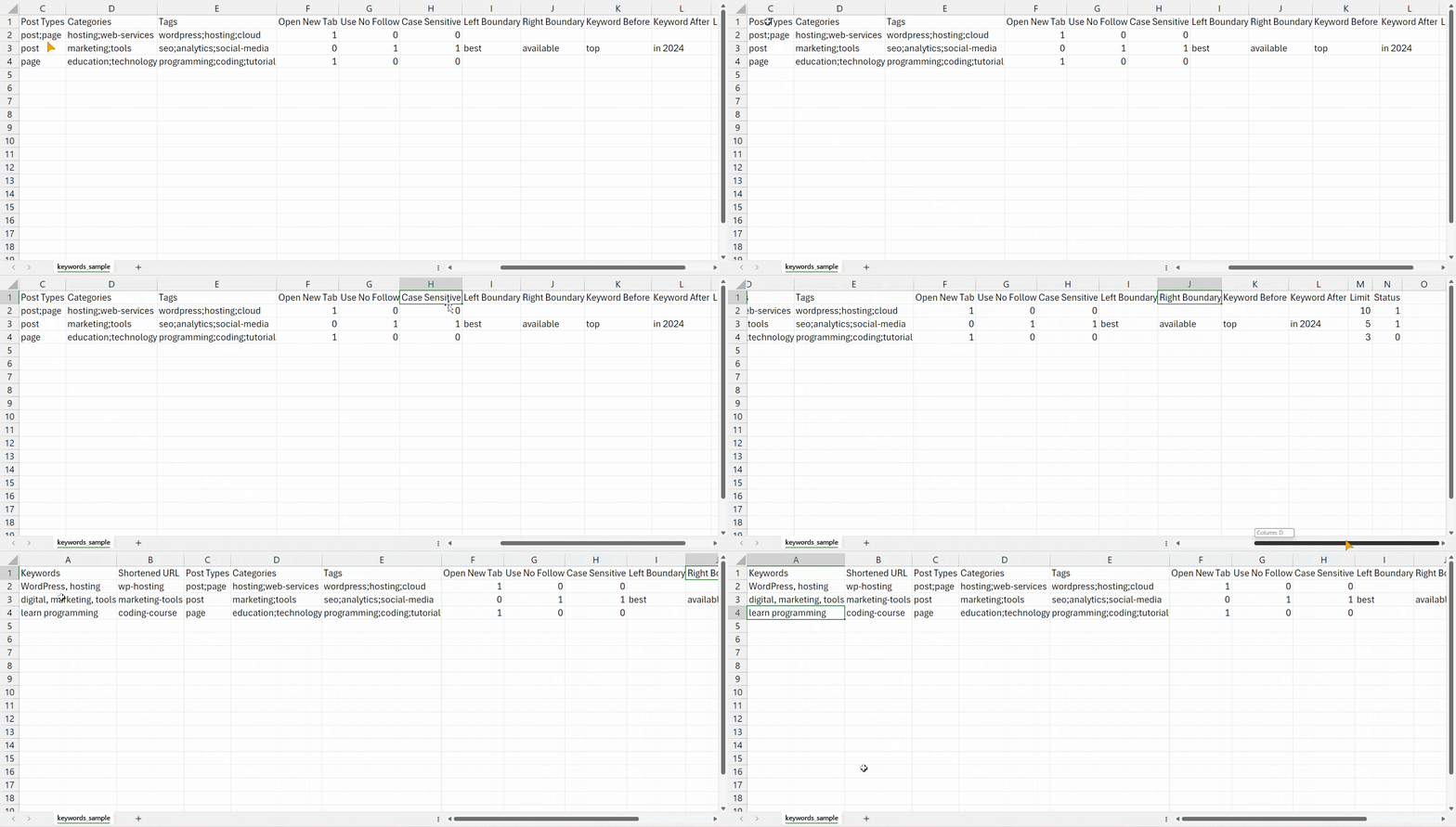
You can check our sample CSV to see how to organize keywords for bulk import. Follow the steps below to learn how the sample CSV works.
Step 3: Link Keywords Using Auto-Link Keywords Import
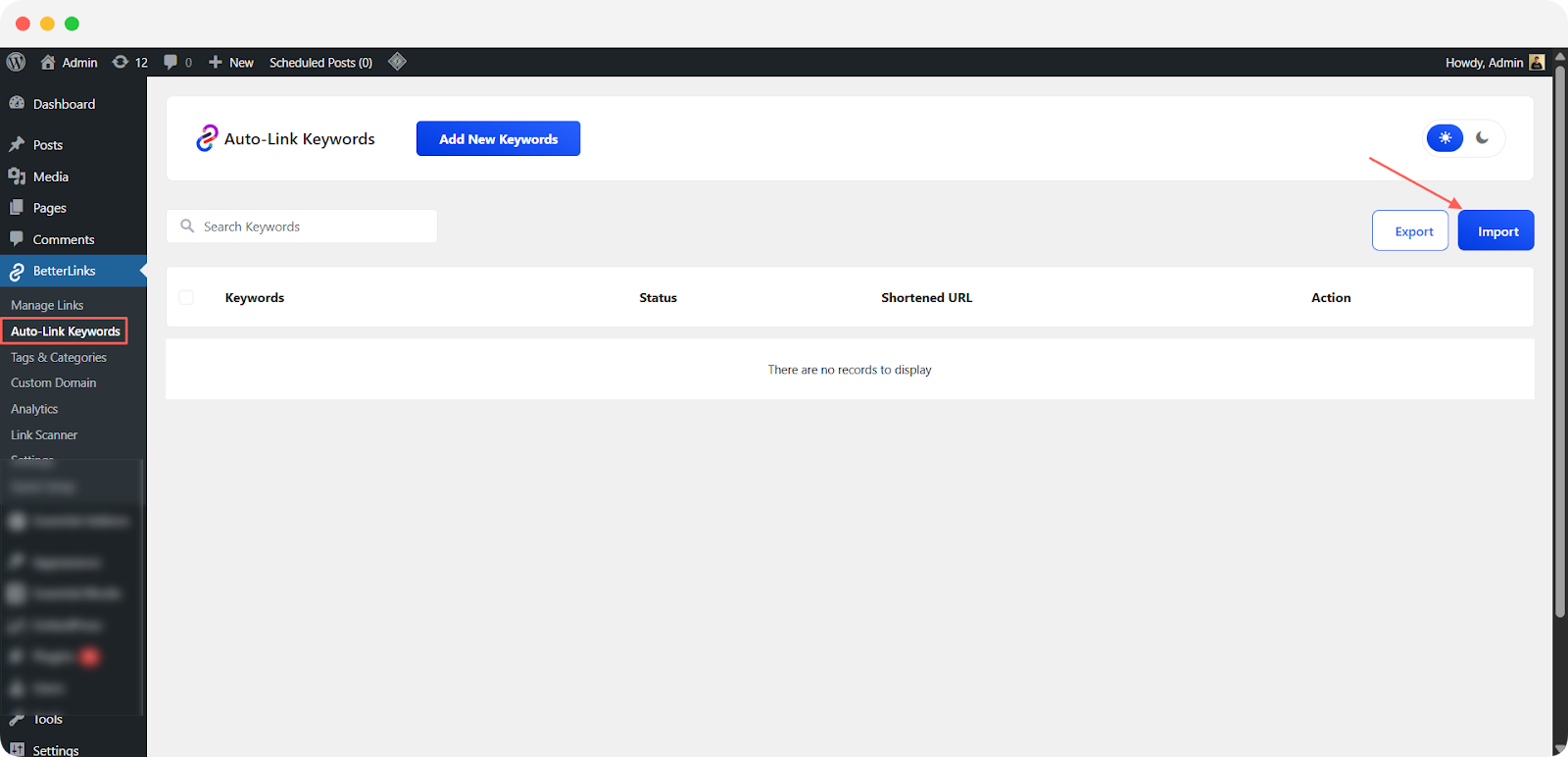
Now go to BetterLinks, then select ‘Auto-Link Keywords’. From there, click the ‘Import’ button as shown below.
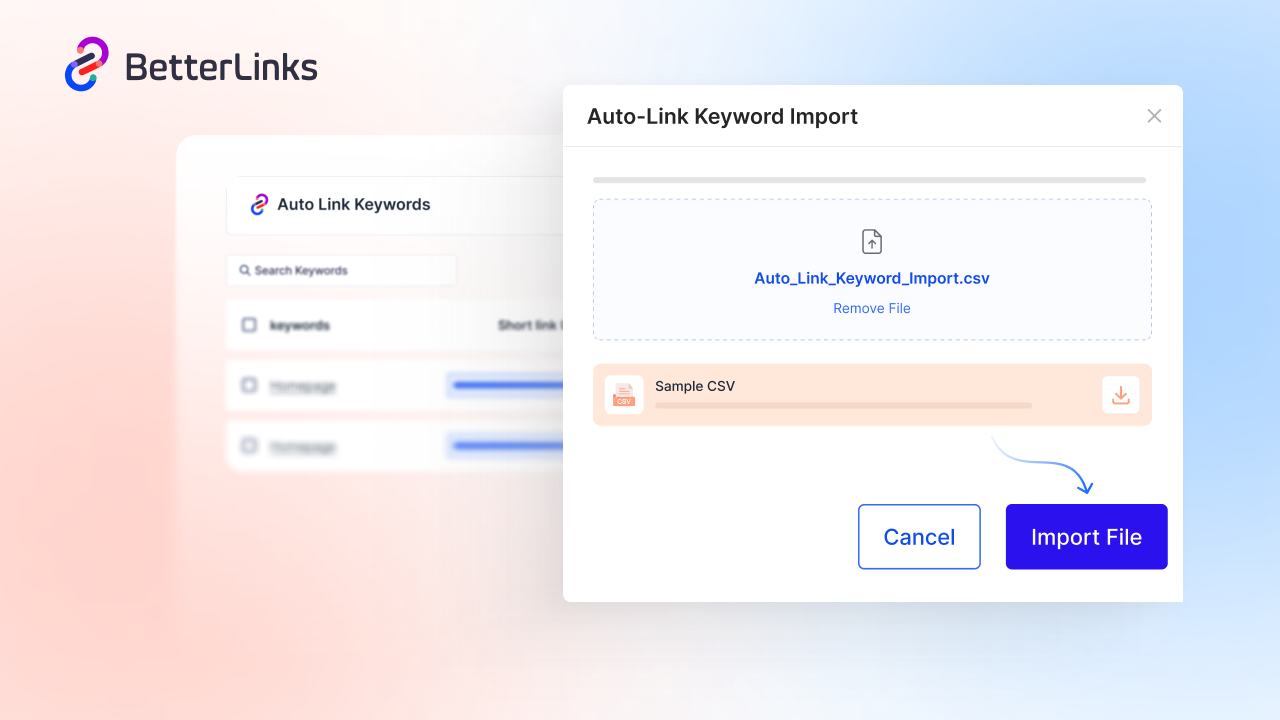
A popup window will appear on your screen where you can import your CSV file. You also have the option to download a sample CSV file, which can help you properly organize your keywords for Auto-Links in your posts or pages.
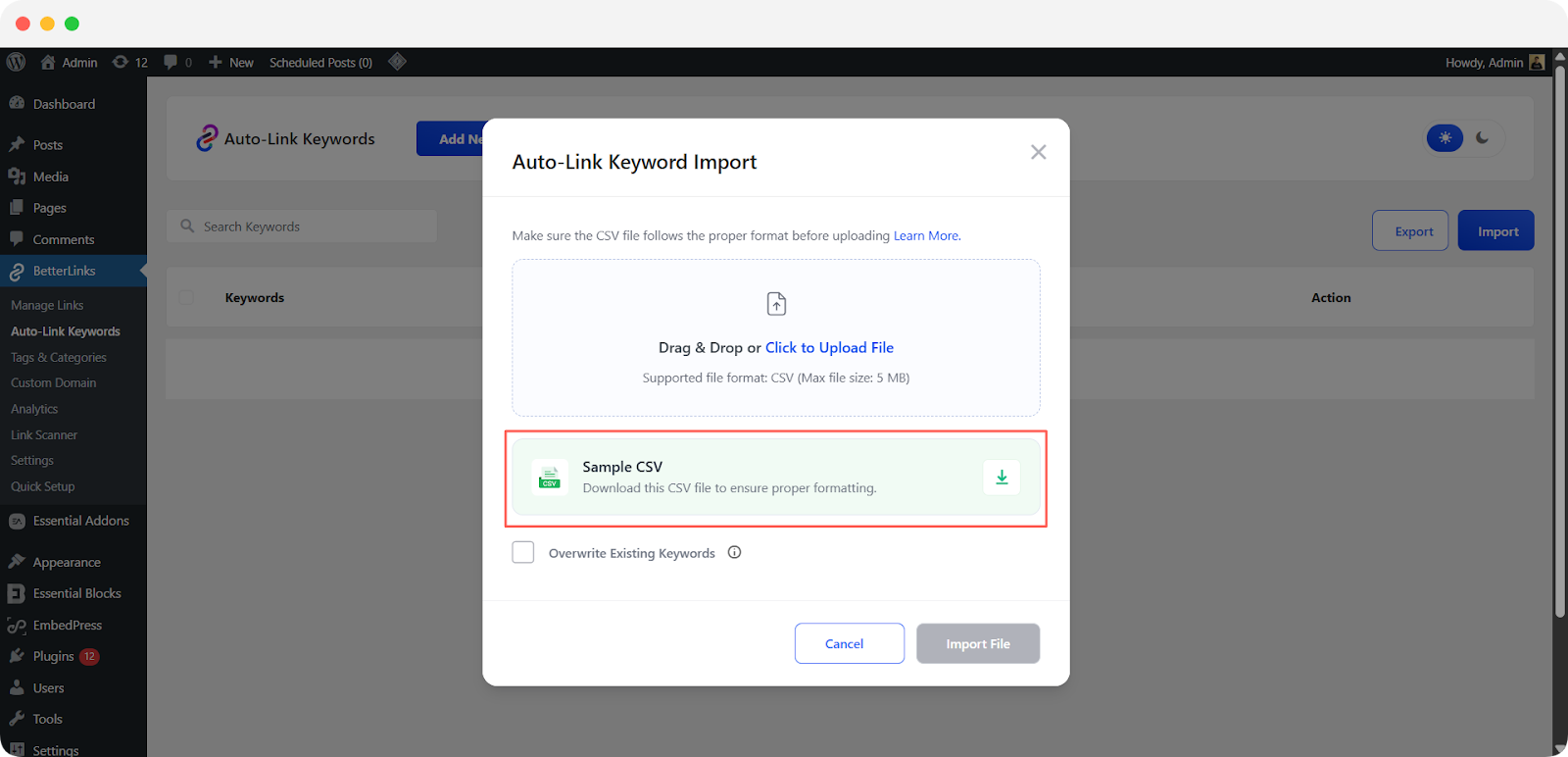
After downloading the CSV file, you will see a set of column headers that define how your auto-link keywords are configured and applied. You can open and edit the file using MS Excel, Google Sheets or any CSV viewer.
Once you have added your keywords and adjusted the settings according to your requirements, upload the file by clicking the upload option or simply dragging and dropping it into the import area. A progress indicator will show the upload status and once the process is complete, the import button will be enabled so you can proceed.
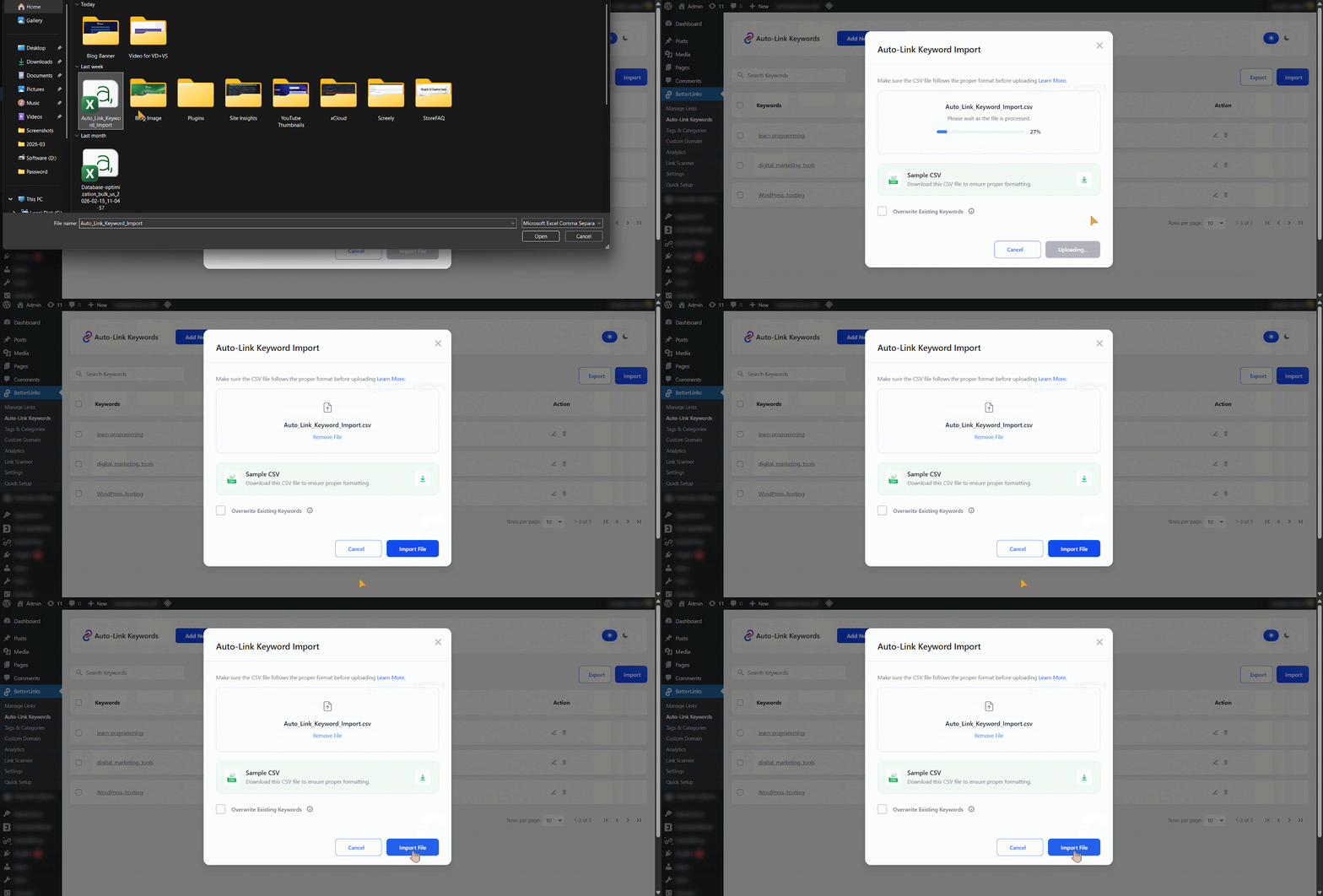
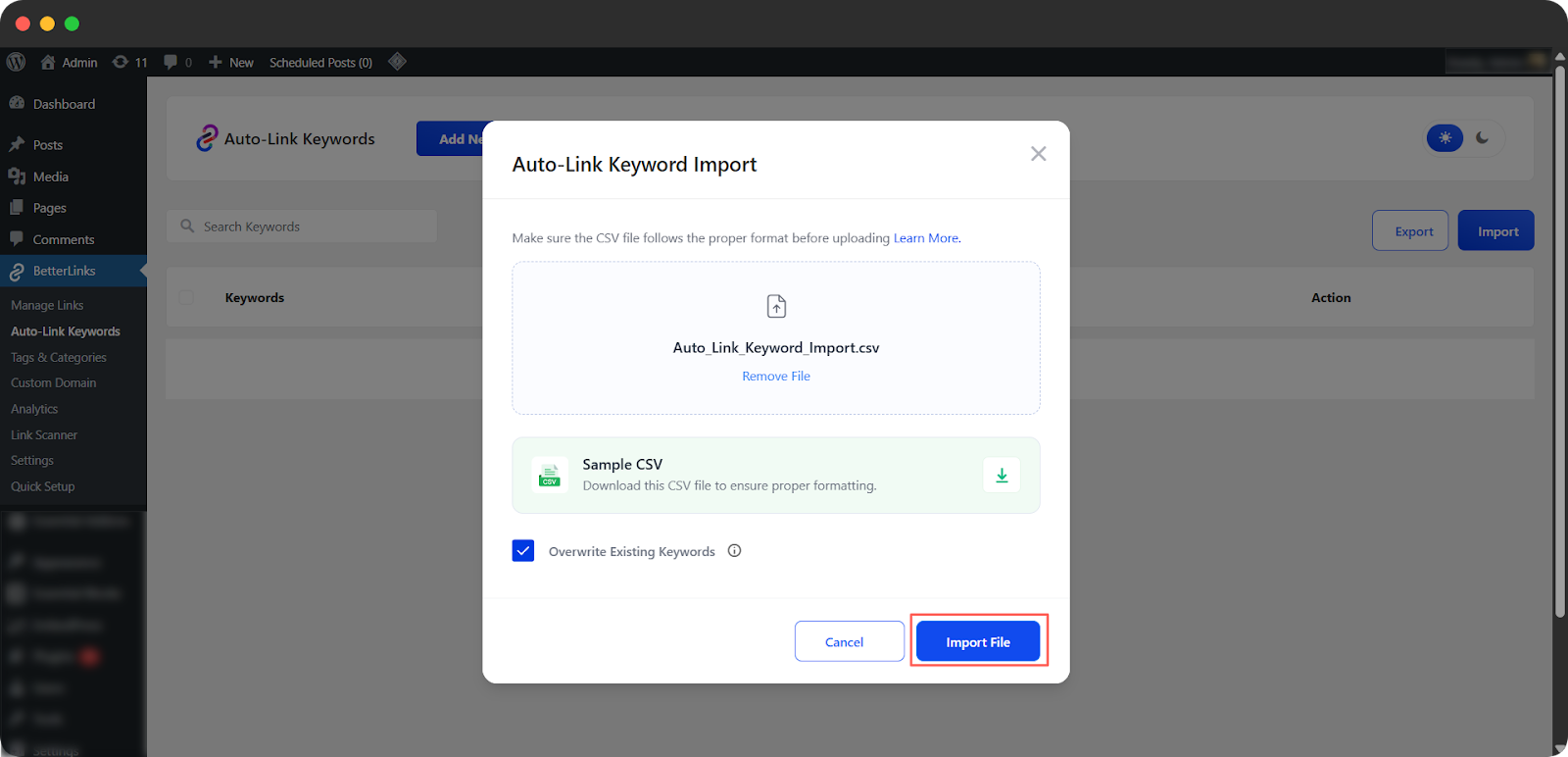
Enable the ‘Overwrite Existing Keywords’ option if you want to replace any duplicate entries. If this option is not selected, duplicate keywords will be ignored during the import process. Once the file upload is complete and the import button becomes active, click the ‘Import File’ button to finish the process.
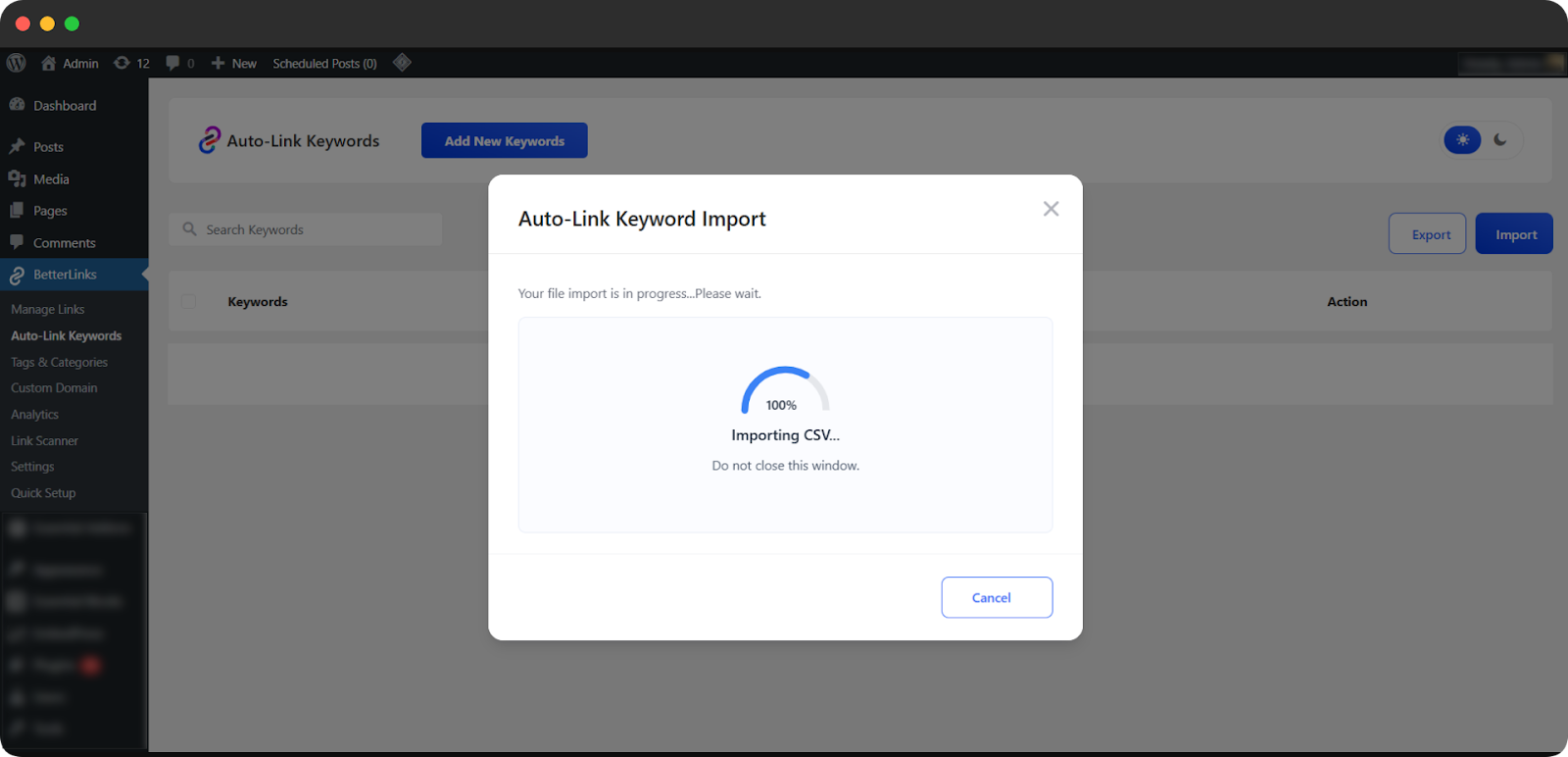
You will see the CSV file start importing and the system will begin processing your keyword data in the background. Make sure to keep this window open and avoid refreshing or closing the page until the import is fully completed.
Once the process finishes, your auto-link keyword rules will be successfully added to BetterLinks and ready to use across your site.
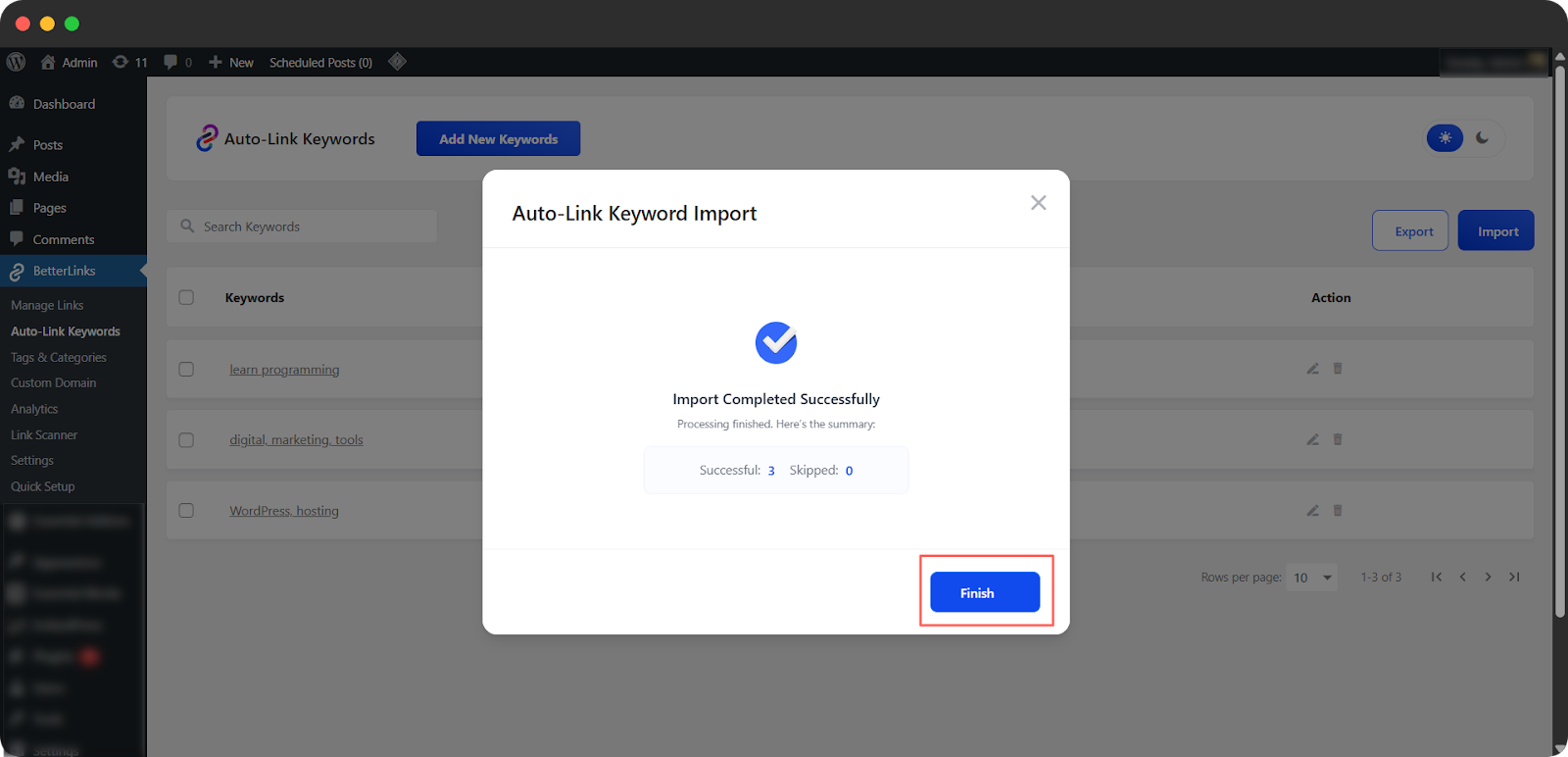
When the import is complete, a success message will appear on your screen confirming that your keywords have been successfully published. Once you see this confirmation, click ‘Finish’ to complete the process and return to your Auto-Link Keywords dashboard.
Final Outcome
You can now see that your imported keywords have been successfully added and automatically linked across your content based on the rules you configured.
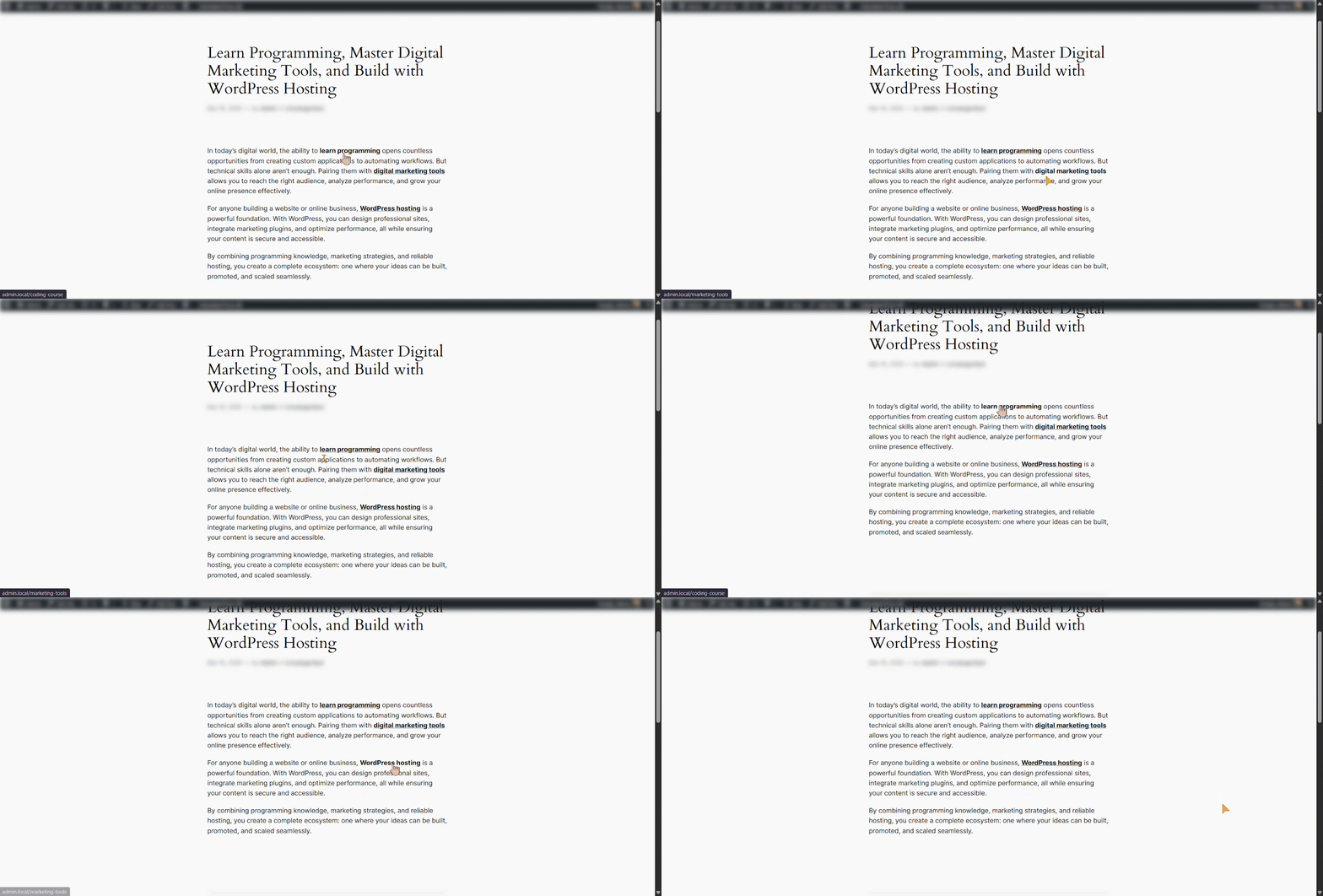
This is how you can effortlessly turn existing content into fully linked, conversion‑focused posts with just one CSV import.
Best Use Cases for Auto-Link Keywords Import & Export
The Auto-Link Keywords Import and Export feature in BetterLinks is built for scalability and efficiency. It becomes especially valuable when managing large volumes of content, multiple campaigns or complex linking strategies across a WordPress site.
Manage Affiliate Links at Scale
For affiliate marketers handling dozens or even hundreds of offers, manually inserting links is not practical. With bulk import, you can map keywords to affiliate links in a CSV file and apply them across your entire site in minutes. This ensures consistent monetization without editing individual posts.
Maintain Consistent Internal Linking
Internal linking plays a key role in SEO and user navigation. This feature allows you to define keyword-based internal links and apply them sitewide. As a result, important pages receive consistent link signals, which can improve crawlability and ranking potential.
Launch Campaign-Based Linking Quickly
When running time-sensitive campaigns, such as product launches or seasonal promotions, speed matters. You can prepare a CSV file with campaign keywords and destination links, then import everything at once. This allows you to activate or update campaign links instantly.
Bulk Update or Replace Links
If you need to update destination URLs, such as switching affiliate partners or updating landing pages, you can export existing rules, edit them in bulk and re-import the file. This avoids manual edits and reduces the risk of missing links.
Manage Large Content Libraries Efficiently
Websites with hundreds of blog posts or product pages benefit from automation. Instead of revisiting old content, you can apply new linking rules across your entire archive using a single import.
Standardize Linking Rules Across Teams
For teams managing content collaboratively, the CSV format provides a structured way to define linking rules. This ensures consistency in how keywords are linked, regardless of who creates or updates the content.
Test And Optimize Linking Strategies
You can experiment with different keywords, link placements, or limits by editing your CSV and re-importing it. This makes it easier to refine your linking strategy based on performance data.
Start Scaling Your Links Today with BetterLinks
The Auto-Link Keywords Import and Export feature in BetterLinks streamlines one of the most repetitive parts of website management. Instead of manually inserting links across multiple posts, you can control everything from a single, structured file and apply changes instantly across your site. This not only saves time but also ensures accuracy and consistency in how your links appear.
Whether you are managing affiliate campaigns, improving internal linking for SEO or updating large volumes of content, this feature gives you full control with minimal effort. It reduces the chances of missed opportunities, keeps your linking strategy organized, and allows you to scale without added complexity.
Is this blog helpful? Join our Facebook community to stay updated with the latest blogs, product reviews and WordPress solutions. Subscribe to our blog for in-depth tutorials, tips and visit our social media platforms for the newest updates.