Managing short links usually means stopping whatever you are doing, opening your WordPress dashboard, finding the right screen and clicking through a few menus before you can create or check a single link. Multiply that by every campaign, every blog post and every affiliate offer and those small interruptions quietly add up across your week.
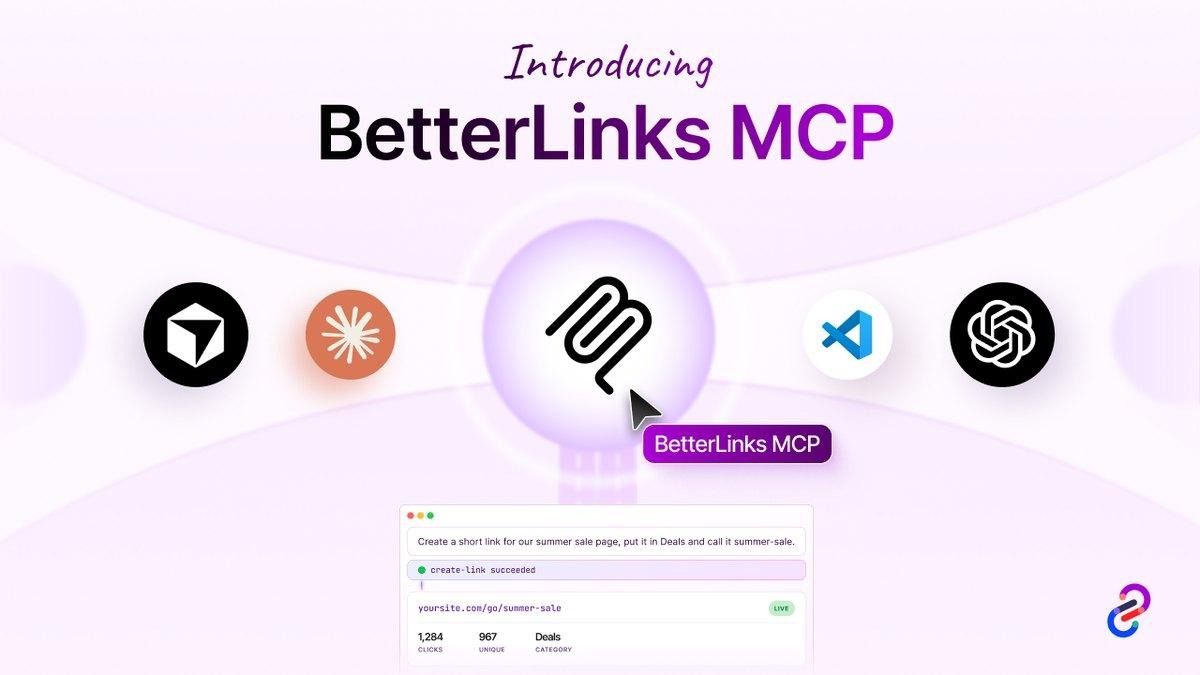
BetterLinks MCP is a free feature that removes that friction completely. It lets AI assistants like Claude and ChatGPT talk directly to your BetterLinks setup, so you can create a branded short link, clean up your categories or pull last month’s click data just by asking. In this guide, you will learn what BetterLinks MCP is, what it can do, who benefits most from it and how to switch it on with BetterLinks.
TL;DR
BetterLinks MCP is a free, built-in server that connects AI assistants and code editors to your WordPress links through a secure connector URL. Turn on MCP access, copy the URL, approve the connection once and your assistant can create, edit and analyze short links using 14 built-in tools. It works with Claude, ChatGPT, Claude Code, Cursor and VS Code.
What Is BetterLinks MCP?
BetterLinks MCP is a built-in Model Context Protocol server that ships with BetterLinks. Model Context Protocol or MCP, is an open standard that lets AI assistants talk directly to the tools you already use. Once BetterLinks is connected, your assistant can act inside your site on your behalf rather than just describing what to do.
In plain terms, it turns your AI assistant into a hands-on link manager. You type a request in normal language, and the assistant runs the matching BetterLinks action on your WordPress site. No dashboard, no copy-pasting slugs and no switching tabs. You approve the connection once through a secure sign-in, then your links stay reachable from wherever you happen to be working.
Why AI-Powered Link Management Matters
Before we get into setup, it helps to understand why this feature is worth turning on. Link management is repetitive by nature. You create slugs, sort them into categories, tag them, check their clicks and tidy up the ones that no longer fit. Each task is small, but together they pull you out of your real work over and over again.
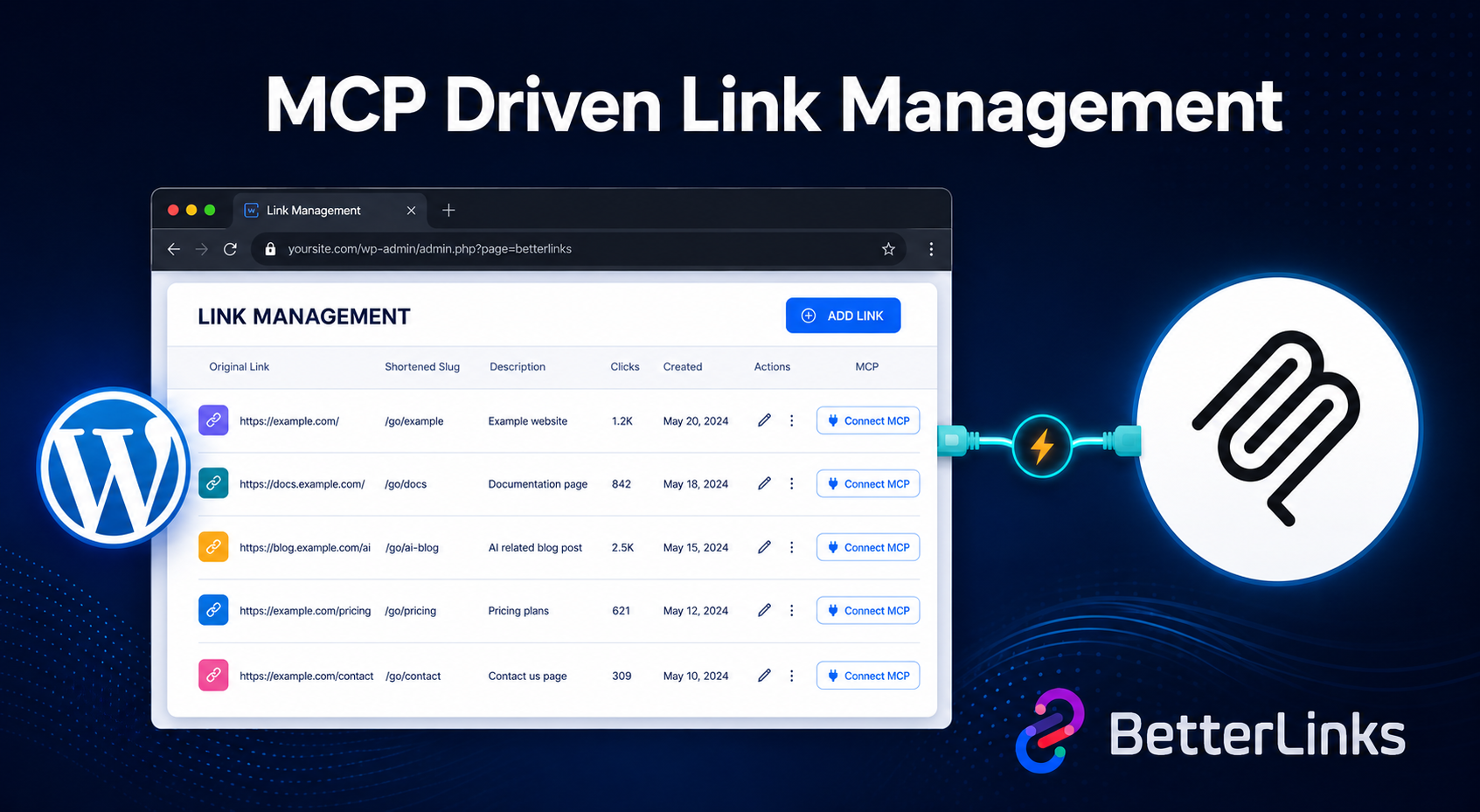
BetterLinks MCP moves those tasks to where you already spend your time. When your assistant can create and analyze links directly, you stop context switching and start delegating. Ask for a branded link while drafting a newsletter, request last month’s top performers during a planning session or clean up messy categories in a single sentence. The work still gets done inside BetterLinks, only faster and without the manual clicking.
It also opens the door to real automation. Because the assistant can chain several tools together, a request like ‘create these five product links and drop them in the Summer Sale category’ becomes one prompt instead of ten separate actions. That is the shift from managing links by hand to managing them by intent.
Key Features & Benefits of BetterLinks MCP
BetterLinks MCP was built to be simple to switch on and safe to run. Every capability is designed to give your assistant just enough access to be useful while keeping you firmly in control.
Here is what stands out:
- Built-in MCP server: There is nothing extra to install. The server ships inside BetterLinks, so you enable it from a single toggle and you are ready to connect.
- One secure connector URL: Your whole setup runs through one connector URL that ends in /betterlinks/mcp. Copy it once and reuse it across every assistant you want to connect.
- Works across your favorite tools: The same connector supports Claude on web, desktop and mobile, ChatGPT, Claude Code, Cursor and VS Code, so your links follow you wherever you work.
- Fourteen focused tools: Read tools fetch data such as links, categories and analytics, while write tools create, update and delete links or terms. Each one maps to a real BetterLinks action.
- OAuth sign-in with clear scopes: You approve access through a BetterLinks screen that shows the exact site, account and read and write scope before anything connects.
- Per-tool permission control: Every tool can be set to allow automatically, ask for approval or block, so risky actions like deleting a link always stay behind a prompt.
- Instant, revocable access: Every connected assistant appears in one list with the account and last request time, and revoking any of them takes effect immediately.
What You Can Do with BetterLinks MCP
Once connected, your assistant gains access to 14 BetterLinks tools. Read tools only fetch data, while write tools change something on your site and stay behind an approval prompt by default. Here is the full set so you can see exactly what your assistant can do for you.
| Tool | Type | What it does |
|---|---|---|
| list-links | Read | List all short links grouped by category, with slug, target URL, status and click count |
| create-link | Write | Create a new short link with slug, target URL, category and nofollow or sponsored flags |
| update-link | Write | Update an existing link’s title, target, slug, redirect type, category or status |
| delete-link | Write | Permanently delete a short link and its click data |
| list-categories | Read | List every link category |
| list-tags | Read | List every link tag |
| create-term | Write | Create a new category or tag |
| update-term | Write | Rename a category or tag |
| delete-term | Write | Delete a category or tag |
| get-analytics | Read | Site-wide click totals, unique visitors and a per-link summary |
| get-link-analytics | Read | Detailed click data for a single link |
| get-analytics-graph | Read | Time-series graph data for the dashboard chart |
| get-settings | Read | Read current BetterLinks settings |
| update-settings | Write | Update BetterLinks settings with a partial merge that preserves untouched keys |
Everyday Use Cases
Those tools translate into simple, everyday requests. A few examples of what you can ask your assistant to handle:
- Create a branded short link for a landing page while you write, without leaving your draft.
- Turn a batch of raw product URLs into clean, categorized short links in one prompt.
- Pull last month’s top-performing links and unique visitor counts during a planning session.
- Rename or reorganize messy categories and tags so your library stays tidy.
- Check the click history of a single campaign link before you report on results.
- Review or adjust your BetterLinks settings without hunting through menus.
How to Set Up BetterLinks MCP
Getting started takes only a few minutes. The setup has three simple parts: switch on MCP access inside BetterLinks, copy your connector URL, then connect the assistant of your choice.
Note: Before you start, make sure you have installed and activated BetterLinks on your WordPress website.
Step 1: Enable MCP Access
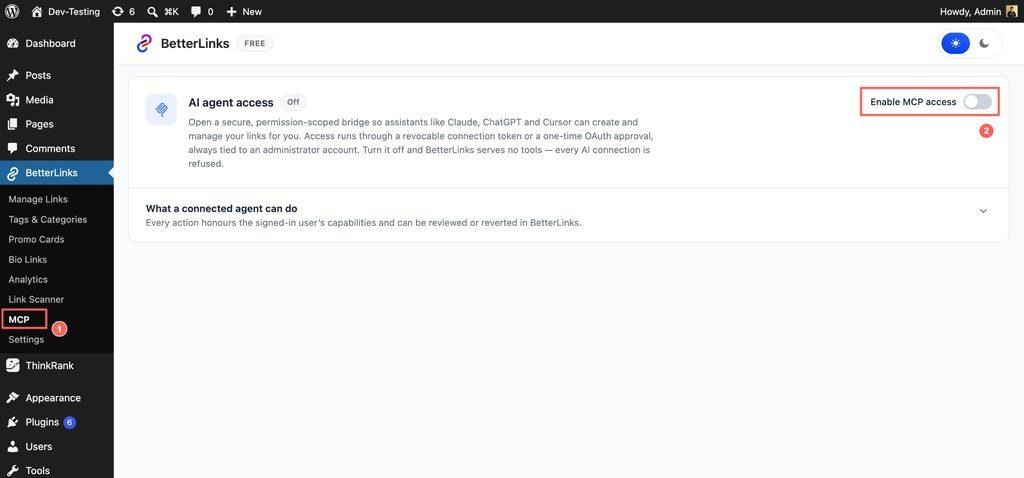
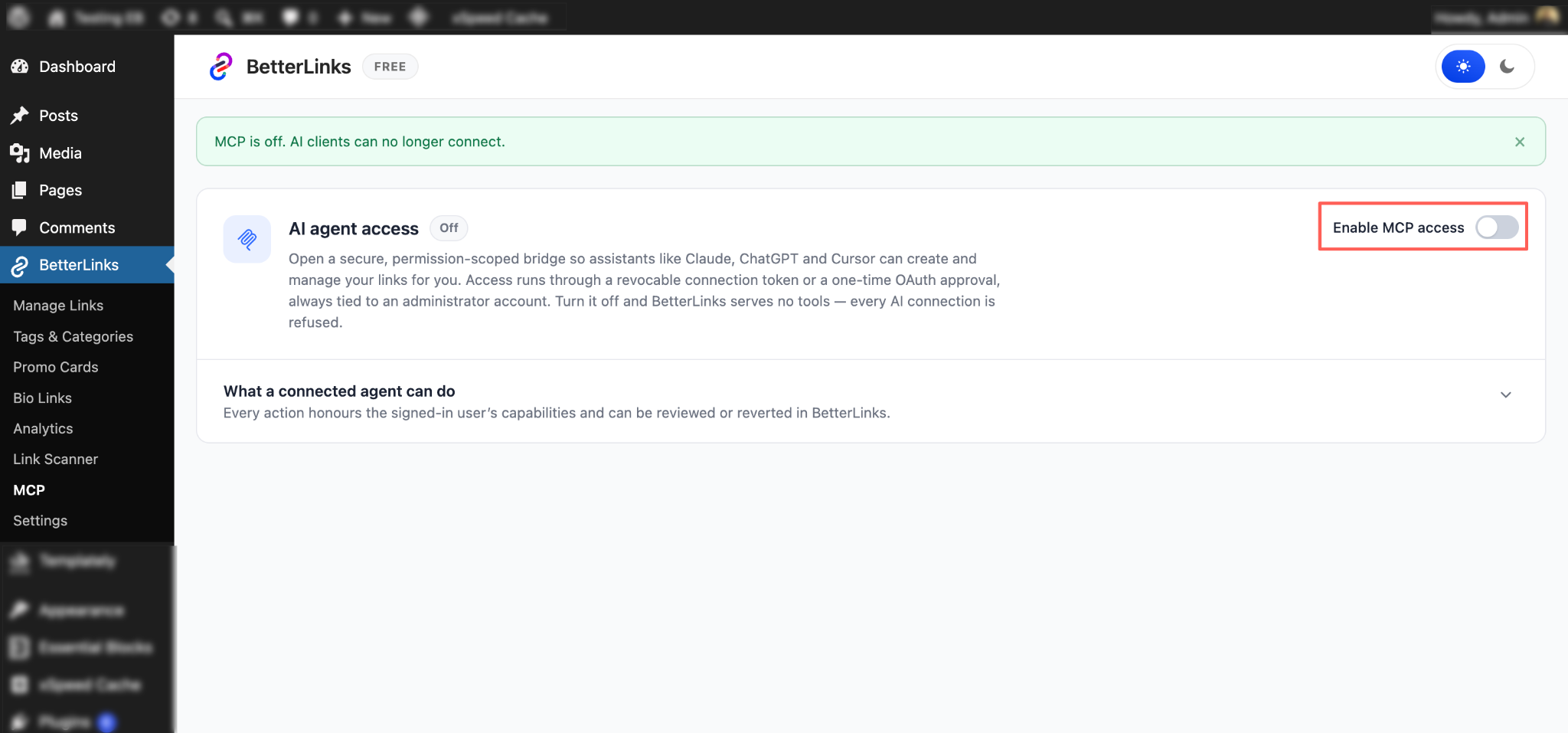
From your WordPress dashboard, go to BetterLinks → MCP. By default the AI agent access status is set to Off, which means BetterLinks serves no tools and turns away every incoming AI request. Click the Enable MCP access toggle in the top right corner to switch it on. You can also expand the What a connected agent can do panel to review the capabilities before you connect anything.
Step 2: Copy Your Connector URL
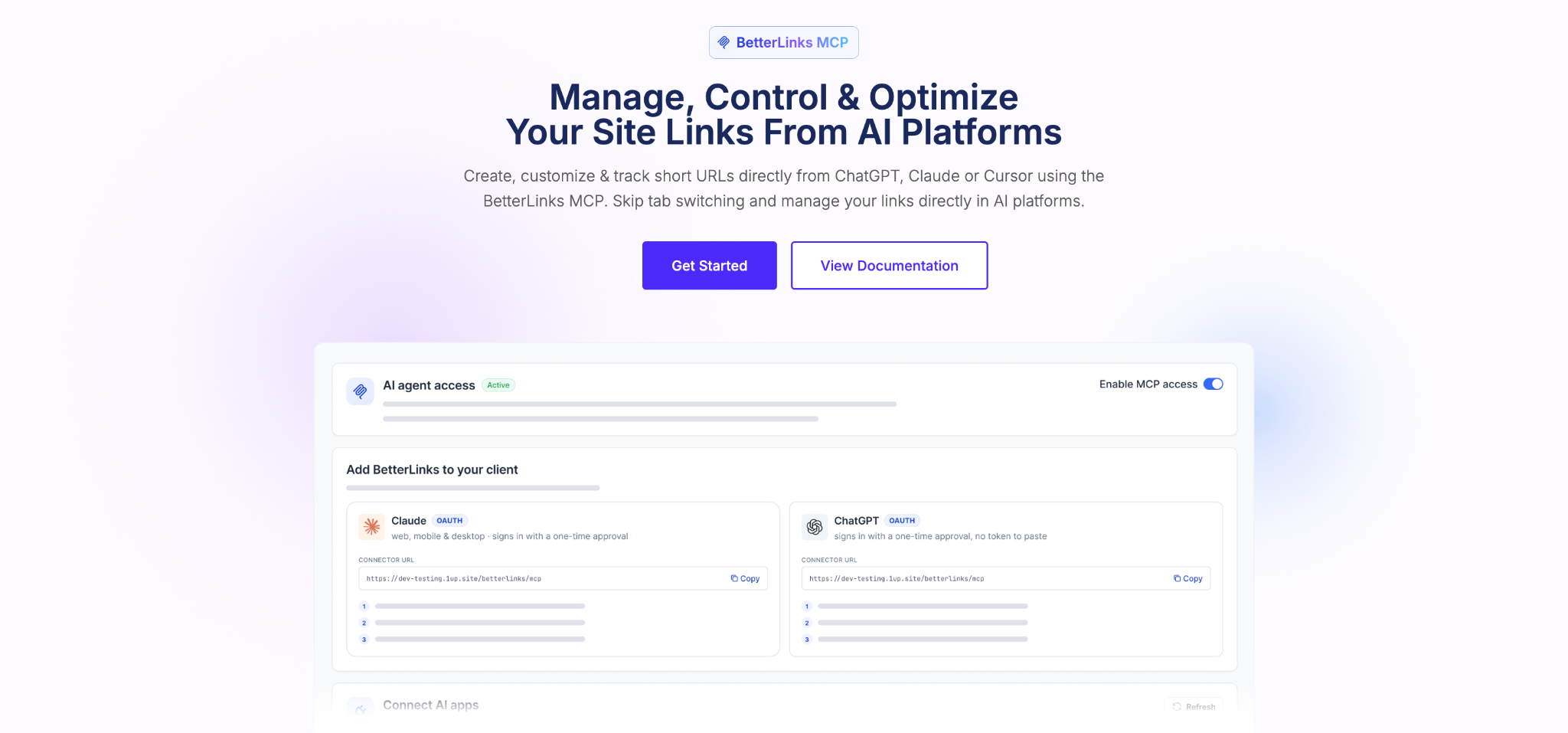
Scroll down to the Add BetterLinks to your client section and stay on the OAuth tab. You will see a card for Claude and a card for ChatGPT, each showing the same connector URL, which is simply your site address followed by /betterlinks/mcp. Click Copy on the card that matches your assistant and keep the URL handy for the next step.
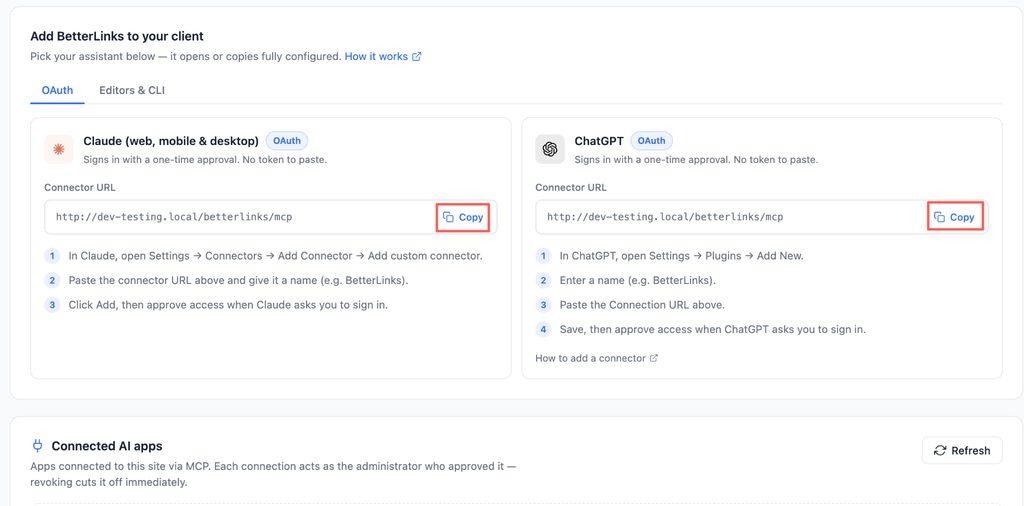
One connector URL powers both the Claude and ChatGPT connections through a one-time OAuth sign-in.
Step 3: Connect Editors & CLI Tools
If you prefer to work from your code editor or terminal, switch to the Editors & CLI tab. BetterLinks prepares a ready-to-run setup for Claude Code, Cursor and VS Code, so you do not have to write any configuration by hand. The Reset token button on the right is your emergency switch if you ever suspect the shared token has leaked.
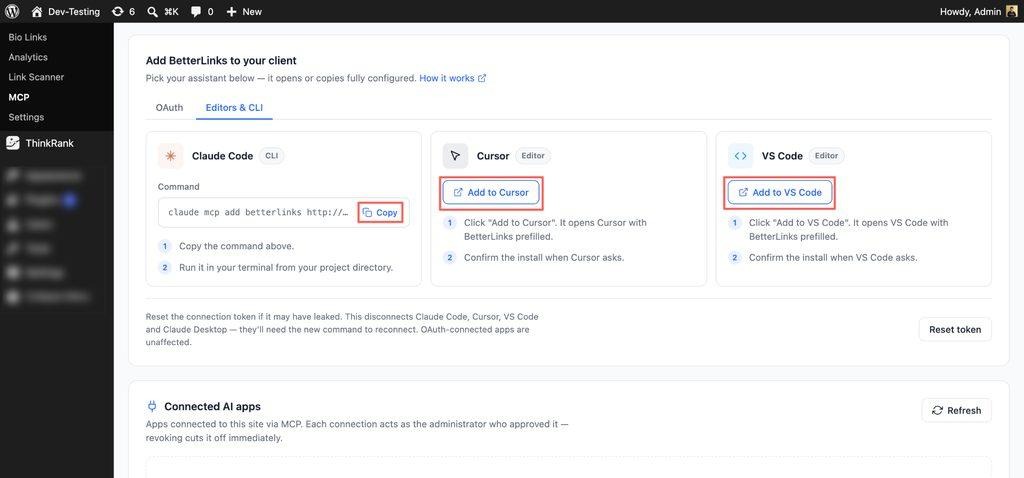
The Editors and CLI tab hands you a prefilled command or one-click install for each supported tool.
Step 4: Connect & Approve in Claude
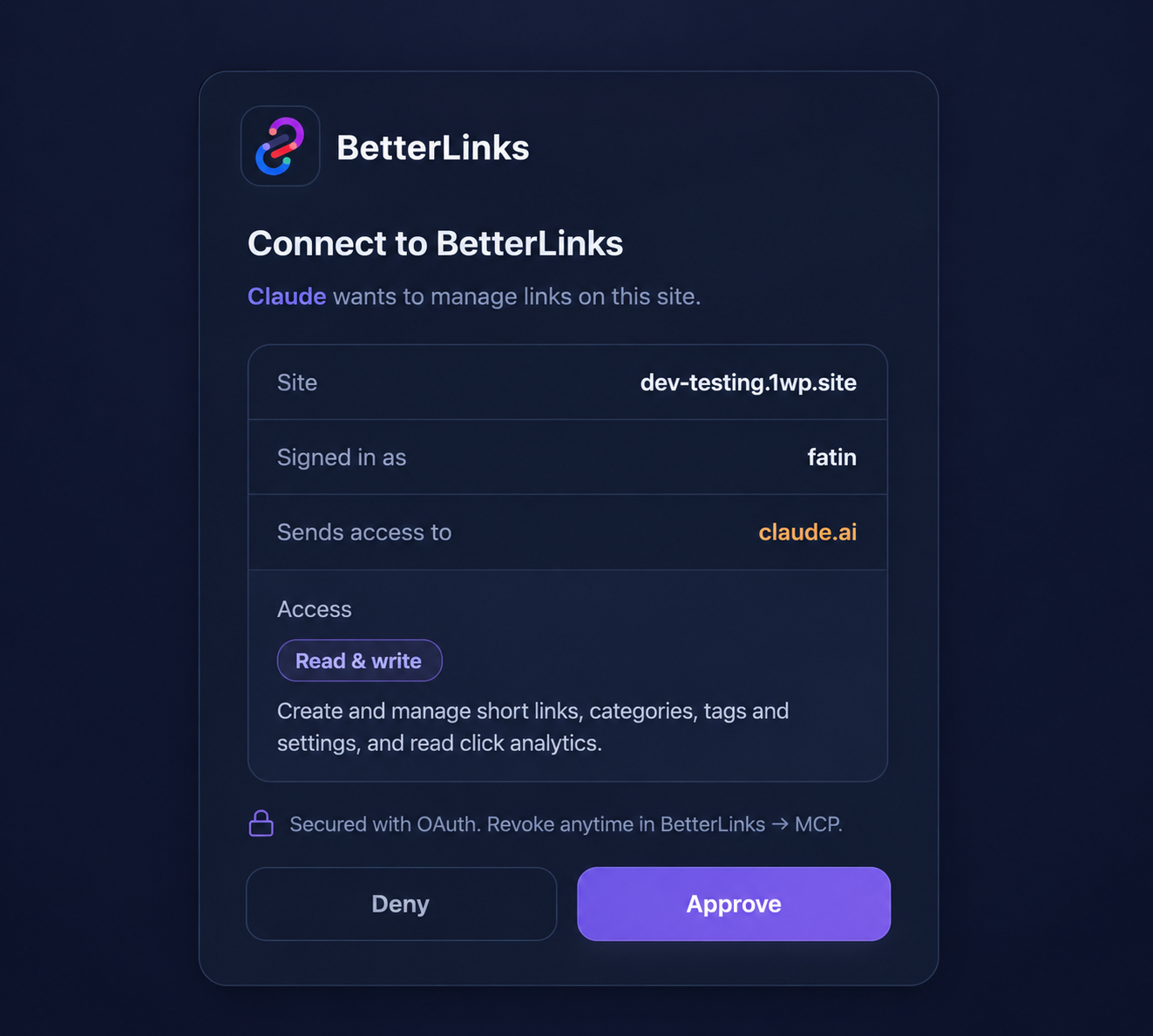
In Claude, open Customize → Connectors, choose Add custom connector, give it a name like BetterLinks MCP and paste your connector URL. Click Connect, then review the BetterLinks approval screen. Confirm the site and account details, check the Read and write scope and click Approve.
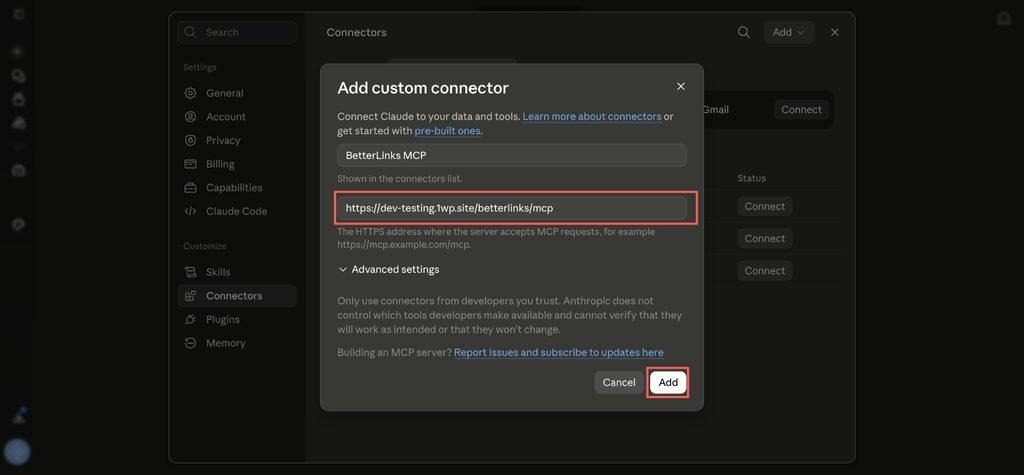
Adding BetterLinks as a custom connector in Claude takes a name and the connector URL you copied earlier.
After adding the BetterLinks MCP connector to Claude, sign in to your BetterLinks account and review the requested access. Check the connected site and permissions, then click Approve to allow Claude to access your BetterLinks.
Step 5: Set Tool Permissions & Test
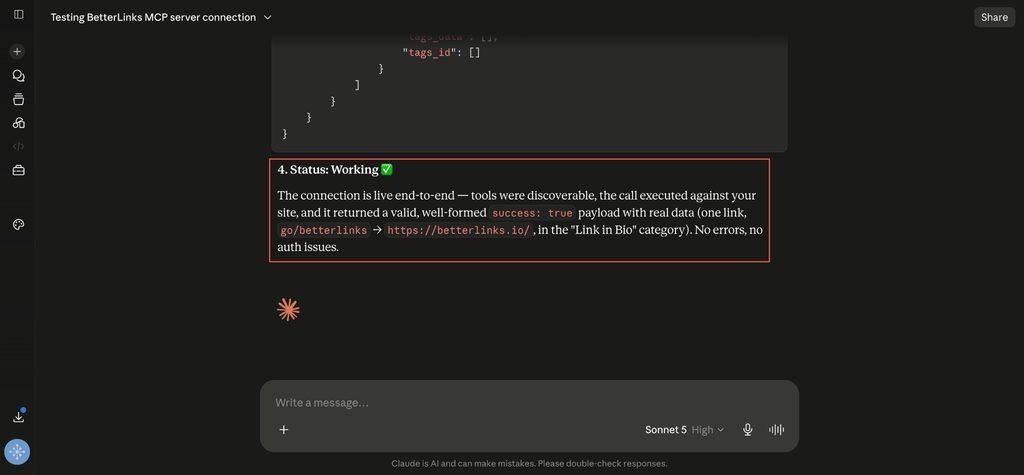
Once connected, all 14 BetterLinks tools appear under Tool permissions. Each one can be set to allow automatically, ask for approval or block. A good habit is to keep destructive tools such as delete-link on Needs approval, while read-only tools like get-analytics can run automatically if you use them often. Run a quick read-only test to confirm everything works.
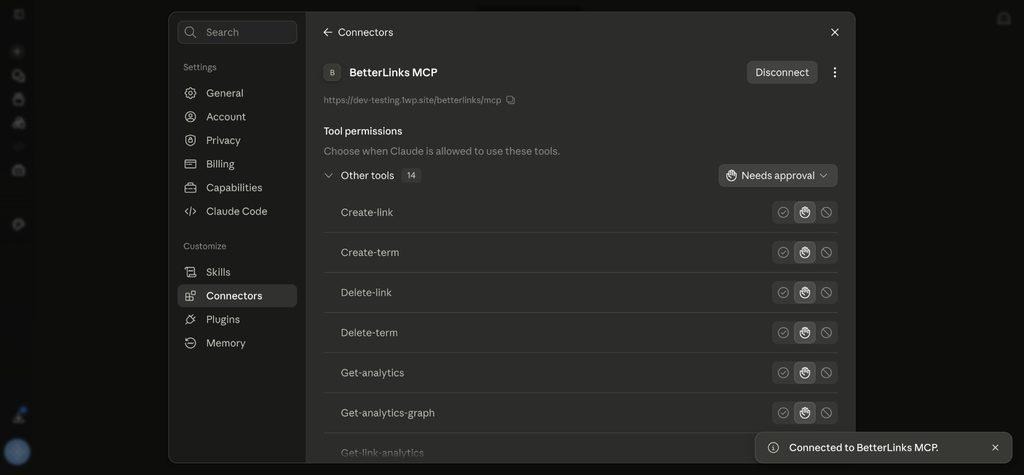
A successful connection status will be displayed once you link BetterLinks with Claude through its MCP feature. This integration ensures your setup is verified and ready to use. With MCP enabled, you can seamlessly manage, optimize and create links directly from your AI platform, all without the need to constantly switch between systems.
Step 6: Connect ChatGPT
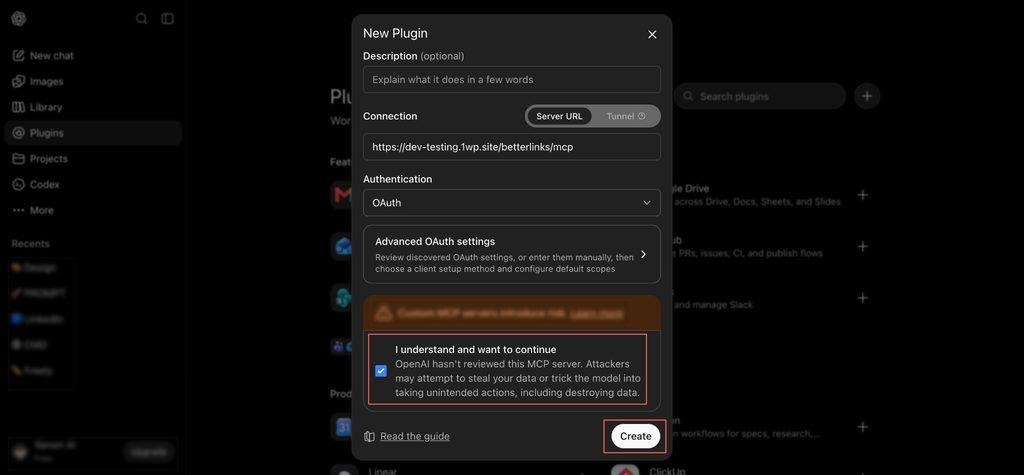
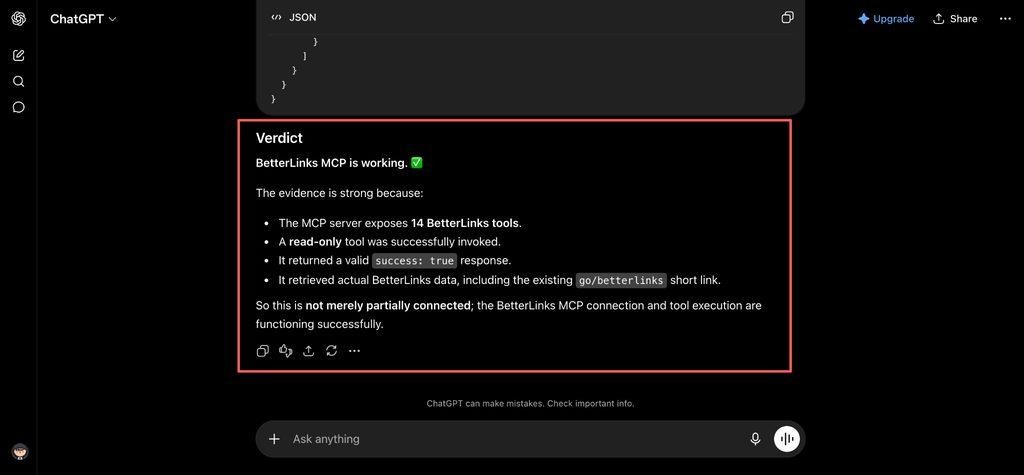
ChatGPT connects with the same connector URL but you first turn on Developer mode under Security and login. Then add a new plugin, paste the URL, keep authentication set to OAuth, accept the risk notice and create it. Sign in with BetterLinks, approve access and run the same test prompt to confirm the 14 tools are live.
Final Outcome
BetterLinks MCP connects ChatGPT with your WordPress links so you can manage, create and analyze short links directly from ChatGPT without opening your WordPress dashboard.
For the full walkthrough, including HTTPS and permalink requirements, disconnecting an assistant and troubleshooting tips, head to the complete BetterLinks MCP documentation.
Who Gets the Most Out of BetterLinks MCP
BetterLinks MCP fits anyone who manages links in WordPress and wants to spend less time clicking through the dashboard. A few groups in particular will feel the difference right away. Here is a quick look at how different users put it to work.
| User | How BetterLinks MCP helps |
|---|---|
| Affiliate marketers | Spin up branded, categorized links for new offers in seconds and pull click data on your best performers without leaving your chat. |
| Content creators | Create trackable short links while you write, then check how they perform later with a single request. |
| SEO specialists | Audit link status, tidy categories and review analytics quickly to keep your link structure clean and consistent. |
| Marketing teams | Batch-create campaign links, organize them by category and report on results through simple prompts. |
| Developers | Manage links straight from Claude Code, Cursor or VS Code, so link work stays in the same environment as your build. |
| Agencies | Keep consistent link standards across client sites and grant or revoke assistant access per project in one click. |
How BetterLinks MCP Shifts Link Management to the Next Level
Traditional link management is a series of manual steps inside a dashboard. You open a screen, fill a form, save, repeat. BetterLinks MCP replaces that rhythm with intent. You describe the outcome you want, and your assistant carries out the matching actions inside BetterLinks for you.
Three things make that shift meaningful. First, the work comes to you. Whether you live in Claude, ChatGPT or your code editor, your links are reachable from the same window you already work in. Second, tasks can be chained. Because the assistant can call several tools in a row, multi-step jobs like creating a set of links and sorting them into a category happen in one request. Third, control stays granular. OAuth scopes, per-tool permissions and instant revocation mean speed never comes at the cost of safety.
The result is a link workflow that feels less like software you operate and more like a teammate you delegate to. That is a genuine step up from clicking through menus one link at a time.
Tips to Get the Best Results
A few simple practices can help you get more from BetterLinks MCP while keeping your link management secure and organized. Follow these tips to make AI-assisted link management smoother, safer and more reliable.
- Approve MCP access from a stable administrator account, since the connection inherits that account’s capabilities.
- Keep destructive tools like delete-link and delete-term on Needs approval so nothing important is removed by accident.
- Serve your site over HTTPS, which Claude and ChatGPT require before they will sign in.
- Review the Connected AI apps list from time to time and revoke anything you no longer use.
Start Managing Your Links with AI Today
Link management should not pull you out of your work. Turn on BetterLinks MCP, connect your assistant once and let Claude, ChatGPT or your favorite editor handle short links right alongside you.
Getting stuck or facing issues? Feel free to contact our support team for further assistance or browse the full BetterLinks documentation to explore more features. Want more WordPress tips and product updates? Subscribe to the BetterLinks blog for the newest tutorials and demos.